



Does Synology NAS support SMB Protocol?

If you've recently invested in a Synology NAS or are considering one for your home or business setup, you're probably exploring how well it integrates with your existing devices, especially across Windows, macOS, and Linux systems. One of the most common questions users ask is: Does Synology NAS support the SMB protocol? The short answer is yes, but there's much more to it than just ticking a compatibility box.
In this article, we'll explain the SMB protocol, how Synology supports it, how to enable and optimise it in DiskStation Manager (DSM), and what it means for multi-platform file sharing across your network.
What is SMB and Why Does It Matter?
The Server Message Block (SMB) protocol is a network communication protocol primarily used to provide shared access to files, printers, and serial ports between nodes on a network. Originally developed by IBM and later popularised by Microsoft, SMB has evolved over decades and is now one of the cornerstones of file-sharing functionality across networks.
When you access a file on another computer using a network share (like when you open a shared folder on your office's file server), you're likely using SMB behind the scenes. It supports user authentication, network browsing, and access control, making it ideal for both personal and enterprise use.
For users with mixed operating systems in their environment, such as a Windows laptop, a MacBook, and a Linux server, having a shared protocol like SMB becomes critical. That's where Synology NAS steps in.
Synology NAS and SMB: A Perfect Match
Synology NAS devices fully support the SMB protocol, allowing seamless file sharing and communication between your NAS and any system that understands SMB/CIFS (Common Internet File System). This includes virtually all modern Windows versions, macOS, and most major Linux distributions.
Synology's DiskStation Manager (DSM) - the web-based operating system that powers every Synology NAS offers a user-friendly way to enable and configure SMB. Whether using your NAS as a central file hub at home or as a mission-critical storage unit in a small business, enabling SMB ensures compatibility with your clients, devices, and apps.
Beyond simple file access, Synology's implementation of SMB integrates with Windows Active Directory (AD), supports advanced permission management, and allows for smooth integration with Time Machine backups on macOS (if configured correctly).
How to Enable SMB on a Synology NAS
Getting SMB up and running on a Synology NAS is relatively easy.
Here's how you can enable the service in DSM:
- Log into DSM
Use your browser to access DSM by entering the NAS IP address or hostname. You'll be prompted to log in with your administrator credentials.
- Open the Control Panel
Once inside DSM, head to the main menu and select "Control Panel." This is where most system-level settings are managed.
- Navigate to File Services
Within the Control Panel, click on "File Services." This tab manages SMB, AFP (for older Macs), and NFS (for Linux/Unix systems).
- Enable SMB/CIFS
Tick the box labelled "Enable SMB Service" or "Enable SMB/CIFS." You'll also have the option to configure advanced settings like SMB version compatibility, transport encryption, and more.
- Apply the Settings
Click "Apply" to finalise the configuration. Your Synology NAS is now ready to share files over SMB.
Once SMB is enabled, your shared folders on the NAS can be mapped as network drives in Windows Explorer, accessed via Finder on macOS, or mounted via the mount command in Linux.
Which SMB Versions Does Synology Support?
Synology NAS devices support multiple versions of the SMB protocol, including:
- SMB1: Legacy support for older systems. Use with caution due to known vulnerabilities.
- SMB2 and SMB2.1: More secure and faster than SMB1.
- SMB3 and SMB3.1.1: Introduced in Windows 8/10 and later, these versions include security enhancements such as end-to-end encryption, better performance over WAN, and advanced authentication mechanisms.
DSM allows administrators to specify which versions are allowed to communicate with the NAS, offering flexibility and security customisation. In most cases, SMB3 is the recommended default.
Why Use SMB Over Alternatives?
You might be wondering why SMB is often preferred over other network protocols like NFS or AFP. The answer lies in both platform compatibility and feature support:
- SMB is native to Windows and offers tighter integration with NTFS file systems, Windows Explorer, and domain-based authentication.
- macOS supports SMB by default, and while AFP was once the go-to, Apple has deprecated AFP in favour of SMB since macOS 10.9 Mavericks.
- Linux distributions also support SMB, usually via the Samba package, making SMB a universal file-sharing language across platforms.
Use Cases for SMB on Synology NAS
The use of SMB on a Synology NAS extends well beyond just opening folders across devices. Here are a few real-world scenarios where SMB plays a crucial role:
- Cross-Platform Team Collaboration
Let's say you have a small business with employees using a mix of Windows and Mac devices. By configuring SMB shares, everyone can access centralised project folders from their native file browsers without needing to install any special software.
- Seamless Multimedia Streaming
Using SMB, you can stream videos, music, and photos from your NAS directly to compatible media players, smart TVs, or home theatre PCs. Many apps—including Kodi and Plex—can access SMB shares for media libraries.
- Secure Remote File Access
When paired with a VPN, SMB enables you to securely access your files on the go. This is ideal for remote teams or solo professionals working from different locations.
- Automated Backups
Windows' built-in File History and macOS Time Machine (when properly configured) can use SMB shares as backup targets, creating a robust, centralised backup strategy.
Performance and Security Considerations
While SMB is widely supported and flexible, it's essential to consider performance and security:
- Disable SMB1 unless absolutely necessary, as it is outdated and vulnerable to attacks (e.g., the infamous WannaCry ransomware exploited SMB1).
- Enable encryption in SMB3 if sensitive data is transmitted over less secure networks.
- Use access control lists (ACLs) and user permissions to restrict file access to authorised individuals only.
- Enable logging and notifications in DSM to monitor access patterns and detect unusual behaviour.
Tips to Optimise SMB Performance on Synology
If you're sharing large files or supporting multiple concurrent users, you might want to squeeze out every bit of performance from your NAS. Here are a few tips:
- Enable SMB3 and multichannel support (if available).
- Use gigabit or 2.5G/10G network interfaces for improved data transfer speeds.
- Keep firmware and DSM updated to benefit from SMB protocol enhancements.
- Adjust TCP window size and enable large MTU (jumbo frames) if your network infrastructure supports it.
Troubleshooting SMB Access Issues: Common Problems and How to Fix Them
Even when SMB is enabled correctly on your Synology NAS, you might find that your device isn’t showing up in File Explorer, or you're suddenly locked out of a shared folder. These hiccups can be frustrating - but the good news is, most SMB-related issues have straightforward fixes.
Let’s discuss some of the most common problems people run into when using SMB on Synology, and how to resolve them effectively.
Why Can't I Access My Synology NAS via File Explorer on Windows?
Solution:
First, try accessing the NAS using its IP address instead of its hostname. For example: \\192.168.1.50\SharedFolder. If that works, the issue is likely DNS-related.
To fix this permanently:
- Ensure that your NAS and PC are on the same local network.
- Add your NAS's IP address and hostname to the Windows hosts file.
- Or configure your router's DNS settings to ensure local name resolution is functioning properly.
Additionally, check the "Network Discovery" setting on your Windows PC - it must be enabled for network devices to appear.
Why Am I Getting a Login Prompt, and My Password Keeps Failing?
Solution:
This usually happens if:
- You're using incorrect credentials (check for a valid DSM username and password).
- You're entering credentials using the wrong domain format. Try using NASNAME\username or simply username, depending on how your NAS is configured.
If the problem persists:
- Go to Control Panel > File Services > SMB > Advanced Settings in DSM and make sure your authentication settings allow NTLMv1 or NTLMv2 as needed by your Windows version.
- Also, delete any stored Windows credentials that may be outdated (go to Control Panel > Credential Manager on Windows).
Why Does My Synology NAS Not Appear in the "Network" Section of File Explorer?
Solution:
This often happens because Windows disables the SMB1 protocol by default for security reasons. Some NAS models still use SMB1 for network discovery (though not for file sharing).
To resolve this:
- On your Windows PC, enable the SMB 1.0/CIFS Client feature. Go to:
- Control Panel > Programs > Turn Windows features on or off and tick "SMB 1.0/CIFS Client".
Important: SMB1 should only be enabled temporarily for discovery - not for data transfer, due to its security vulnerabilities. You can still connect directly using the NAS IP address or hostname, which does not require SMB1.
Why Are My File Transfers Slow or Failing Over SMB?
Solution:
Several factors could affect SMB performance:
- Make sure your NAS and client devices are connected via Gigabit Ethernet or better (e.g., 2.5G or 10G).
- Enable SMB3 in DSM for enhanced throughput and better resilience.
- If your NAS has multiple network ports, enable SMB Multichannel to increase performance with multiple parallel connections.
- Check for Jumbo Frame support—if all network devices support it, enabling it on the NAS can help with large file transfers.
Why Is My Mac Unable to Connect to SMB Shares on Synology NAS?
Solution:
Try the following:
- Use smb://[NAS IP] instead of using Bonjour or hostname-based discovery.
- In DSM, navigate to Control Panel > File Services > SMB, and ensure that Time Machine support isn't interfering with the main share access.
- On macOS, go to System Settings > Network and verify that file sharing is allowed through the firewall.
- If the issue started after a macOS update, ensure that both DSM and macOS are running their latest versions.
Why Am I Seeing 'Access Denied' Even Though I Have Permissions?
Solution:
Double-check both Shared Folder Permissions and File/Folder ACLs in DSM:
- Go to Control Panel > Shared Folder > Edit > Permissions to make sure the user has Read/Write access.
- Then check Control Panel > File Services > SMB > Advanced Permissions to enable ACL if you're using more granular file-level permissions.
Also:
- Ensure that the Recycle Bin and Directory Access Control settings don't override permissions.
- If needed, reset the permissions on the shared folder to avoid conflicts.
How Can I See Who's Accessing the NAS via SMB?
Solution:
Synology DSM includes a feature called SMB Status:
- Go to Control Panel > File Services > SMB > Connection List to view all currently connected clients and their IP addresses.
- You can also enable Advanced Logging under Control Panel > Log Center to track failed login attempts, access times, and user behaviour.
This is particularly useful for identifying whether the issue is device-specific or affecting multiple users.
Conclusion:
To answer the original question, yes, Synology NAS fully supports the SMB protocol, and that's a big deal for anyone managing files across multiple devices or operating systems. Whether you're a home user backing up personal data, a business running collaborative workflows, or an IT professional managing secure file access, enabling SMB unlocks a fast, familiar, and flexible way to interact with your Synology NAS.
From simple file sharing and backups to media streaming and team collaboration, SMB gives your NAS the universal language it needs to talk to Windows, macOS, and Linux systems. And with DSM making it easy to configure and fine-tune performance, your network setup doesn't need to be complex to be powerful.
Still planning your next upgrade? At Laptop Outlet, you can explore our full range of Synology NAS solutions, NAS hard drives, and high-speed computer memory storage options. Whether you're shopping from the Synology store or official outlet or looking for the best NAS in the UK, we've got the tech to support every setup.
| Read More: |
| How to transfer photos from iphone to laptop without usb |
| How to Choose the Right Printer for Your Needs |
| Easter Eggs or Tech Gifts? A Fun-Filled Celebration |
Related Articles

Last Updated: September 11, 2025
Last Updated: September 29, 2026
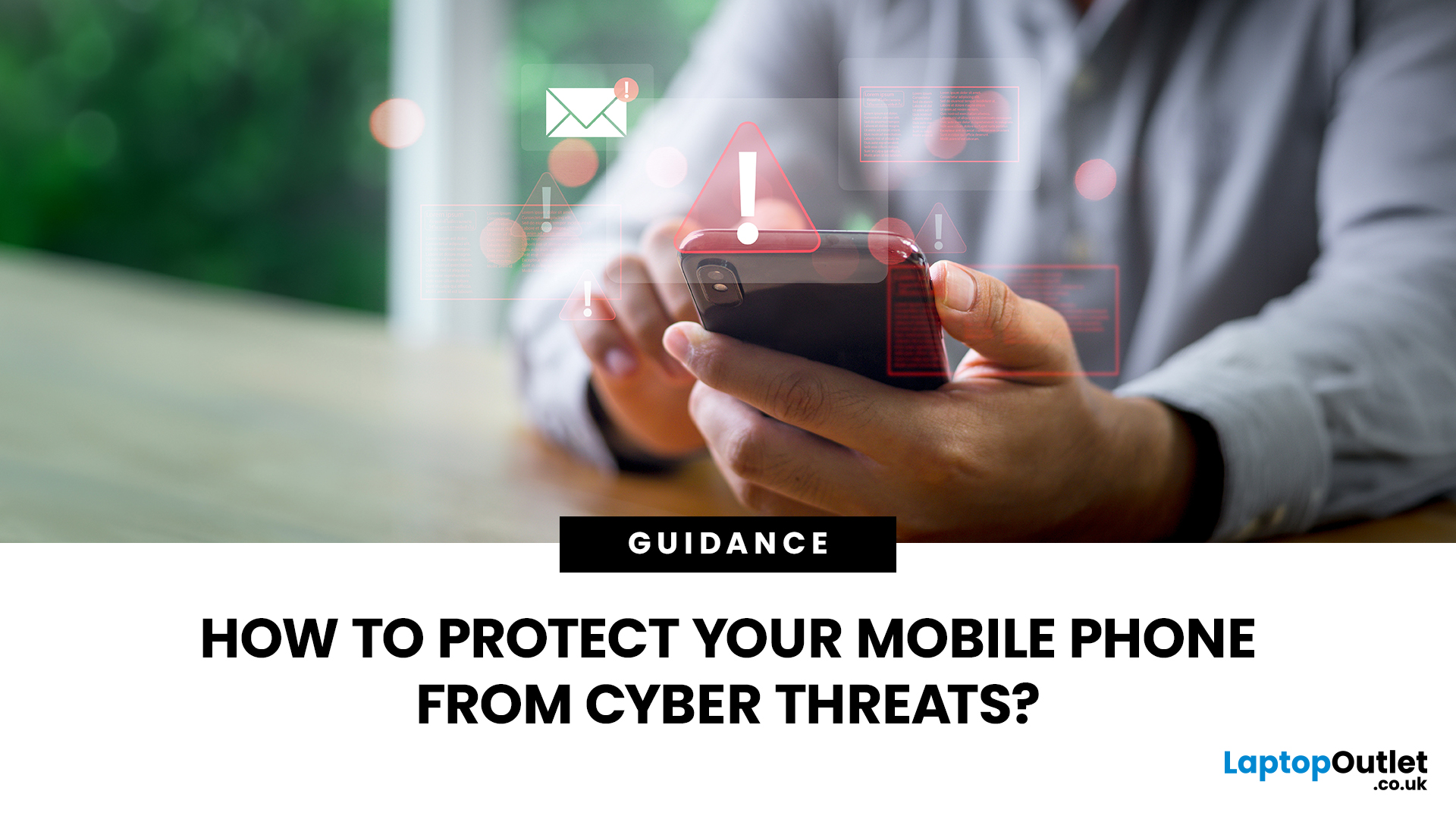
Your phone probably holds far more sensitive information than you realise. Banking apps, emails, passwords, photos, work accounts, payment cards, and location data can all make smartphones attractive targets for cyber criminals.
The good news is that modern iPhones and Android devices already include strong security features. Protecting your phone from cyber threats is therefore less about installing lots of security apps and more about using the protections already available, keeping your software current and recognising scams before you interact with them.
Here is how to improve your mobile phone security without making everyday use unnecessarily complicated.
What Cyber Threats Can Affect Your Phone?
Modern mobile cybersecurity threats do not always involve someone technically "hacking" into your handset. Attackers often target the person using the phone instead. Common risks include:
- Phishing and smishing: fake emails, SMS messages or messaging-app alerts designed to steal passwords
Last Updated: June 10, 2026
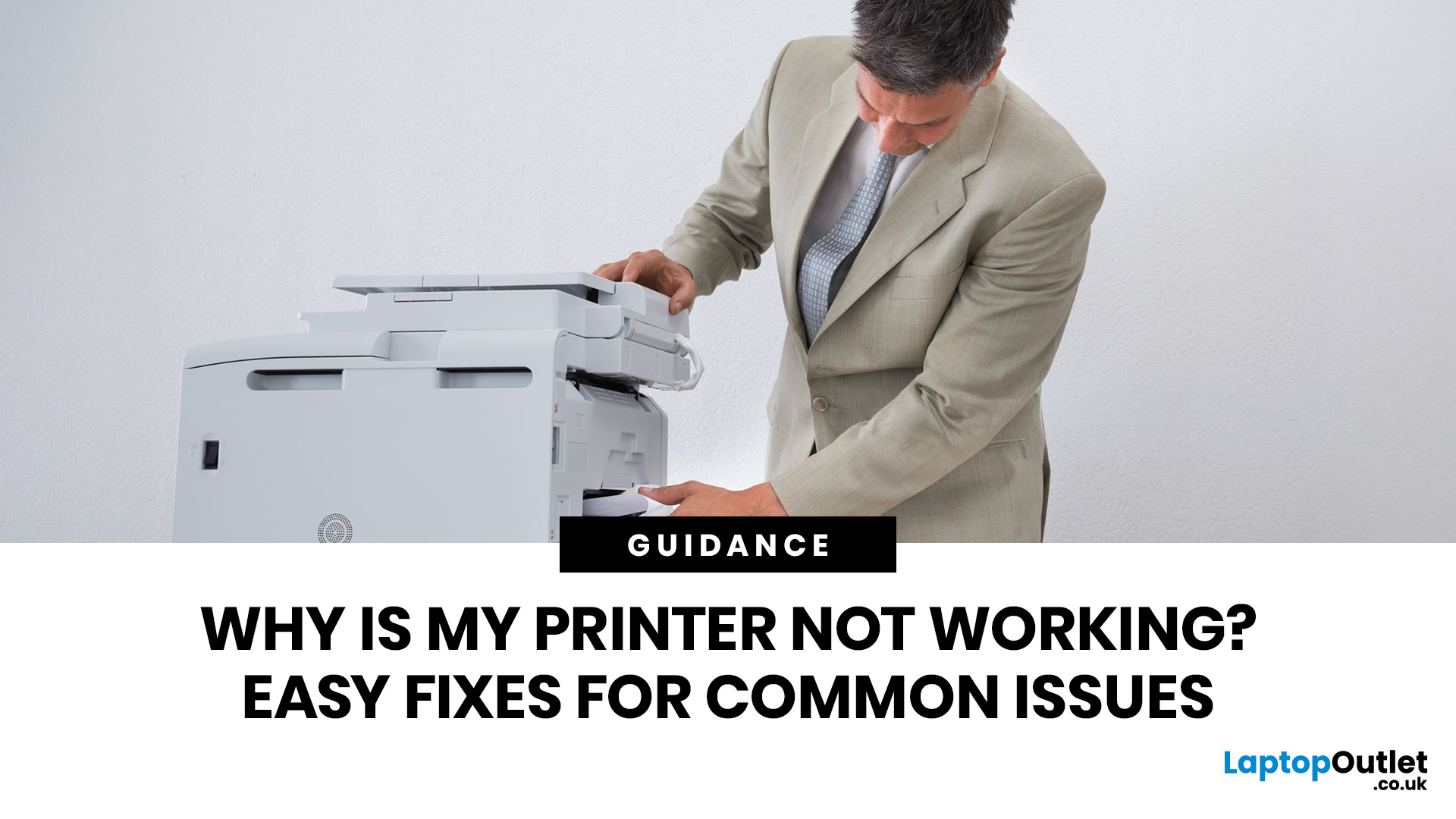
Quick Answer: If your printer is not working, start by checking it is powered on, connected to the correct Wi-Fi network, and set as the default printer. Clear any stuck print jobs from the queue, update or reinstall the printer driver, and restart the Print Spooler service on Windows. On Mac, reset the printing system via System Settings. Most printer problems are solved within minutes with these steps.
A ‘printer not working’ issue is one of the most common tech complaints in UK homes and offices. The good news? Most printer problems are surprisingly easy to fix once you know where to look. This guide covers every major printer fault, with accurate, step-by-step fixes for both Windows 11 and macOS.
What Should I Check First When My Printer Stops Working?
Before diving into software fixes, run through this 60-second physical checklist. You would be surprised how often the simplest things are the actual culprit.
- Power: Is the printer switched on and showing a ready or
Last Updated: September 11, 2025
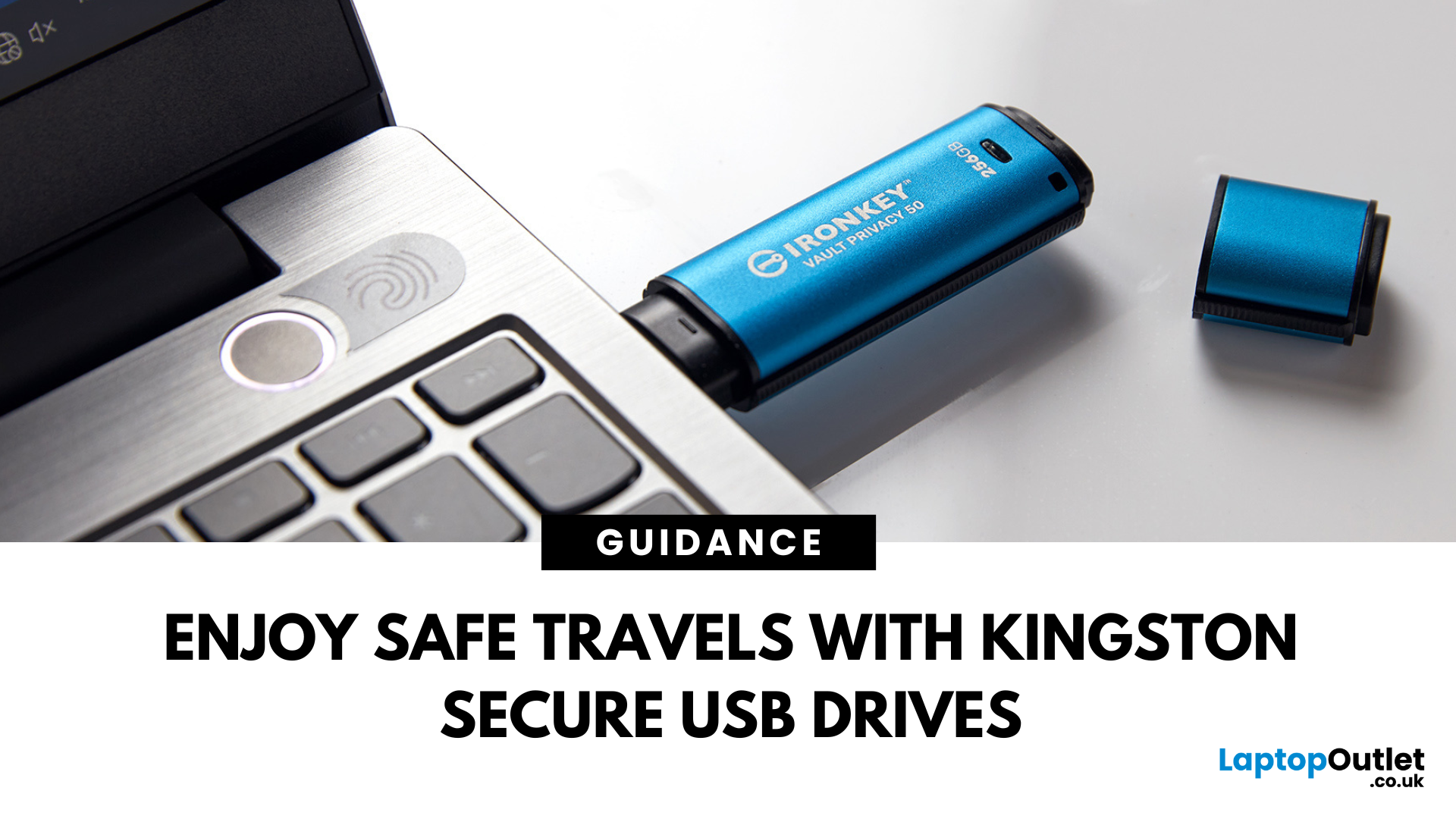
Enjoy Safe Travels with Kingston Secure USB Drives:
Whether you are a business professional travelling across continents or a student going home for the holidays, your data travels with you. From confidential presentations and financial documents to personal photos and files, portable storage devices like USB drives have become increasingly popular for storing a wide range of data. They offer convenience with their portability, but this convenience can sometimes pose some risks.
Travelling exposes your data to a number of threats, ranging from lost or stolen devices to unauthorised access in public spaces such as airports, hotels, and cafes. Even a moment of carelessness can lead to a data breach, especially if you are using standard USB drives that offer little to no protection.
That is where Kingston secure USB drives come in. Designed with military-grade encryption and tamper-proof features, these USB drives are built to keep your data safe, even in the most unpredictable environments.
Last Updated: September 11, 2025
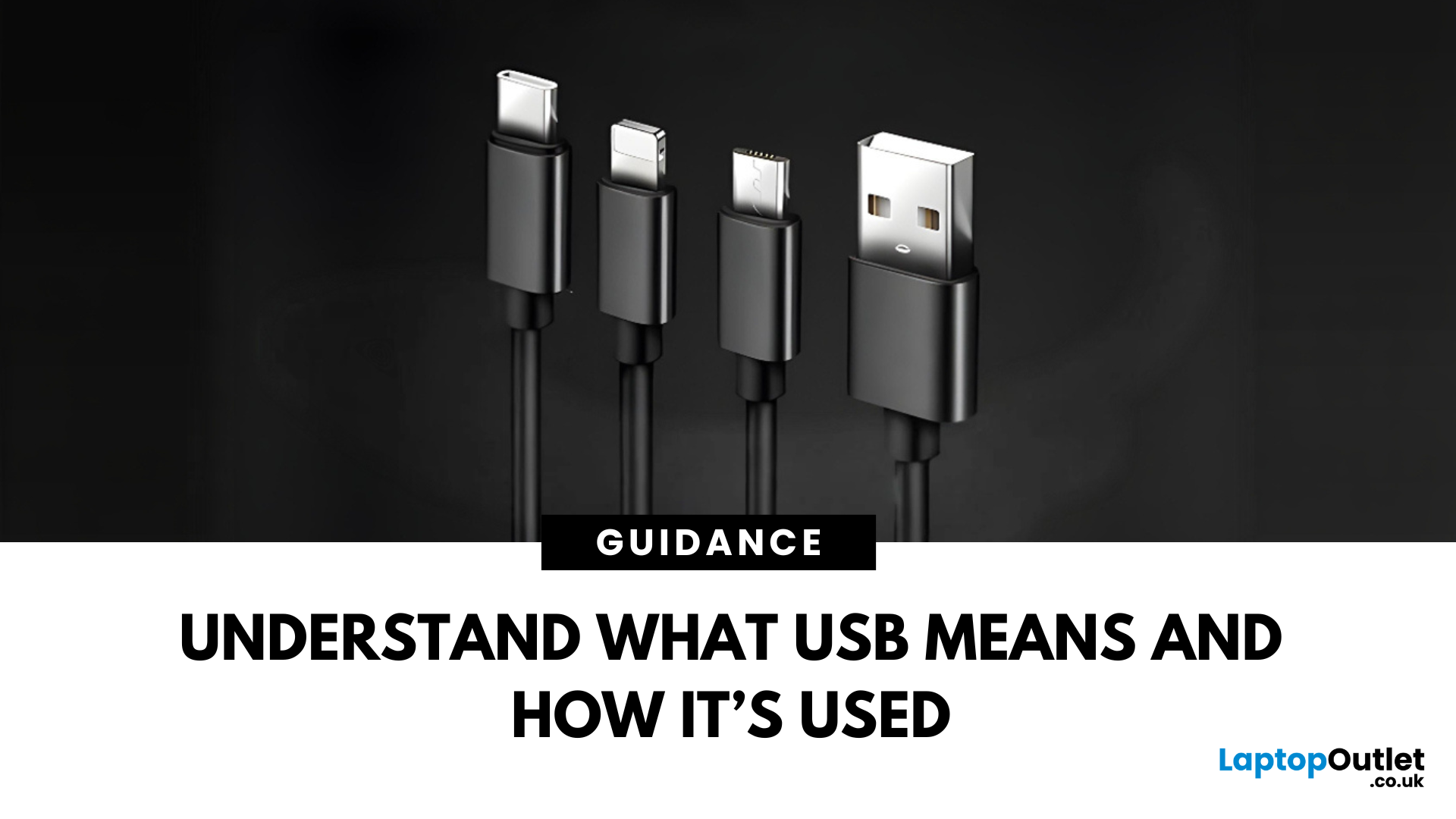
Decoding USB Types in Everyday Tech
We all use USB cables, but few know the real differences between USB, USB-C, and Micro USB. Whether you're charging your phone, connecting a device, or transferring data, understanding these terms helps you pick the right tech. Let’s break it down simply.
What Does USB Stand For?
USB stands for Universal Serial Bus. It’s a standard for cables, ports, and communication between electronic devices.
Developed to simplify connections between computers and peripherals (like keyboards, printers, and flash drives)
Main Uses:
- File transfers
- Charging smartphones, tablets, accessories
- Powering small devices
What Is USB-C?
USB-C is the latest version of USB and is now standard on most new smartphones, laptops, tablets, and accessories.
Key Features:
- Reversible connector—no wrong way to plug it in
- Fast data transfer (up to 40Gbps with USB4)
- Supports fast charging and video output (great for docking stations and monitors)
- Universal use—one

