



Review: HP x2 10.1" 2 in 1 Laptop
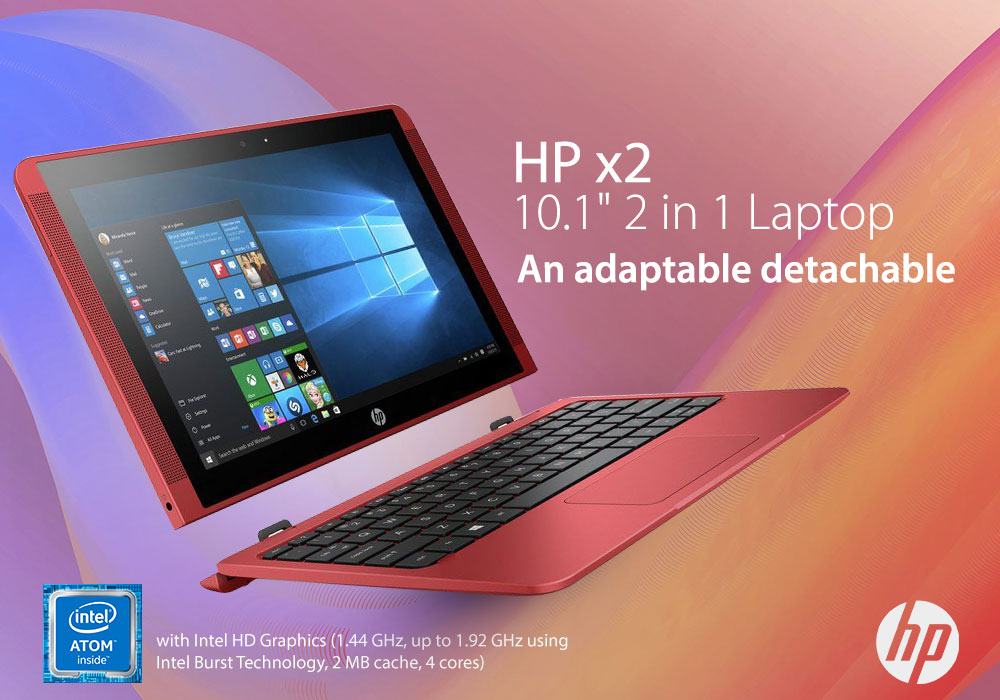
Laptops have become seriously cheap in recent years. There was a time when trying to buy a laptop for under £300 would have absolutely limited you to underpowered machines with little to no efficiency and bad built quality. Now the landscape has significantly changed as the market is filled with super-budget notebooks that are worth buying for anyone who doesn’t want to break the bank.
HP x2 10.1-inch entered the scene a few years ago and was an instant hit with its 2-in-1 laptop that could easily change between laptop and tablet modes through its detachable screen. The hybrid laptop came with a 10-inch screen, decently powerful Intel Atom processor, and OneDrive cloud storage to make up for its low RAM and storage. It was an excellent deal for a Windows machine that could turn into a tablet.
Today we’re going to review it and see what sets it apart from other 2 in 1 laptop. So, without any further ado, let’s just get into it.
Specifications
|
Processor |
Intel Atom x5-Z8350 |
|
Display |
10.1-inch (1280 x 800) Resolution |
|
RAM |
2 GB |
|
Storage |
32 GB eMMC |
|
Graphics |
Integrated/On-Board Graphics |
|
Operating System |
Windows 10 Home |
Design
Our HP x2 is in bright sunset red colour that looks really clean and fiery. Its body is made of plastic but is quite sturdy. This was a pleasant surprise because we weren’t expecting a solid build after seeing its price tag. The HP x2’s controls, Windows and power buttons, are all placed in the top right corner. You can also find the volume rocker there as well.
Converting the HP x2 from laptop to tablet is easier than it looks. Just take hold of the screen while holding the keyboard down, and pull upwards. A good bit of engineering with some magnets keeps the two halves together. While working in laptop mode, we aware never worried about either part separating out of the blue. But this doesn’t mean we had to use excessive force when trying to take them apart. There’s no wobble or rattle here unlike most budget 2-in-1 laptops.
The HP x2 is thinner and lighter than most of its rivals, weighing only 2.62 pounds.
Display
The screen on the x2 isn’t the best out of all the HP laptops because its resolution is only limited to 1280 x 800. This means watching TV shows or movies in high-resolution is going to be hard to enjoy on this display. But let’s all remember that this laptop, after all, costs less than £300. At least the display panel selected by HP has good colour and comfortable wide viewing angles.
In the end, you can still enjoy this screen’s display as long as your resolution demands aren’t very high.
Audio
The speakers on the HP x2 were a welcome surprise. This small unit includes Bang & Olufsen tuned speakers located on the sides of the 10.1-inch screen. They are front-facing so their sound won’t get lost and will project towards your face. Our listening experience with them was wonderful, and we heard no odd notes of distortion. The best thing is that HP x2’s speakers can easily project clear sounds across a room.
Performance
The HP x2 comes with an Intel Atom x5-Z8350 processor, 2 GB RAM, and 32 GB eMMC flash storage. You can try to double the storage to 64 GB if you want extra storage. This configuration isn’t going to give you the most powerful performance in the world, but we suppose you weren’t looking to edit videos or play heavy games on this laptop in the first place.
What you can easily do on this device are web surfing and media streaming, but again you can’t watch the videos at their highest setting due to the sub-HD display. Multitasking revealed a bit of stutter which wasn’t that surprising as we encountered that in other laptops at this price range too.
Connectivity
You’ll find different generations of connectivity on the HP x2. There is a traditional USB 2.0 port and reversible Type-C port. The interesting thing about this USB Type-C port is that it also doubles as the power jack.
There’s also a micro HDMI port for external display, as well as a standard headphone/mic combo jack. Lastly, there’s a front-facing HP TrueVision HD webcam for online video calls and chats.
Battery Life
The HP x2’s battery is very long. Our tests got a runtime of 8 hours and 30 minutes out of the device as we continuously browsed the web. That’s certainly not bad for a super-budget laptop and is better than most of its rivals.
Verdict
The HP x2 is a budget device but it certainly doesn’t feel like one. It’s a slim and sturdy 2-in-1 laptop that delivers decent performance for its price range and long battery life. This is the ideal laptop for kids or parents that want a budget-friendly machine to use at home or on the road.
Read more:
| How to Pick a Convertible or 2-in-1 Laptop - Avoid These 5 Mistakes! |
| Best Buy New Laptops 2021 |
| 4 Best Lenovo Laptop for Students - Guide to Buy |
Related Articles

Last Updated: September 21, 2026
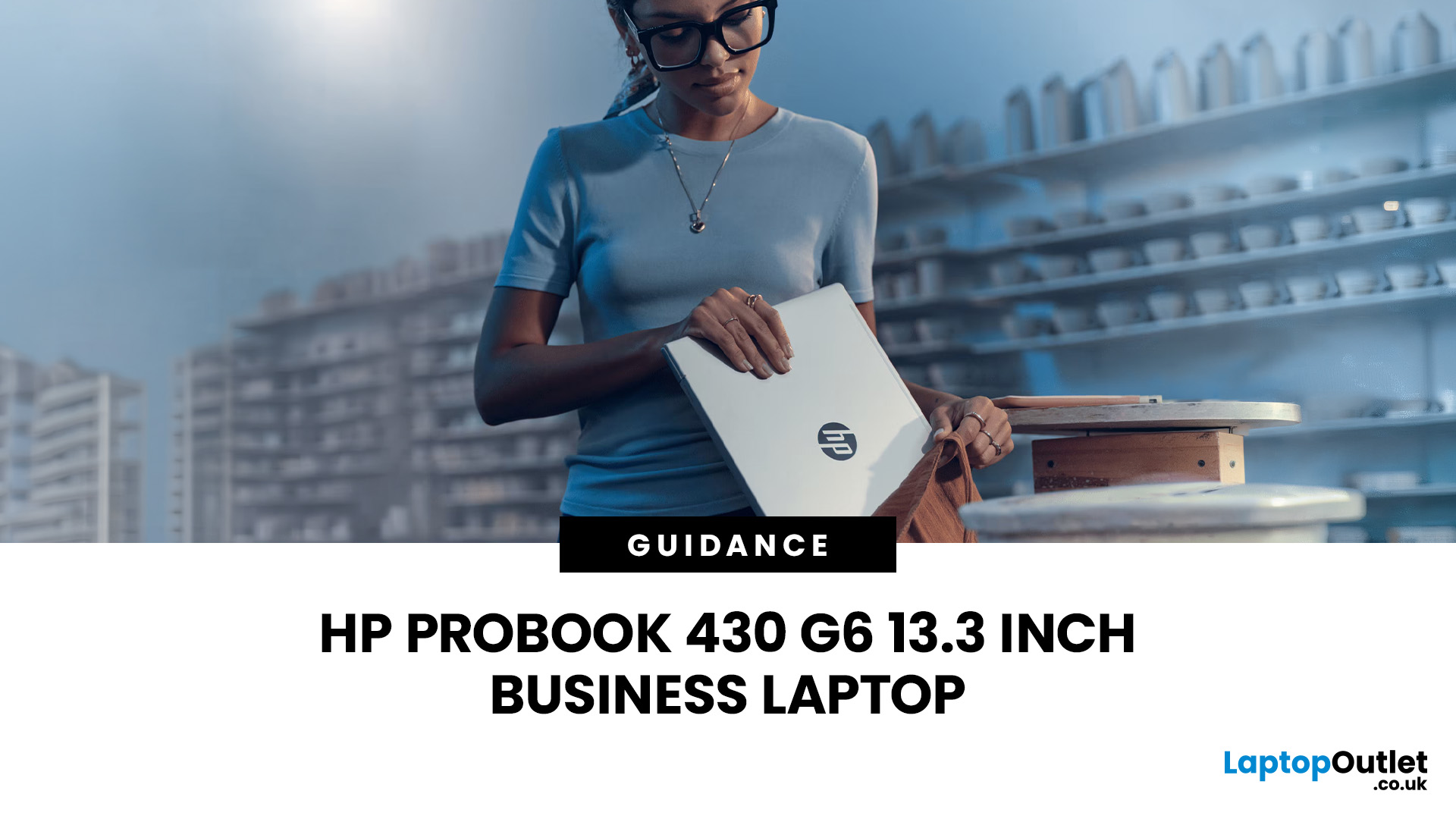
The HP ProBook 430 is a power-packed laptop with an Intel Core i5 processor that serves both looks and purpose.
Last Updated: September 01, 2026
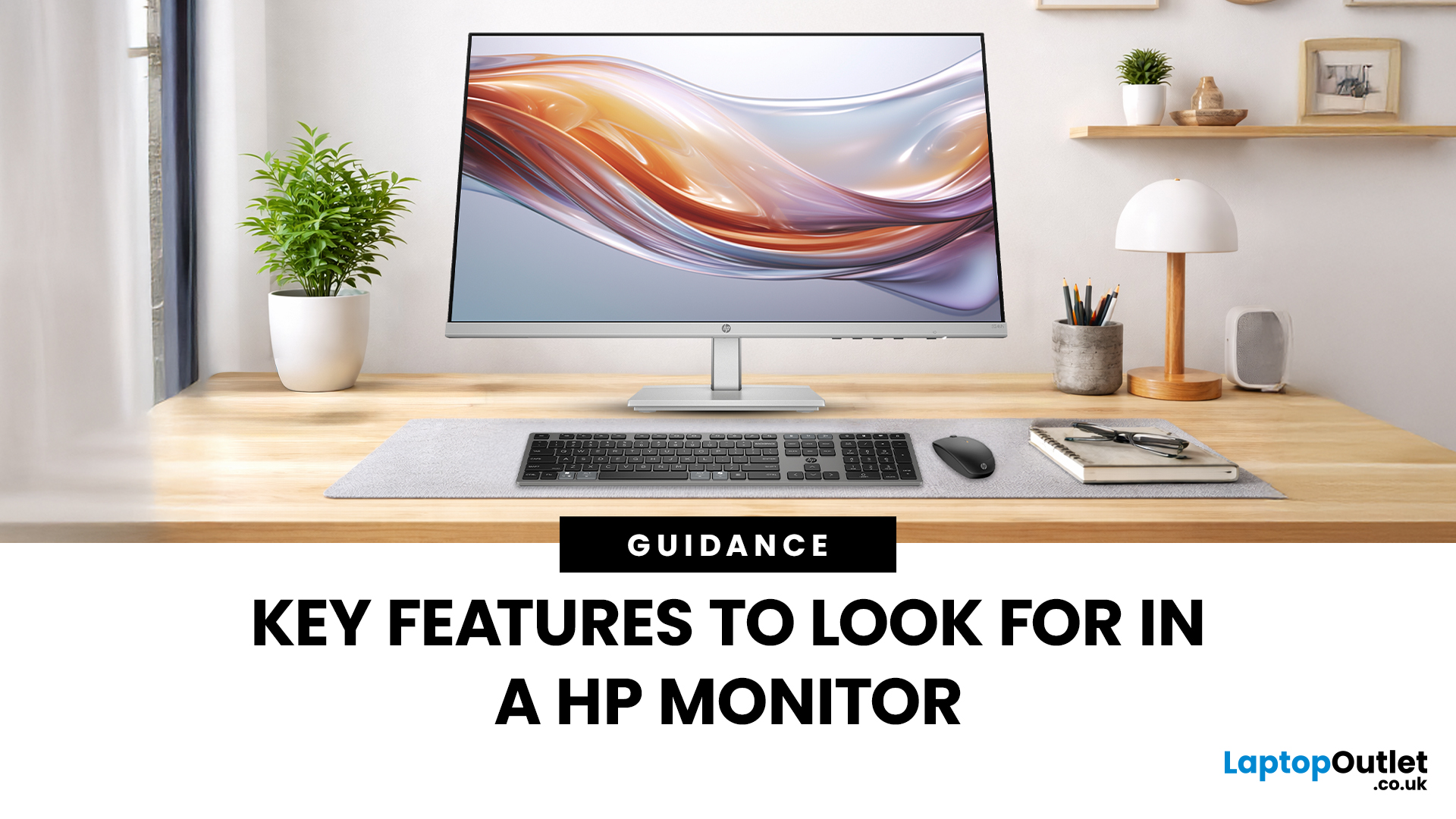
Choosing the best HP gaming monitor is not simply about buying the screen with the highest resolution or fastest refresh rate. The right display depends on the games you play, the graphics performance of your PC or console, your desk space and how much you value image quality versus competitive speed.
HP's gaming range covers everything from compact Full HD displays for fast-paced play to high-refresh QHD monitors, curved ultrawide screens and premium 4K OLED models. Current HP UK options extend from 144Hz-class displays to QHD OLED models reaching 500Hz, so gamers now have considerably more choice than the older 60Hz to 240Hz range suggested in the previous guide.
If you are planning a new gaming setup or upgrading an older HP monitor, understanding the specifications that actually affect gameplay will help you spend your budget where it matters.
What Makes a Good HP Gaming Monitor?
A good HP gaming monitor balances resolution, refresh rate, response time, panel quality and adaptive sync

Last Updated: November 20, 2025
HP PCs are well-built, stylish, and highly powerful, enabling speedy and efficient computing. They are portable and convenient and feature robust specifications for an unmatched experience. Additionally, a wide variety is available, allowing you to choose according to your preferences.
Buying an HP PC is worth it, as it offers many benefits. However, with the variety available, we recommend researching your options before choosing one.
Why Choose an HP PC?
While many people are looking for the perfect HP laptops UK in 2025, HP PCs remain popular due to their many benefits. Some of them are:
HP’s Undeniable Brand Reputation
No one can deny HP’s reputation and ranking as the leading computer manufacturer for the last several decades, providing reliable and high-quality PCs.
Revolutionary Designs
HP PCs stand out specifically for their designs, featuring compact sizes, small form factors, and stunning appeals.
High Security
You will never worry about data safety, file protection, or security

Last Updated: October 03, 2025
Wireless Printing Made Easy
No more messy cables or complicated setups—connecting your HP printer to Wi-Fi lets you print from anywhere at home or work. Whether you’ve got a new printer or you’re reconnecting, this guide shows you exactly how to get it done.
What You’ll Need
Before you start, make sure you have:
- An HP wireless printer
- Wi-Fi network name (SSID) and password
- A laptop, PC, or smartphone connected to the same Wi-Fi network
How to Connect HP Printer to Wi-Fi – Step by Step
1. Use HP Auto Wireless Connect (For Compatible Models)
- Plug in and turn on your printer
- On your computer, install the HP Smart app or visit 123.hp.com
- Follow on-screen instructions to connect your printer to Wi-Fi automatically
Pro Tip: This is the easiest option if your printer supports it—no need to enter Wi-Fi credentials manually.
2. Use the Printer’s Control Panel (Manual Setup)
- Press the Wi-Fi or Wireless icon on your printer’s screen
- Go to Settings > Wireless Setup Wizard
Last Updated: October 02, 2025
Capture What You See in Seconds
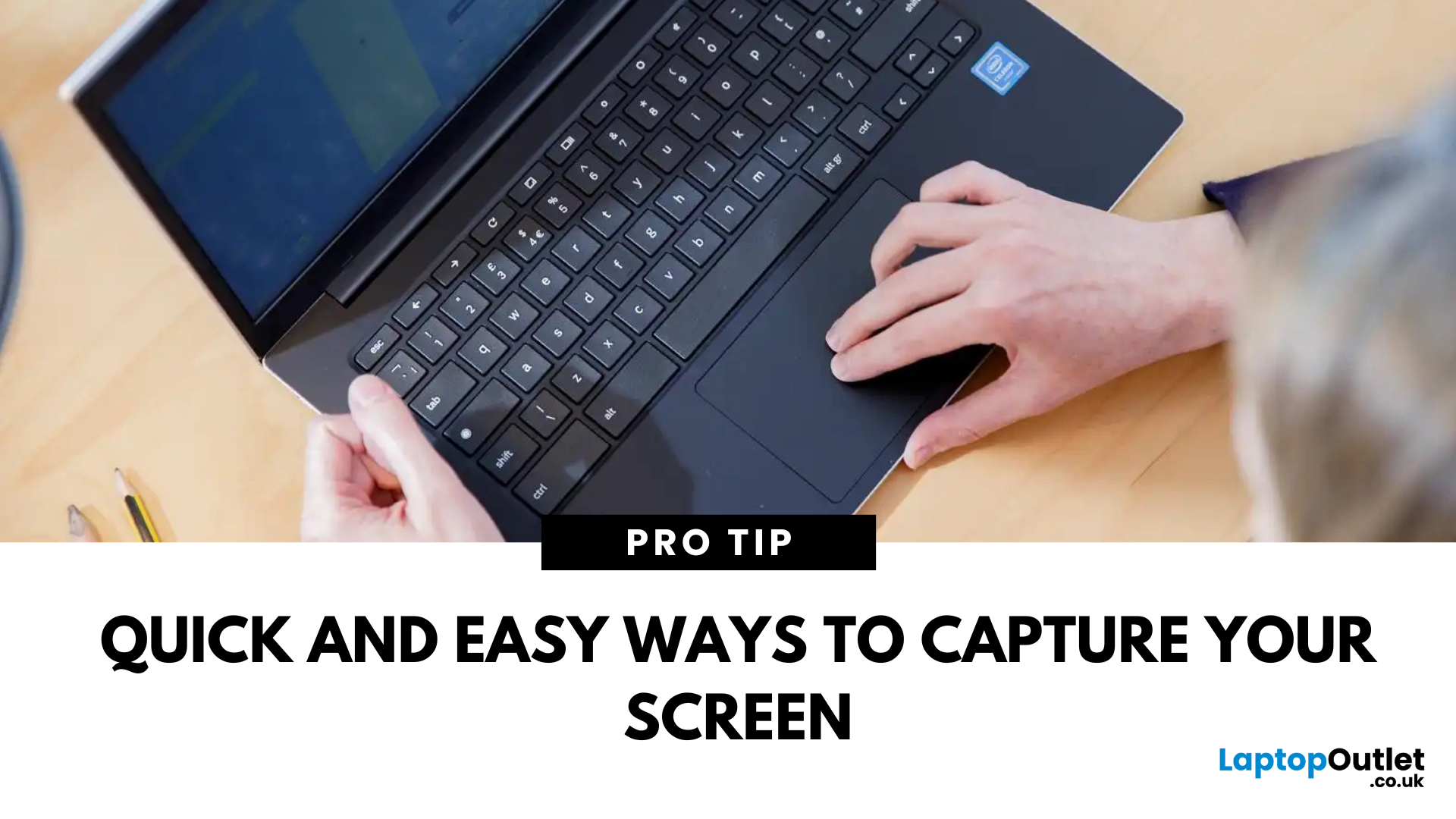
Whether you’re saving a receipt, reporting an issue, or grabbing a funny moment, knowing how to take a screenshot on your HP laptop is a game-changer. Here are the simplest ways to snap your screen using built-in tools and shortcuts.
1. Use the Print Screen (PrtScn) Key
To capture the full screen:
- Press PrtScn or Fn + PrtScn (some HP models)
- Open Paint or another editing app
- Press Ctrl + V to paste
- Save the image
Saved to clipboard, not automatically stored as a file
2. Screenshot a Specific Window
To capture just one active window:
- Click on the window you want to screenshot
- Press Alt + PrtScn
- Paste into an app (Ctrl + V) and save
3. Use the Snipping Tool (or Snip & Sketch)
HP laptops running Windows 10 or 11 come with this handy app.
Steps:
- Search for Snipping Tool or Snip & Sketch in Start Menu
- Click New to start a screenshot
- Choose your snip type: Rectangle, Free-form, Window, Fullscreen
- Save or edit your screenshot
Last Updated: September 09, 2025
HP Means Business—and Gaming
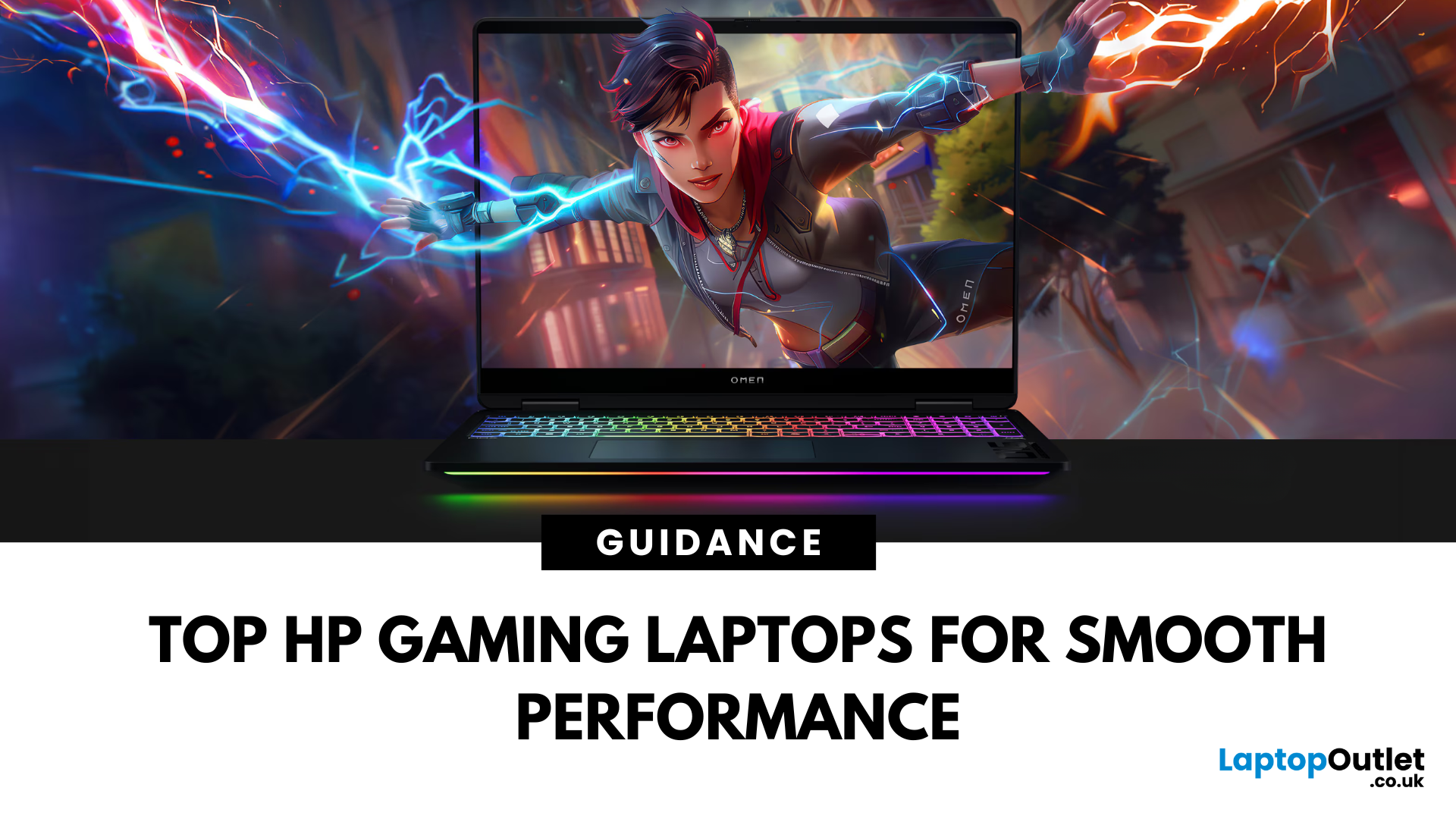
When it comes to gaming laptops, HP offers more than office power. Its Omen and Victus series pack serious performance, sleek designs, and value for money—making them ideal for gamers of all levels. Let’s explore the best HP laptops for gaming in 2025.
1. HP Omen Series – High-End Gaming Performance
Designed for serious gamers, the HP Omen series delivers desktop-level specs in a portable chassis.
Top Pick: HP Omen 17 (2025 Edition)
- Intel Core i9 / AMD Ryzen 9
- NVIDIA GeForce RTX 4080/4090 GPU
- 17.3" QHD display with 240Hz refresh rate
- 1TB SSD, 32GB RAM
Ideal for AAA gaming, streaming, and creative workloads
2. HP Victus Series – Affordable Gaming Power
The HP Victus line brings gaming-grade specs to more budget-friendly price points.
Top Pick: HP Victus 16 (2025 Edition)
- Intel Core i7 or Ryzen 7
- NVIDIA RTX 4060/4070 GPU
- 16.1" FHD 144Hz display
- 512GB SSD, 16GB RAM
Great for casual to mid-level gaming and students

