



What Is a Docking Station
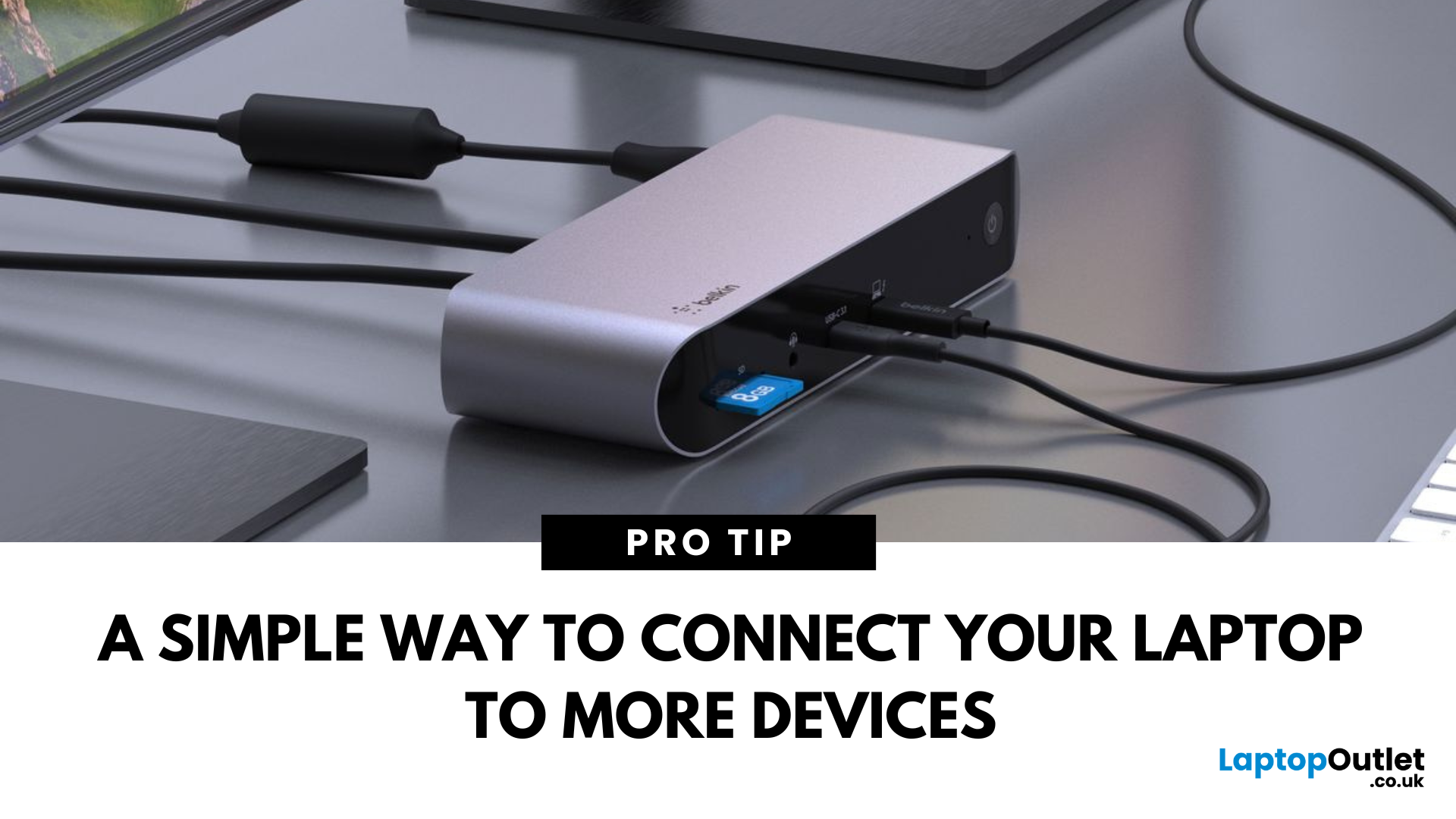
Simplify Your Laptop Setup
Ever feel limited by the number of ports on your laptop? That’s where a docking station comes in. Whether you're a remote worker, gamer, or creative pro, a docking station lets you turn your laptop into a full desktop workstation—with just one plug.
What Is a Docking Station?
A docking station is a device that connects to your laptop and expands its connectivity by offering multiple ports and features, such as:
- Extra USB ports
- HDMI or DisplayPort outputs
- Ethernet
- Audio jacks
- SD card readers
- Charging capabilities
Think of it as a hub that makes your laptop more powerful and easier to use with external devices
What Does a Docking Station Do?
- Connects multiple monitors
- Links external keyboards, mice, printers
- Provides wired internet (Ethernet)
- Charges your laptop and accessories
- Enables fast data transfer via USB-C or Thunderbolt
Types of Docking Stations
- Powered (AC adapter): Best for permanent workstations with charging support
- Portable (USB-C hubs): Lightweight and compact, ideal for travel
- Thunderbolt docks: Super-fast data transfer, perfect for creatives
Who Should Use a Docking Station?
- Professionals & Remote Workers: Create an instant desktop setup
- Students: Connect to monitors, storage, and devices in one go
- Gamers & Creators: Run dual displays, fast storage, and peripherals
- Businesses: Streamline hotdesking and conference rooms
Key Features to Look For
- Compatibility: USB-C, USB-A, or Thunderbolt
- Video Output: HDMI, DisplayPort, or dual display support
- Power Delivery (PD): Charges laptop through the dock
- Build Quality: Aluminium or rugged plastic for durability
Popular Docking Station Brands
- Anker – Great for portable USB-C docks
- CalDigit – Known for high-end Thunderbolt docks
- Dell & HP – Make docks specifically for their laptops
- UGREEN / Satechi – Affordable and reliable options
Laptop Dock vs USB Hub – What’s the Difference?
|
Feature |
Docking Station |
USB Hub |
|
Ports |
More (video, Ethernet, power) |
Mostly USB only |
|
Power Delivery |
Yes |
Rarely |
|
Display Support |
Yes (HDMI, DP) |
No or limited |
|
Use Case |
Full workstation |
Light travel use |
Final Thoughts: One Plug to Rule Them All
If you're tired of plugging and unplugging cables every day, a docking station simplifies your setup. It turns your portable laptop into a powerful desktop-like environment—ideal for work, study, and creativity.
Ready to boost your setup? Check out Laptop Outlet’s docking station range for USB-C, Thunderbolt, and dual-display solutions.
FAQs: Docking Stations Explained
1. Do I need a docking station for my laptop?
Only if you need extra ports or want to build a more productive workspace.
2. Will a docking station charge my laptop?
Yes—if it supports power delivery (PD) via USB-C or Thunderbolt.
3. Can I connect two monitors with a docking station?
Yes—many support dual displays via HDMI or DisplayPort.
4. Are docking stations compatible with all laptops?
Most work with USB-C, Thunderbolt, or brand-specific ports—always check compatibility.
5. Is a USB hub the same as a docking station?
No—a hub offers basic port expansion; docking stations do much more.
Read More:
| What Is a Router? |
| What Is the WPS Button on My Router |
| What is Chromecast |
Related Articles

Last Updated: August 12, 2026
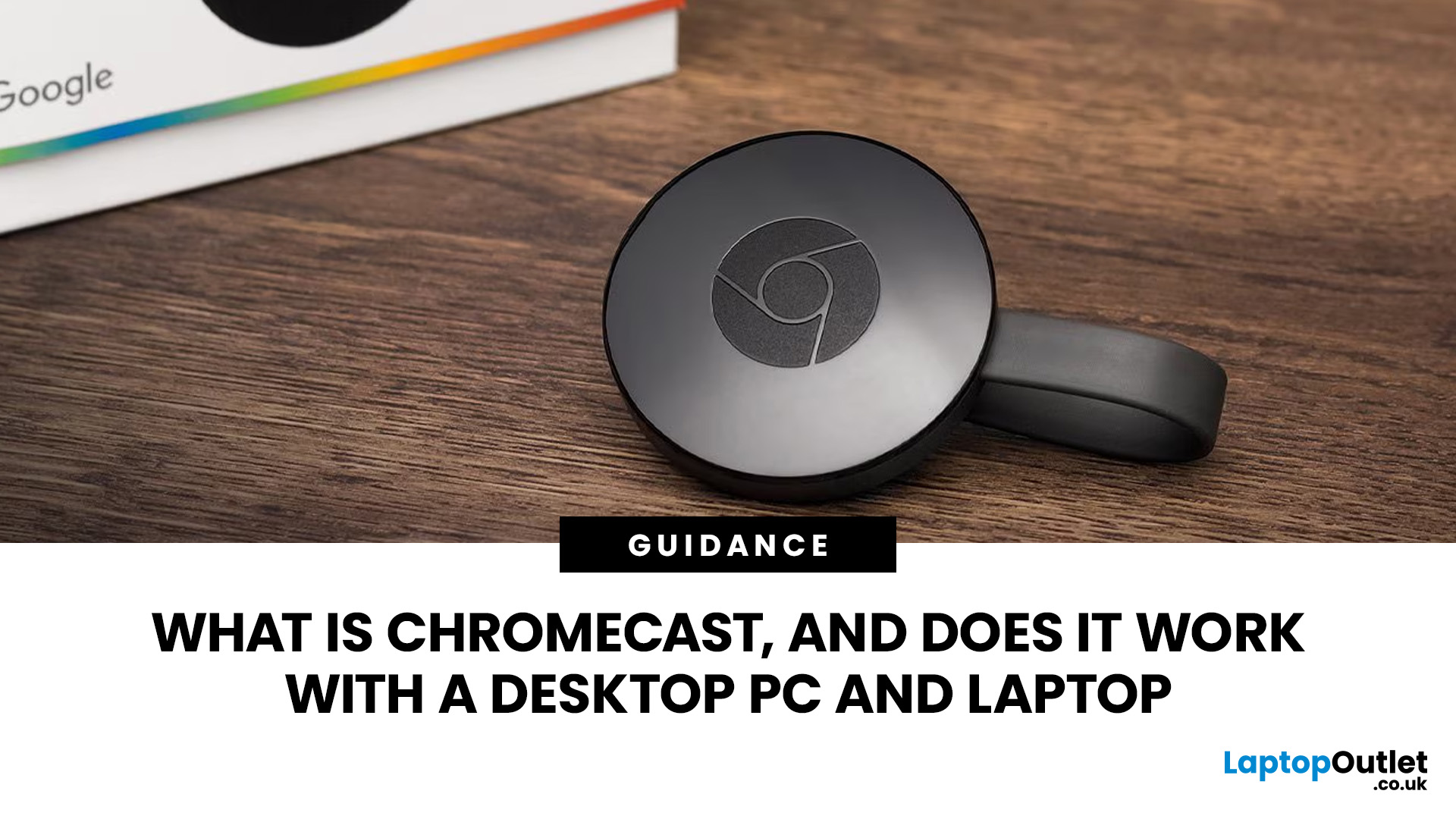
Chromecast makes it easy to show videos, websites, photos, presentations and other computer content on a larger screen. It works with compatible laptops and desktop PCs through Google Chrome and a shared network connection. The streaming device connects to a television, projector or monitor, while the computer controls what appears there.
This guide explains how that process works, what equipment you need, how to cast from Chrome and how to solve common connection problems.
What Is Chromecast?
Chromecast was the name of Google’s range of compact streaming devices. A traditional Chromecast plugs into an HDMI input on a television or other display, connects to your home network and receives content selected on a phone, tablet or computer.
The easiest way to understand it is to separate the three parts of the setup:
- The laptop or desktop PC selects and controls the content.
- The Chromecast or compatible receiver handles the cast request.
- The TV, projector or monitor displays the picture and

Last Updated: March 17, 2026
TECHIntel Arc has emerged as a groundbreaking player, poised to reshape the industry's dynamics. As a technology enthusiast or a casual observer, it's crucial to comprehend the significance of TECHIntel Arc and its potential impact on the ever-expanding tech domain.
Understanding TECHIntel Arc
At its core, TECHIntel Arc signifies more than a mere technological upgrade; it embodies a visionary approach to meet the diverse needs of today's consumers. TECHIntel, renowned for its semiconductor dominance, has crafted the TECHIntel Arc architecture as a pivotal leap forward in graphics and processing capabilities.
This sophisticated architecture is not a singular entity but a harmonious integration of cutting-edge hardware components and innovative design principles. As we navigate the intricacies, key features emerge, distinguishing TECHIntel Arc from its predecessors. Each facet of this architecture has been meticulously crafted, from graphics cards to processors, to deliver an unparalleled
Last Updated: July 01, 2025
That Little Button Isn’t Just for Looks
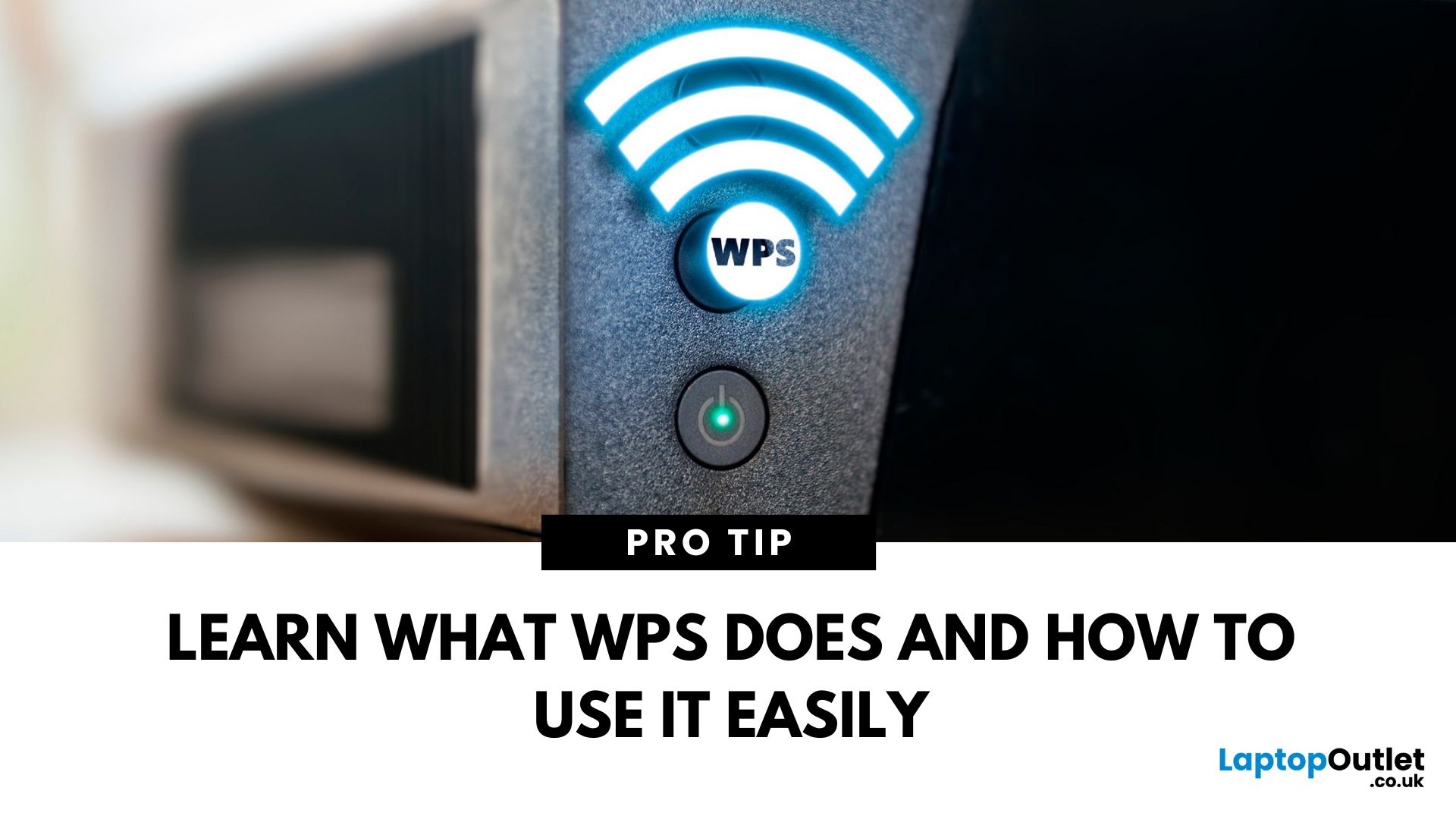
If you’ve spotted a mysterious button labelled WPS on your Wi-Fi router, you might be wondering: What does it do—and should I use it? Here’s a beginner-friendly explanation of what the WPS button is and how it simplifies connecting devices to your Wi-Fi.
What Does WPS Stand For?
WPS stands for Wi-Fi Protected Setup. It’s a feature that helps you connect devices to your Wi-Fi network without typing in the Wi-Fi password.
Designed for convenience, especially for smart TVs, printers, and Wi-Fi extenders
What Does the WPS Button Do?
When you press the WPS button:
Your router enters a two-minute pairing mode
During this time, you can connect a compatible device without entering the password
It uses WPA2 security, so it’s secure for most home networks
How to Use the WPS Button
Steps:
Turn on the device you want to connect (e.g., printer or smart TV)
Go to its Wi-Fi settings and select your Wi-Fi network
Choose WPS connection
Last Updated: July 01, 2025
Your Wi-Fi Starts Here
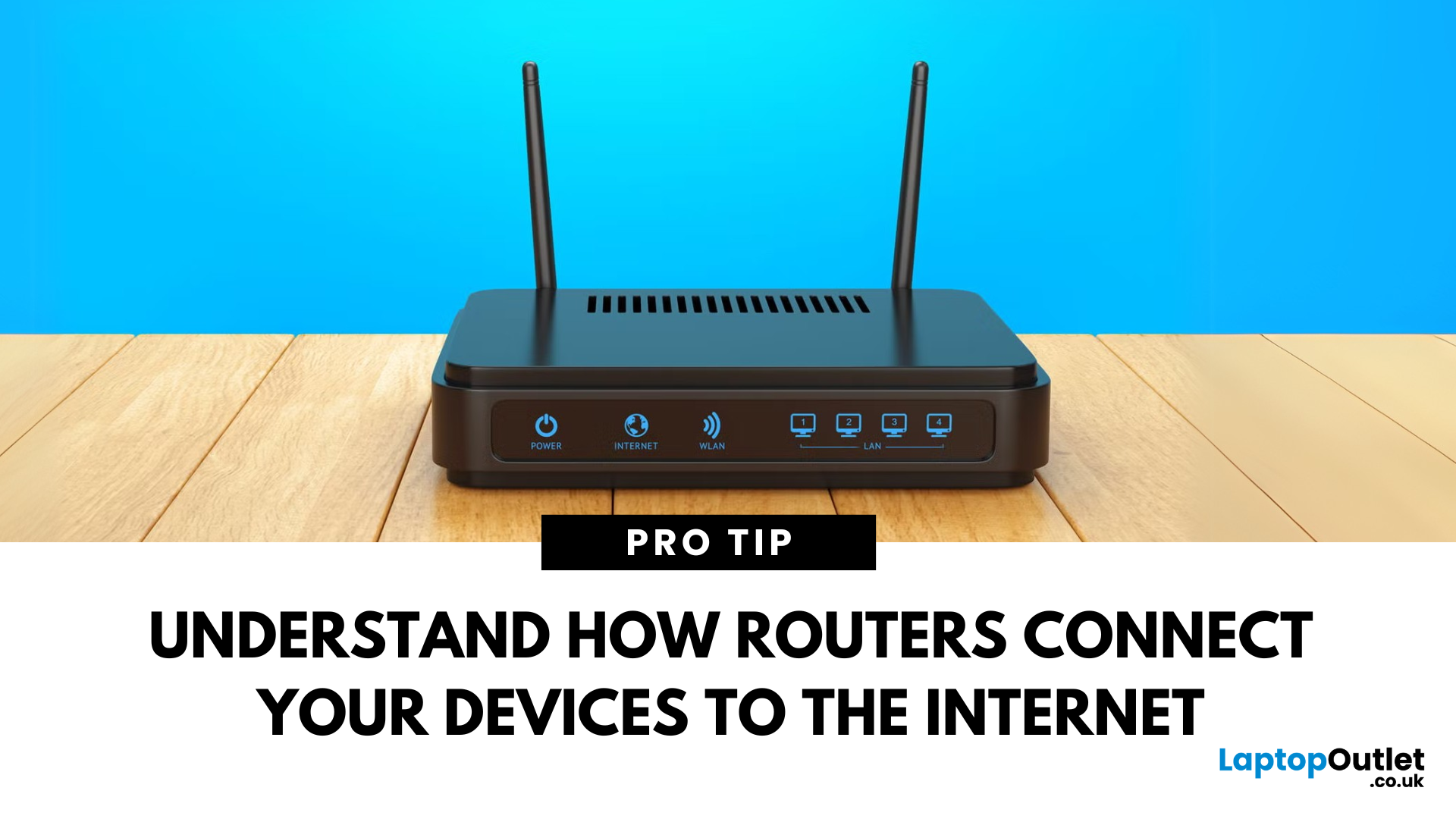
You’ve probably seen it flashing away in the corner of the room—but what is a router, and why is it essential for your internet connection? Here’s everything you need to know about this small but powerful device.
What Is a Router?
A router is a device that connects your home or office to the internet by routing data between your internet service provider (ISP) and your connected devices (like phones, laptops, smart TVs, and more).
It’s the heart of your Wi-Fi network, sending and receiving data from the web
How Does a Router Work?
- Connects to a modem (or includes one in some models)
- Assigns local IP addresses to devices in your network
- Sends and receives data packets to and from the internet
- Uses Wi-Fi or Ethernet to link devices wirelessly or via cable
Types of Routers
- Standalone Router: Connects to a separate modem
- Modem-Router Combo: Two-in-one device with both modem and router
- Mesh Wi-Fi Router: Covers large homes with multiple units

