



Why Is My iPad So Slow

Slow iPad? Let’s Fix It
Is your iPad lagging, apps taking forever to load, or Safari crawling? Don’t worry—you’re not alone. A slow iPad can result from many things, from background apps to outdated software. Here’s how to figure out what’s slowing your device down and what you can do to speed it up.
Too Many Apps Running in the Background
Your iPad may be multitasking too much.
Fix:
- Double-press the Home button (or swipe up from the bottom on Face ID models)
- Swipe up on open apps to close them
Tip: Don’t keep dozens of apps running—you’ll save RAM and battery
Software Is Out of Date
Older versions of iPadOS may slow down performance or contain bugs.
Fix:
- Go to Settings > General > Software Update
- Install the latest iPadOS update
Storage Is Nearly Full
Lack of storage can cause your iPad to lag.
Fix:
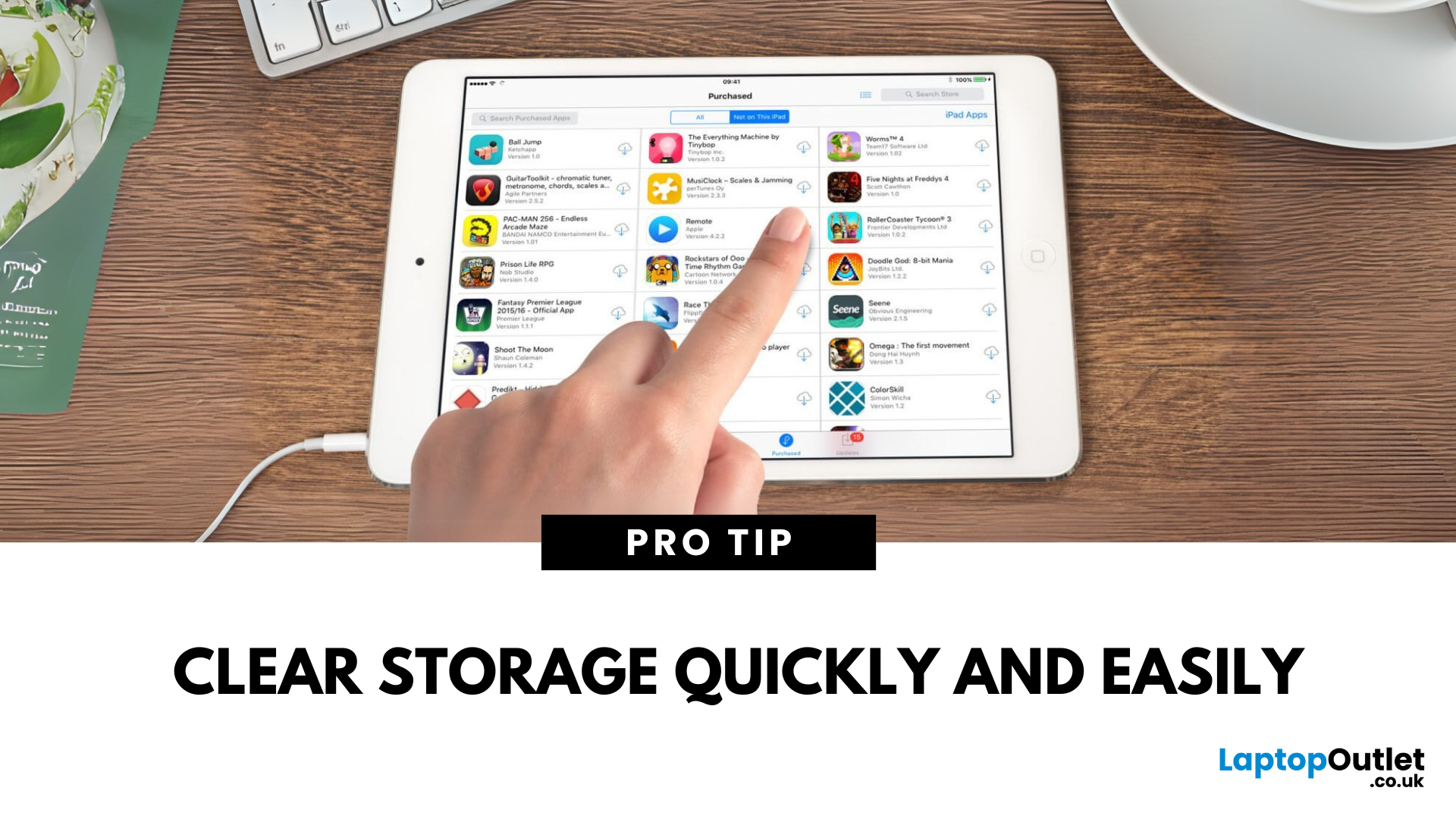
- Go to Settings > General > iPad Storage
- Delete unused apps, photos, or large files
- Use iCloud or external storage if needed
Aim to keep at least 10–15% of your storage free
Too Many Safari Tabs or Cached Data
Too many tabs or too much cached data can slow down browsing.
Fix:
- Close unused Safari tabs
- Go to Settings > Safari > Clear History and Website Data
Background App Refresh
Apps updating in the background can drain performance.
Fix:
- Go to Settings > General > Background App Refresh
- Turn it off or limit to selected apps
Visual Effects and Motion
Fancy animations can slow down older iPads.
Fix:
- Go to Settings > Accessibility > Motion
- Turn on Reduce Motion
Battery Health and Age
An ageing battery or older hardware naturally slows down over time.
Fix:
- Check battery condition in Settings > Battery
- Consider replacing the battery or upgrading if the iPad is 4–5+ years old
Final Thoughts: Make Your iPad Feel New Again
If your iPad is running slow, don’t panic. A few quick tweaks to storage, settings, and software can dramatically improve performance. And if your iPad’s just old, it might be time to upgrade.
Looking for a faster iPad? Explore Laptop Outlet’s latest Apple iPad deals today.
FAQs: iPad Performance Questions Answered
1. Will a factory reset speed up my iPad?
Yes—but it’s a last resort. Try other fixes first.
2. How do I know if my iPad is too old?
If it no longer receives iPadOS updates or struggles with basic apps, it’s ageing.
3. Can I add RAM to my iPad?
No—RAM is built-in. You can only optimise performance through settings.
4. Does clearing cache help speed things up?
Yes—especially in apps like Safari and social media.
5. Will turning off background app refresh help?
Absolutely—it frees up resources and conserves battery.
Read More:
| How to Free Up Space on iPad |
| Which iPad Do I Have |
| How to Delete Apps on an iPad |
Related Articles


Last Updated: September 09, 2025
Wondering If Your iPad Battery Is Still Strong?
If your iPad doesn’t last as long as it used to, you might be wondering about its battery health. While iOS doesn’t show a detailed battery health tool like the iPhone, there are still ways to monitor your battery’s performance and longevity. Here’s how to do it.
1. Use iPad Battery Settings to Check Usage
Although iPads don’t show battery maximum capacity like iPhones, you can still:
Steps:
- Go to Settings > Battery
- Tap Battery Usage by App to see what’s draining your battery
- View battery level graphs and screen-on time
- This helps identify whether the issue is with the battery or specific apps
2. Use Analytics Data to Estimate Battery Health
Apple doesn’t provide direct battery health info on iPad, but you can dig into system analytics.
Steps:
- Go to Settings > Privacy & Security > Analytics & Improvements
- Tap Analytics Data
- Look for a file like log-aggregated-xxxx and tap it
- Use Copy and paste into Notes or Files
Last Updated: September 09, 2025
Unleash Precision with Apple Pencil
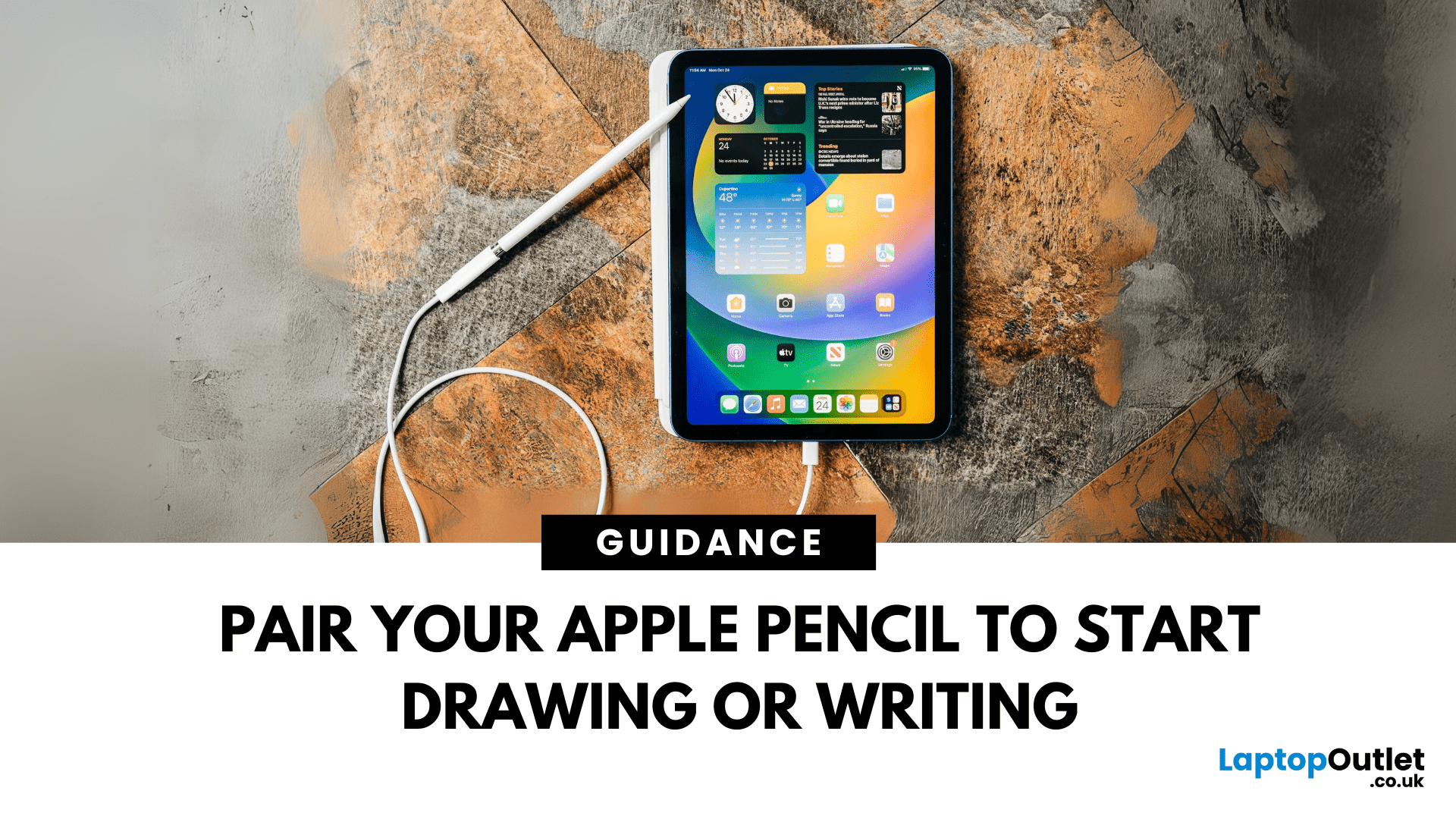
Whether you're an artist, student, or note-taker, the Apple Pencil transforms your iPad into a powerful tool for creativity and productivity. But first, you’ll need to pair it. Here’s how to connect both Apple Pencil 1st Gen and 2nd Gen to your iPad quickly.
How to Connect Apple Pencil (2nd Generation)
Compatible with:
- iPad Pro (3rd gen and later)
- iPad Air (4th gen and later)
- iPad mini (6th gen)
Steps:
- Make sure Bluetooth is enabled (Settings > Bluetooth)
- Attach the Apple Pencil to the magnetic strip on the side of the iPad
- Wait for the Pair prompt and tap it
Your Apple Pencil is now connected and ready to use
How to Connect Apple Pencil (1st Generation)
Compatible with:
- iPad (6th–10th gen)
- iPad Air (3rd gen)
- iPad mini (5th gen)
Steps:
- Remove the cap and plug the Apple Pencil into the iPad’s Lightning port
- Tap Pair when the prompt appears
If your iPad uses USB-C (10th gen), you’ll need a USB-C to Apple Pencil Adapter

Last Updated: September 21, 2026
Quick Answer
If you are asking which iPad do I have, open Settings > General > About and check Model Name. For the exact hardware version, tap Model Number until an A-number appears, such as A3354. Match that code with Apple's model list or the lookup tables below. If the iPad will not turn on, check the rear casing or connector instead for confirmation.
Which iPad Do I Have?
With standard iPads, iPad Air, iPad mini and iPad Pro models spanning more than a decade, identifying an iPad by appearance alone is not always reliable.
That matters when you are buying a case, choosing an Apple Pencil, checking software support, arranging a repair or preparing an iPad for resale. The safest approach is to find the model name and A-number rather than guessing from the screen size, colour, camera or charging port.
How Do I Find Out Which iPad I Have?
The easiest method depends on whether your iPad turns on. If you can access the device, start in Settings. If it is damaged, locked or will not power
Last Updated: May 23, 2025
Running Out of Room? Let’s Fix That.
A full iPad can slow down performance and stop you from downloading new apps or taking photos. Whether you're using it for work, play, or school, here’s how to free up space on your iPad and keep it running smoothly.
1. Check Your iPad Storage Usage
Steps:
- Go to Settings > General > iPad Storage
- View a breakdown of what’s using space (apps, photos, media, system)
- Follow Apple’s recommendations if listed (e.g. Offload Unused Apps)
- This helps you see exactly what’s taking up room
2. Delete Unused Apps
Apps you haven’t opened in months? Time to go.
Steps:
- Tap and hold the app icon > Remove App > Delete App
- Or delete directly from iPad Storage settings
3. Offload Unused Apps (Keep Data)
Offloading removes the app but keeps your data safe for when you reinstall it.
Steps:
- Go to Settings > General > iPad Storage
- Tap an app > Offload App
- You can enable automatic offloading under Settings > App Store
4. Clear Safari Cache

Last Updated: May 23, 2025
Clear the Clutter on Your iPad
Too many apps on your iPad? Whether you’re freeing up space or just decluttering your Home Screen, deleting apps is fast and easy. Here’s how to remove apps from your iPad in a few simple steps.
1. Delete Apps from the Home Screen
Steps:
- Tap and hold the app icon until a menu appears
- Tap Remove App
- Choose Delete App to confirm
This removes the app and its data completely from your iPad
2. Delete Apps via iPad Settings
Useful for identifying which apps use the most storage.
Steps:
- Go to Settings > General > iPad Storage
- Scroll and tap the app you want to remove
- Tap Delete App
This method shows how much space each app uses before you delete it
3. Offload Apps (Keep Data)
Want to remove the app but keep its documents and data?
Steps:
- Go to Settings > General > iPad Storage
- Tap the app > Offload App
You can reinstall it later and pick up where you left off
What Happens When You Delete an App?
- The app and its data are
Last Updated: September 11, 2025
A Scanner in Your Pocket
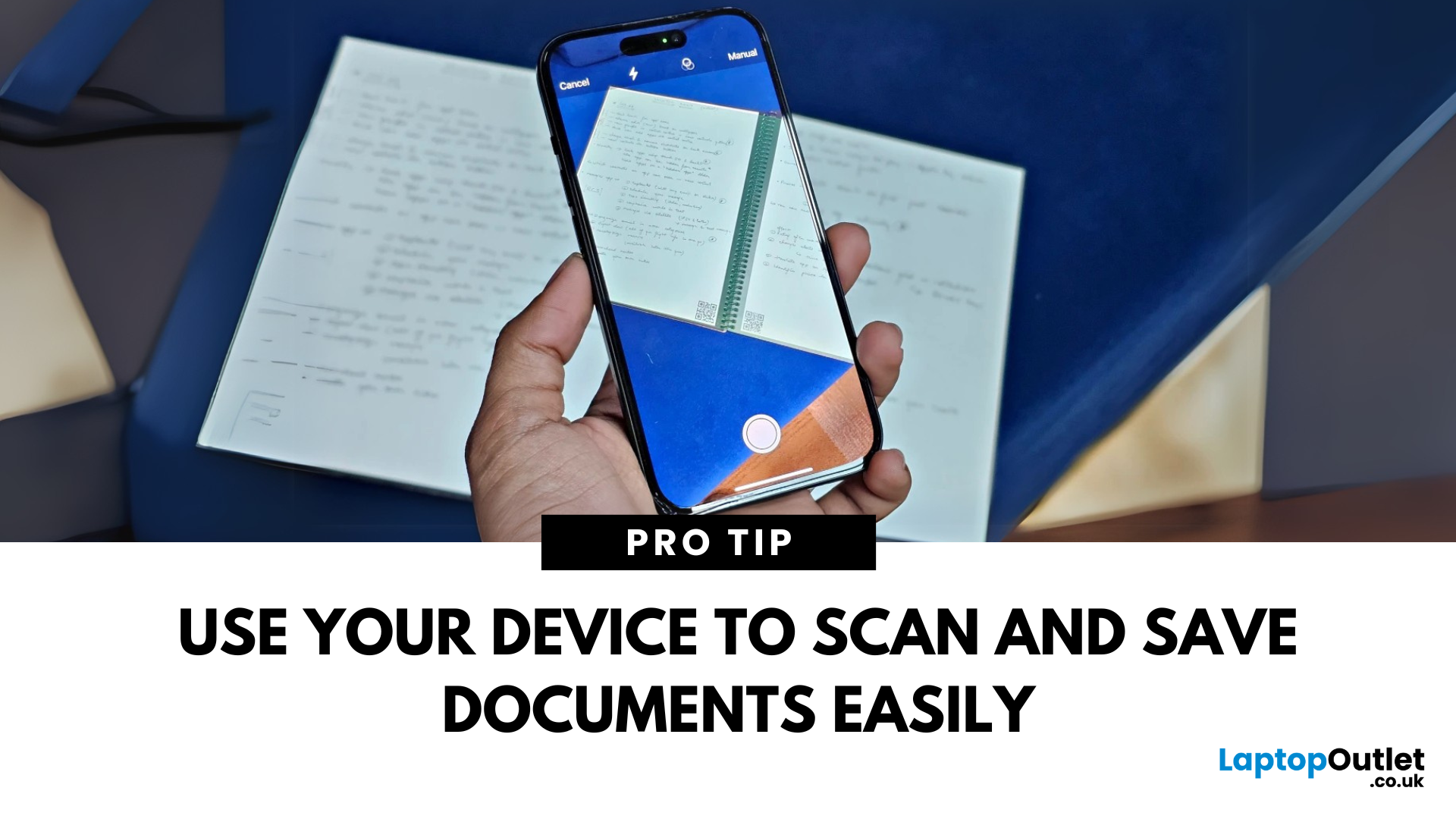
You don’t need a bulky scanner anymore—your iPhone or iPad can scan documents with amazing quality in just seconds. Thanks to built-in tools like the Notes app, scanning has never been easier. Here’s how to do it.
1. Scan Documents Using the Notes App
The Notes app has a built-in scanner that saves documents as PDFs or images.
Steps:
- Open the Notes app
- Tap the Create New Note icon
- Tap the Camera button
- Select Scan Documents
- Position your document in view; your device will auto-capture, or you can tap the shutter button
- Adjust the corners if needed and tap Keep Scan
- Save it to the note or share/export as a PDF
Use "Auto" mode for hands-free scanning of multiple pages
2. Scan Directly into Files App (iOS 15 and later)
Steps:
- Open the Files app
- Navigate to the folder where you want to save the scan
- Tap the three dots in the top right
- Select Scan Documents
- Capture and save the document directly as a file
Great for creating quick PDFs

