



What Is VRR, and How Does It Benefit Gaming?
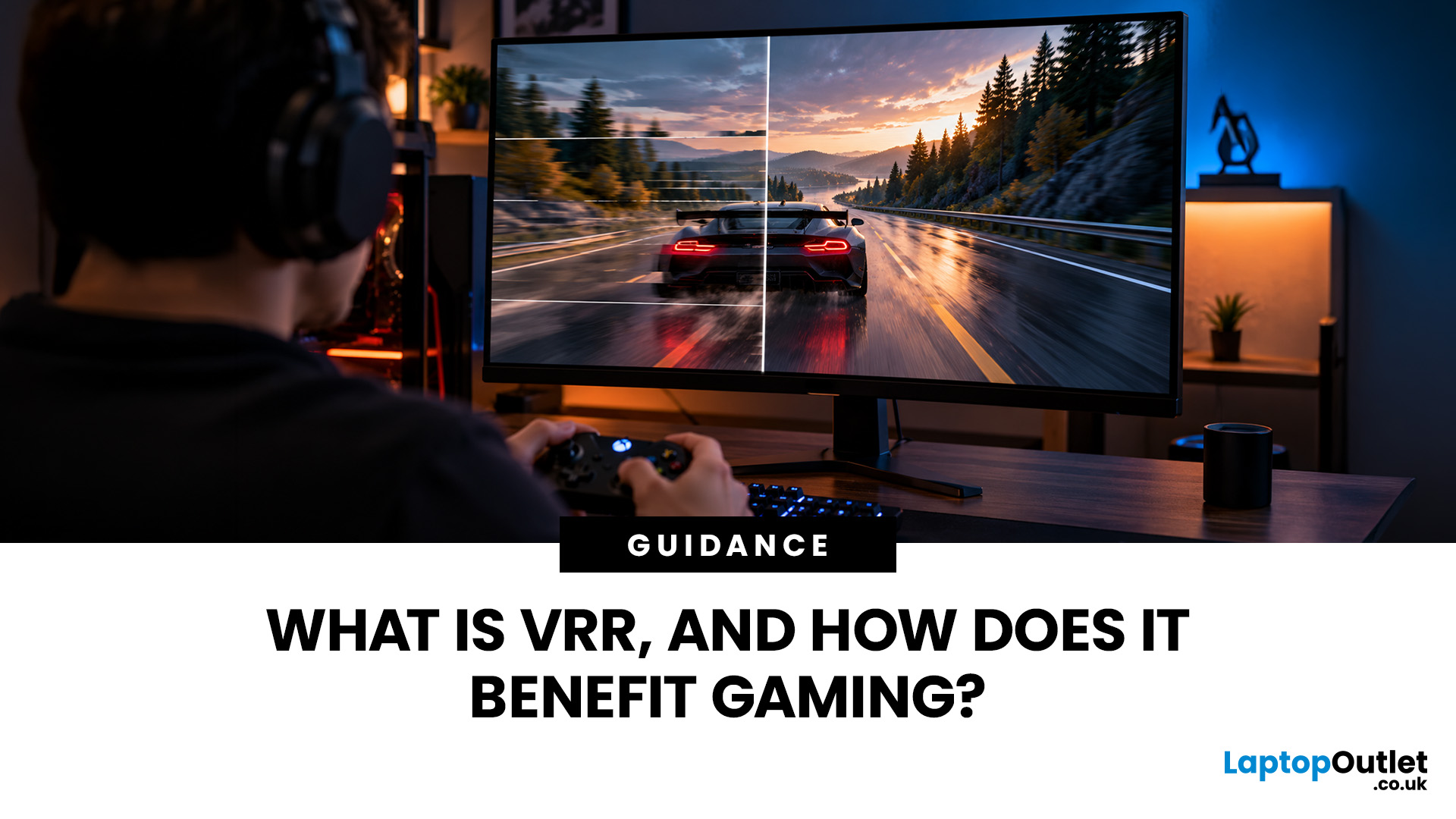
Screen tearing, stuttering and inconsistent frame rates can make gameplay feel less smooth, even on a powerful gaming PC or console . These issues often occur when your display refreshes at a different rate from the frames produced by your graphics hardware.
Variable Refresh Rate (VRR) helps solve this problem by synchronising your display's refresh timing with the game's frame output. But what is VRR, how does it work, and does it actually improve gaming performance?
This guide explains VRR technology, its gaming benefits and how to enable it on compatible devices.
What Is VRR in Gaming?
VRR (Variable Refresh Rate) is a display technology that automatically adjusts a monitor or TV 's refresh rate to match the frames delivered by a gaming PC or console. It helps reduce screen tearing and stuttering, providing more consistent on-screen motion.
To understand VRR, you need to distinguish between two terms:
- Refresh rate (Hz): How many times your screen can update its image per second.
- Frame rate (FPS): How many frames your graphics hardware renders per second.
A traditional monitor refreshes at fixed intervals, regardless of how quickly frames arrive. VRR allows compatible displays to adjust their refresh timing as the frame rate changes.
How Does VRR Work?
VRR works by synchronising screen refreshes with the GPU's frame delivery instead of following a fixed refresh schedule.
For example, imagine playing a game on a 144Hz gaming monitor . Your frame rate might fluctuate between 80 and 120 FPS as the graphics workload changes.
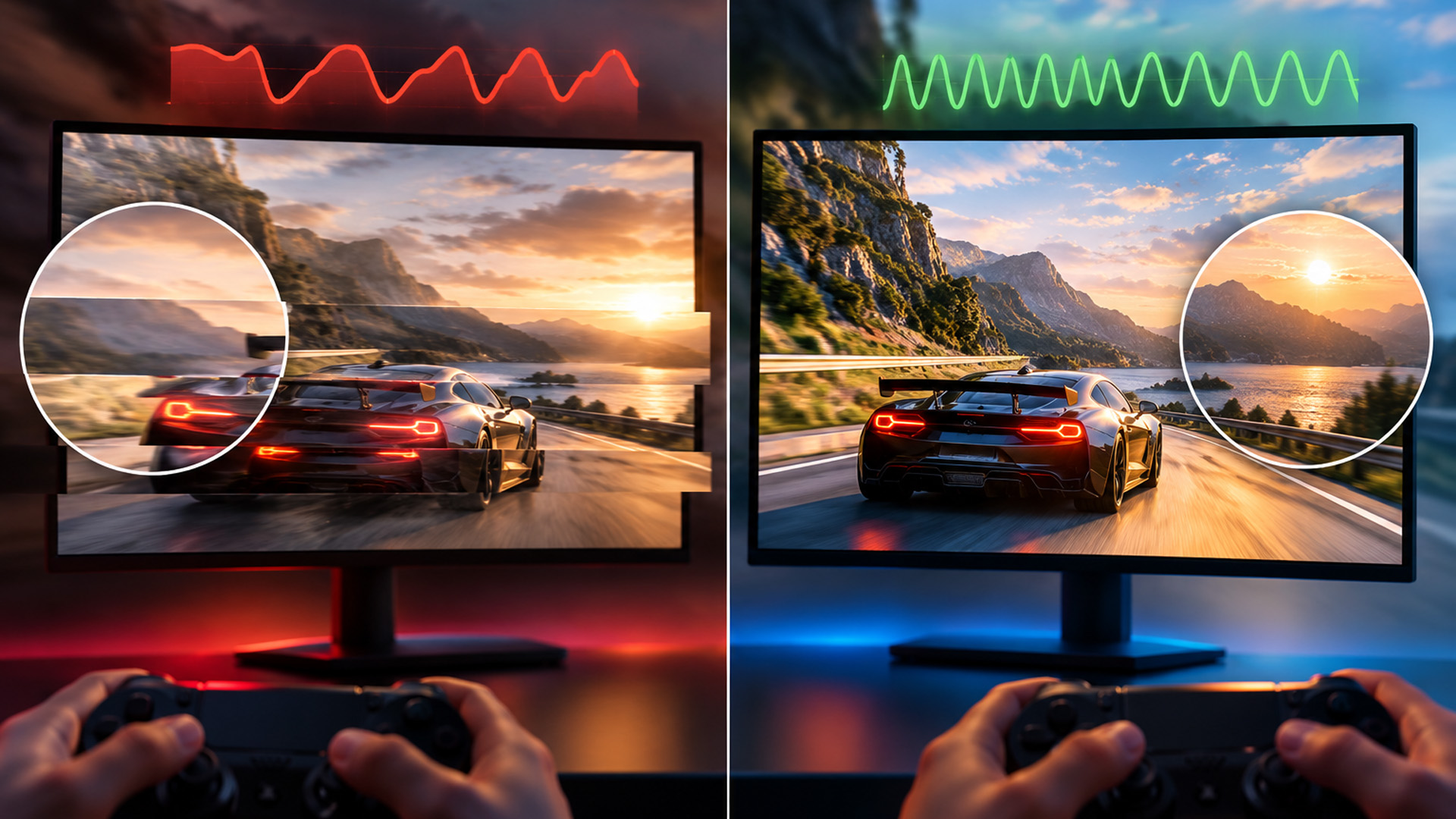
Without VRR, the monitor continues refreshing at 144Hz, potentially displaying parts of different frames or repeating frames unevenly.
With VRR enabled, the display dynamically follows the game's frame output, provided it remains within the supported VRR range. This helps maintain smoother motion.
Some displays also support Low Framerate Compensation (LFC), which repeats frames when FPS drops below the minimum VRR range to maintain synchronisation.
What Are the Benefits of VRR for Gaming?
The main benefits of VRR gaming include reduced screen tearing, smoother motion and improved responsiveness under suitable conditions.
1. Reduces Screen Tearing
Screen tearing happens when a display shows portions of different frames during a single refresh. It often appears as a horizontal split across moving objects.
VRR reduces this problem by adjusting refresh timing to match incoming frames. This is particularly useful during fast camera movements in racing games, shooters and action titles.
2. Minimises Stuttering and Judder
Games rarely maintain perfectly stable frame rates, especially during demanding scenes.
VRR adapts to these fluctuations, reducing uneven frame presentation and making movement appear more consistent.
However, it cannot eliminate stuttering caused by severe frame-time spikes, loading delays or inadequate hardware performance.
3. Helps Maintain Responsive Gameplay
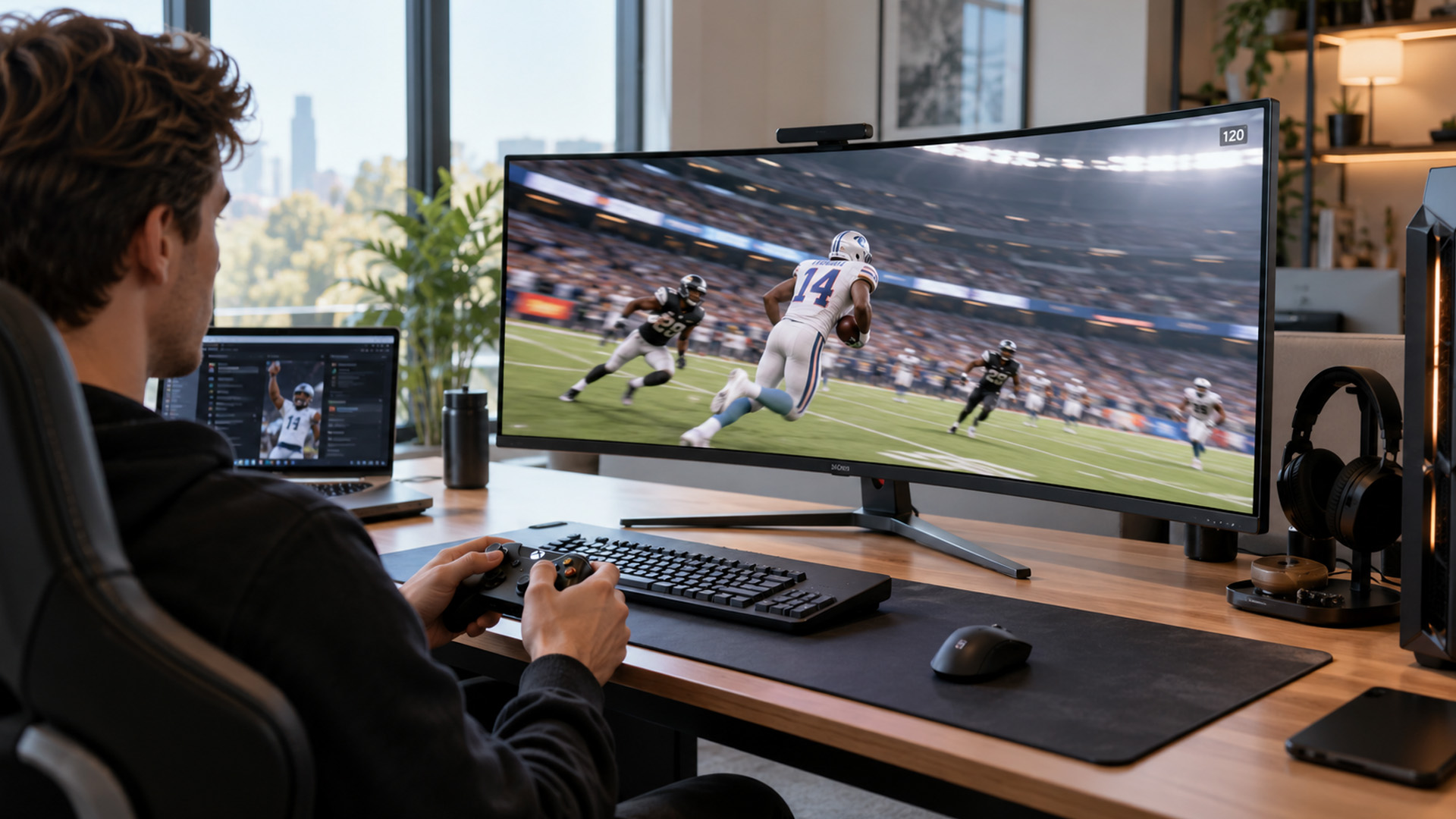
Traditional V-Sync can introduce additional input latency because it controls when frames are presented to prevent tearing.
VRR can provide tear-free gaming with less added latency than conventional V-Sync in many situations. This makes it useful for competitive gaming, where responsive controls matter.
4. Improves Gameplay During FPS Fluctuations
VRR is particularly helpful when running graphically demanding games at fluctuating frame rates.
Whether you're gaming at 1440p or 4K, adaptive refresh technology helps the display follow changing performance without requiring a perfectly constant FPS.
VRR vs V-Sync: What's the Difference?
Both VRR and V-Sync address screen tearing, but they work differently.
|
Feature |
VRR |
Traditional V-Sync |
|
Refresh timing |
Adjusts dynamically |
Remains fixed |
|
Screen tearing |
Reduces or prevents tearing within its operating range |
Prevents tearing |
|
Frame rate fluctuations |
Generally smoother |
Can cause noticeable stuttering |
|
Input latency |
Typically less added latency |
Can introduce additional latency |
|
Requirements |
Compatible display and graphics hardware |
Supported by most graphics systems |
VRR is generally preferable when frame rates fluctuate, although V-Sync can still be useful. Some configurations combine VRR with V-Sync or an FPS limit to prevent tearing when frame rates exceed the display's supported VRR range.
Types of VRR Technology Explained
Several technologies provide variable refresh rate support, although their compatibility requirements differ.
AMD FreeSync
AMD FreeSync synchronises compatible displays with supported graphics hardware using adaptive refresh technology. It operates through supported DisplayPort or HDMI connections.
FreeSync, FreeSync Premium and FreeSync Premium Pro offer different certification requirements, with higher tiers adding performance or HDR capabilities.
NVIDIA G-SYNC
NVIDIA G-SYNC provides variable refresh functionality for supported NVIDIA graphics systems.
Dedicated G-SYNC displays use specialised hardware, while G-SYNC Compatible monitors use adaptive-sync technology validated by NVIDIA. Some unvalidated displays may also work, but performance is not guaranteed.
VESA Adaptive-Sync and HDMI VRR
VESA Adaptive-Sync provides variable refresh functionality through compatible DisplayPort connections.
HDMI VRR provides similar functionality through supported HDMI connections and is particularly relevant to gaming consoles.
An HDMI 2.1 port alone does not guarantee VRR functionality. Always verify the specific display's supported features.
How to Enable VRR for Gaming
The process depends on your gaming device, graphics hardware and display.
Step 1: Check Hardware Compatibility
Confirm that your monitor or TV, graphics hardware and connection support the same VRR implementation.
When assessing graphics cards , check their supported display outputs and adaptive-sync capabilities.
Step 2: Enable VRR on Your Display
Open your monitor's on-screen settings and enable Adaptive-Sync, FreeSync or VRR, depending on the manufacturer.
Some displays enable the feature automatically.
Step 3: Activate VRR on Your Gaming Device
- AMD Radeon PC: Open AMD Software: Adrenalin Edition, locate Display settings and check that AMD FreeSync is enabled.
- NVIDIA PC: Open NVIDIA Control Panel > Display > Set up G-SYNC and select Enable G-SYNC/G-SYNC Compatible.
- PlayStation 5: Go to Settings > Screen and Video > Video Output and set VRR to Automatic. An HDMI 2.1 VRR-compatible display is required.
- Xbox Series X/S: Go to Settings > General > TV & display options > Video modes and enable Allow variable refresh rate.
If VRR remains unavailable, check your display's input settings, cable compatibility and graphics drivers.

Is VRR Worth It for Gaming?
Yes, VRR is worth enabling for most gamers with compatible hardware, particularly when frame rates fluctuate during gameplay.
It provides noticeable benefits in demanding AAA titles, racing games and fast-paced action games by reducing tearing and improving frame consistency.
However, VRR does not increase FPS, eliminate network lag or compensate for insufficient GPU performance. Its effectiveness also depends on the display's supported VRR range.
NOTE: When evaluating gaming monitors , consider VRR compatibility alongside refresh rate, response time and connectivity. A well-matched display and graphics system can make demanding games feel noticeably smoother.

Still Have Questions About VRR?
Does VRR Increase FPS in Games?
No. VRR does not increase FPS or GPU performance. It synchronises display refreshes with existing frame output to reduce tearing and improve visual consistency.
Is VRR Better Than V-Sync?
VRR is generally better for fluctuating frame rates because it reduces tearing without introducing as much additional latency as traditional V-Sync.
Do You Need HDMI 2.1 for VRR?
Not always. PC monitors can support VRR through DisplayPort or certain HDMI implementations. PS5 requires an HDMI 2.1 VRR-compatible display.
Does VRR Work on 60Hz Monitors?
Yes, provided the 60Hz monitor supports VRR. However, its maximum refresh rate and supported VRR range limit the benefits.
Should You Always Enable VRR for Gaming?
Generally, yes, when your hardware supports it. If you experience flickering or unusual display behaviour, test different VRR settings or temporarily disable the feature.
| Read More: |
| How Important is G-Sync When Buying a Monitor? |
| G-SYNC Pulsar Explained: 1000Hz Motion Clarity Without Flicker |
| 60Hz vs 144Hz Gaming Monitors: Which Refresh Rate Should You Choose? |
Related Articles

Last Updated: August 18, 2026
Choosing the best AMD gaming PC in 2026 is less about buying the fastest processor and more about matching the CPU, GPU, memory and monitor to your target resolution. AMD Ryzen processors scale from efficient integrated-graphics systems for light Full HD gaming to X3D-equipped towers built for demanding AAA titles.
This guide compares six current AMD Ryzen gaming PCs across 1080p, 1440p and 4K use. It explains where each system makes sense, where it has limitations and which games suit its hardware.
Best AMD Gaming PCs at a Glance
The six systems below cover very different levels of gaming performance. That matters because an office-focused PC with integrated graphics should not be judged in the same way as dedicated gaming desktop PCs equipped with RTX graphics.
| PC | Processor | Graphics | RAM | Storage | Best For |
| Lenovo ThinkCentre M75s Gen 2 | Ryzen 5 5600G | Integrated Radeon | 8GB DDR4 | 256GB SSD | Light 1080p gaming |
| Lenovo IdeaCentre AIO 24ARR9 | Ryzen 5 7533HS | Radeon 660M | 16GB DDR5 | 512GB SSD | Casual 1080p |
Published: August 18, 2026
Last Updated: August 19, 2026
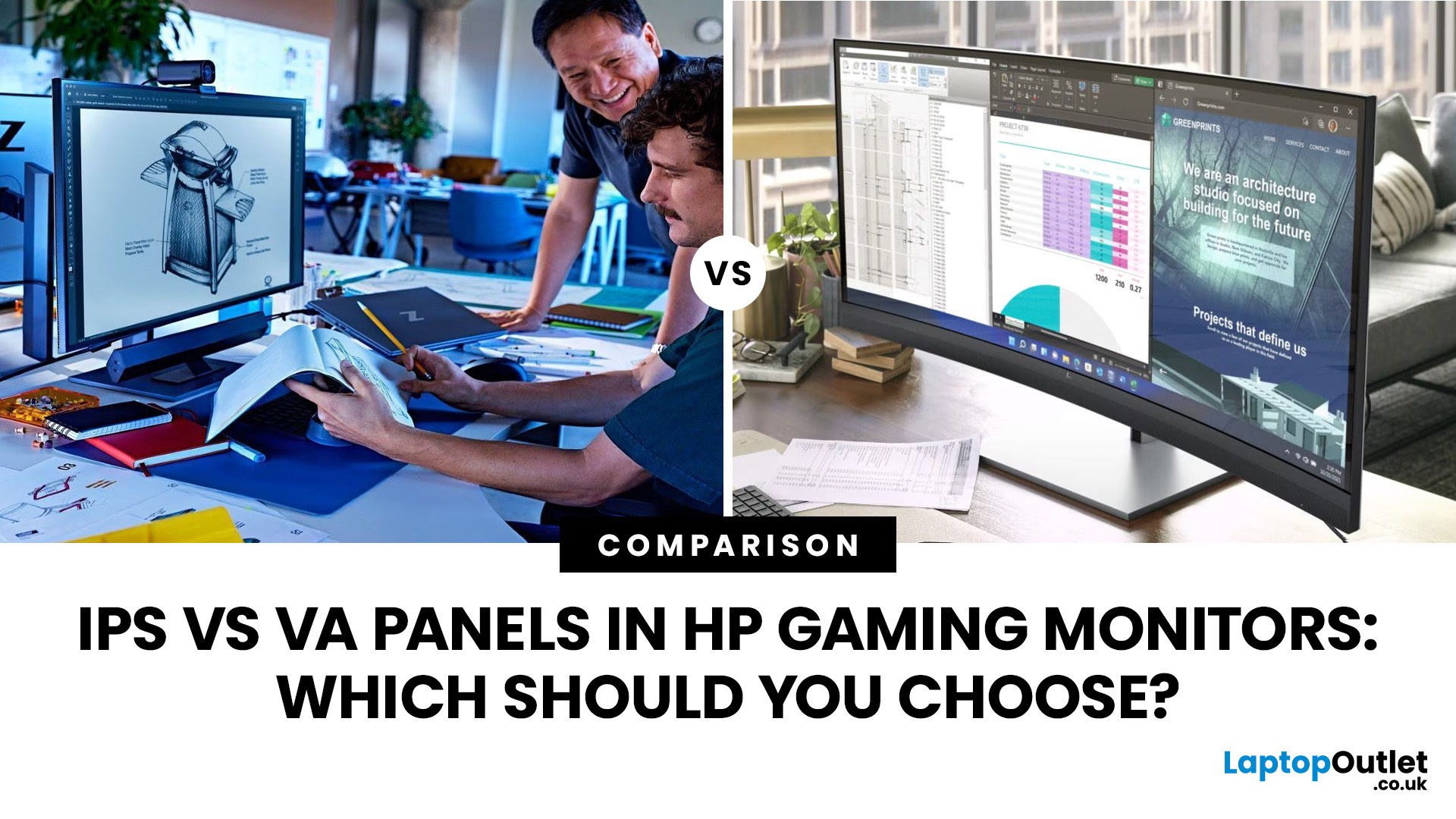
IPS panels are usually the better choice for competitive gaming, wider viewing angles and mixed gaming and creative work. VA panels generally deliver deeper blacks and stronger contrast, making them attractive for immersive games in darker rooms. However, the IPS vs VA panel decision should also consider the monitor’s exact response time, refresh rate, resolution, adaptive sync, and measured performance. Read our complete guide to gaming monitor panels for a full breakdown of IPS vs VA and other display technologies.
IPS vs VA Panels: Quick Comparison
| Feature | IPS Panel | VA Panel |
| Native contrast | Usually lower | Usually higher |
| Black depth | Blacks can appear grey in dark rooms | Deeper blacks in suitable conditions |
| Viewing angles | Wider and more consistent | Narrower, with more off-centre variation |
| Fast-motion clarity | Generally cleaner | Can show dark smearing |
| Colour consistency | Usually strong across the screen | Can change more when viewed off-centre |
| Colour accuracy | Depends on the individual monitor | Depends |
Last Updated: August 20, 2026
Choosing the best Intel PC for gaming and creative work in 2026 means looking beyond the processor name. CPU performance matters, but your graphics card, system memory, storage and cooling can have just as much impact on how the PC handles games and demanding applications.
This guide compares eight Intel-powered desktops for different types of gamers and creators, from accessible 1080p systems to powerful 4K gaming and content-creation PCs.
Why Intel PCs Make Sense for Gaming and Content Creation
Intel is a strong choice for gaming and content creation because its desktop range covers everything from mainstream Core i5 systems to more powerful Core i7 and Core Ultra configurations. That gives buyers plenty of choice when matching performance to gaming, streaming or creative workloads.
Many high-performance Intel processors use a hybrid architecture with Performance-cores and Efficient-cores. With Intel Thread Director, compatible systems can help the operating system prioritise demanding
Last Updated: August 24, 2026
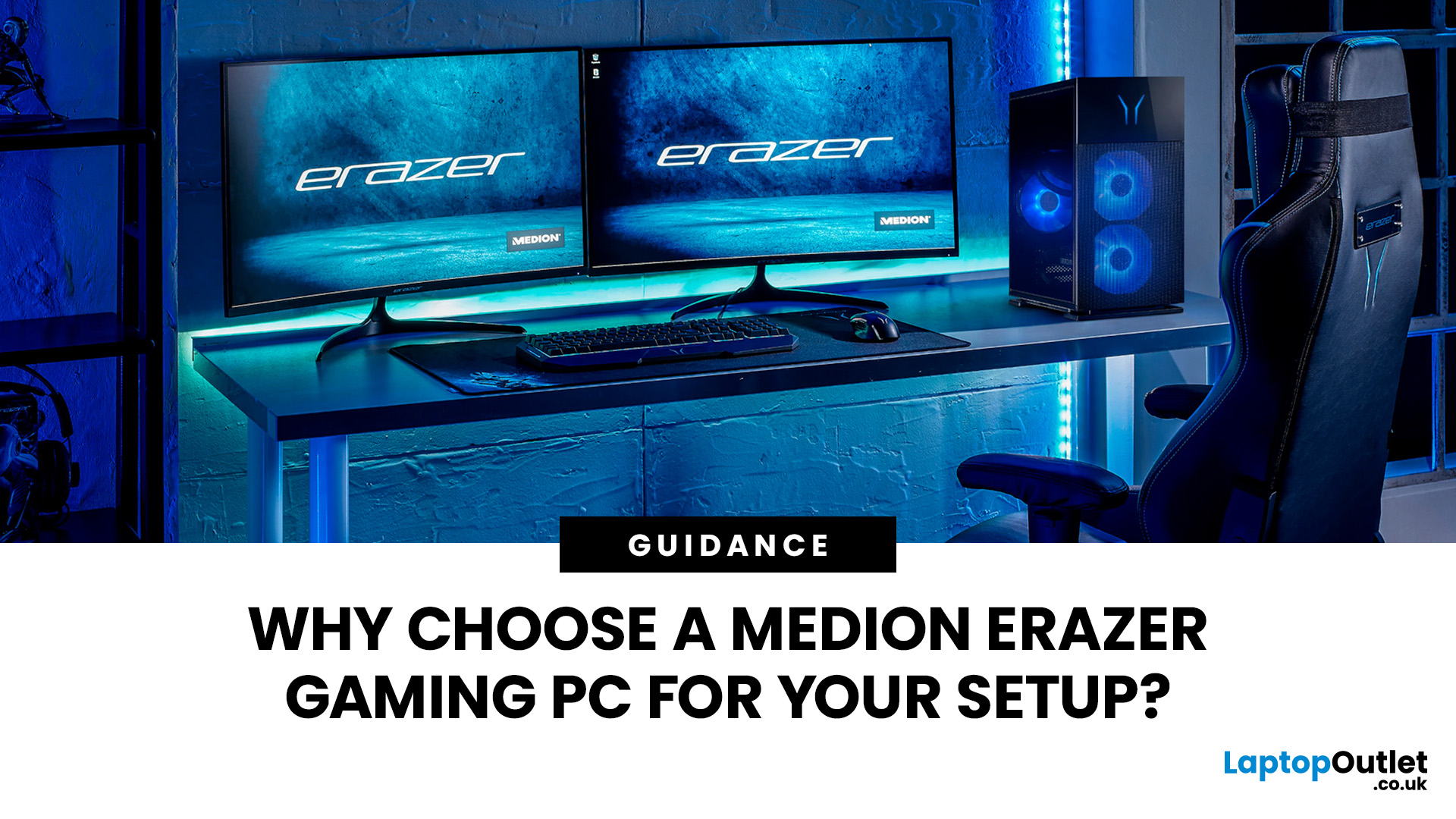
A Medion Erazer gaming PC is a solid choice for desktop gaming without the hassle of building your own system.
The range covers 1080p, 1440p and high-end gaming with NVIDIA GeForce RTX graphics, Intel or AMD processors, SSD storage and Windows 11.
However, not every model suits every gamer. Entry-level options work well for esports and 1080p gaming, while AAA titles, streaming and higher resolutions need stronger specs. The key is to match the PC to your games, not just its design.
This guide covers where Medion Erazer desktops
Published: August 24, 2026
Last Updated: October 26, 2026
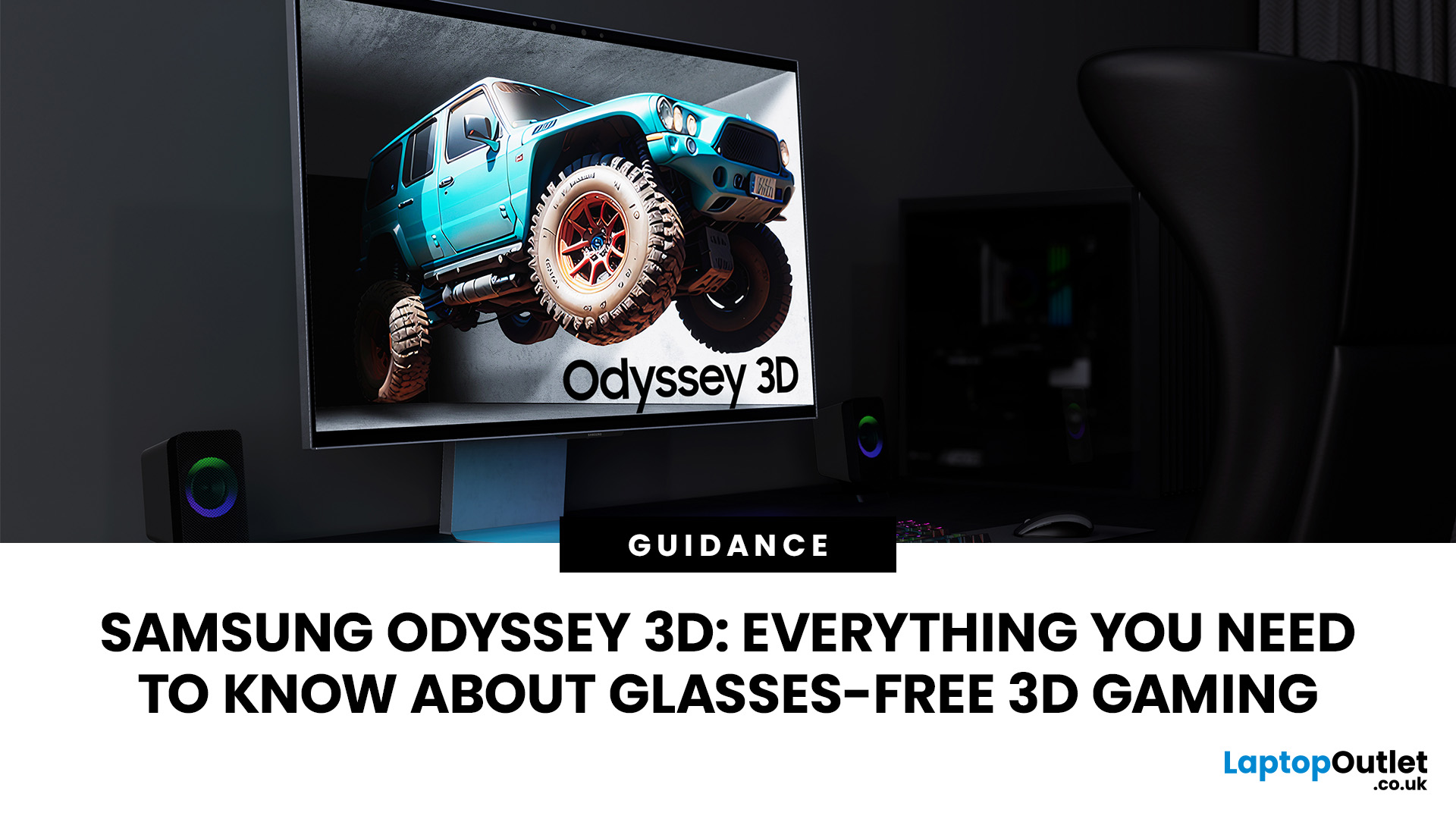
The Samsung Odyssey 3D takes a different route to gaming immersion. Instead of requiring a headset or 3D glasses, this 27-inch 4K monitor uses eye tracking, view mapping and a lenticular lens to create a stereoscopic 3D display from your normal seated position. You can also switch back to conventional 2D gaming whenever you want.
What is the Samsung Odyssey 3D?
The Samsung Odyssey 3D G90XF is a 27-inch flat IPS gaming monitor combining 4K UHD, 165Hz and a 1ms GtG response time with Samsung's Odyssey 3D Hub software. It also supports HDR10+ Gaming, AMD FreeSync Premium, and NVIDIA G-SYNC compatibility.
Key Features of the Samsung Odyssey 3D
Its headline feature is Samsung glasses-free 3D technology, powered by real-time eye tracking and view mapping. You also get stereo speakers, Edge Lighting, an adjustable stand, HDMI 2.1 and DisplayPort 1.4.
Who is the Samsung Odyssey 3D designed for?
This Samsung 3D gaming monitor suits PC gamers who value immersion, play supported titles and want one
Last Updated: September 21, 2026
Last Updated: September 17, 2026
Last Updated: September 24, 2026
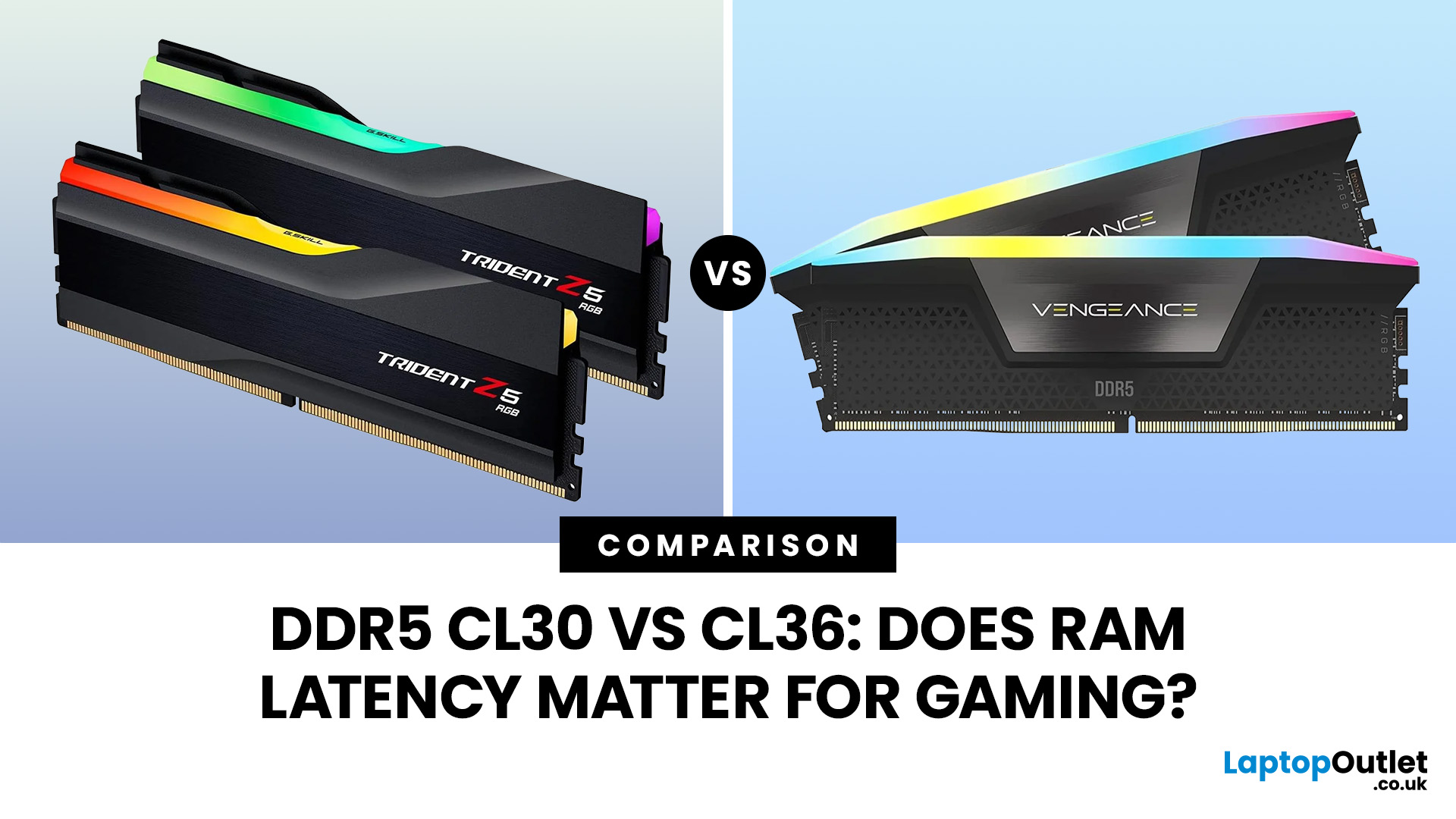
Quick Answer: If two DDR5 kits run at the same speed, CL30 has lower CAS latency than CL36. At DDR5-6000, CL30 works out at about 10ns of CAS delay versus 12ns for CL36. That can help in CPU-limited games, but the real gaming difference is usually much smaller than the 20% difference suggested by those latency figures. Memory speed, secondary timings, CPU architecture, and the game itself also matter.
When comparing RAM modules, specifications such as DDR5-6000 CL30 and DDR5-6000 CL36 can look confusingly similar. Both have the same data rate, so does paying attention to that CL number actually make a difference?
It can, but CL30 vs CL36 is not as simple as choosing the lowest number. Here is what those timings really mean and when lower RAM latency can affect your gaming PC.
What Do CL30 and CL36 Mean?
CL stands for CAS latency, or Column Address Strobe latency. It measures the number of memory clock cycles between a read command being issued and the RAM beginning to return the requested

