



Latest Tips: How to Increase Laptop Battery Life
Assume you are working remotely while on vacation with your family, but there is no power outlet nearby. Your boss invites you to an especially important meeting and your laptop shuts down instantly. For a gamer, imagine your laptop being shut down when you are on the final stretch of winning a racing game. For a content creator, losing the files that you spent hours working on just because you could not save them before your device shut down instantly is devastating. All of these nightmares can come true if your laptop battery life sucks! Even if you are a student or someone who is using the laptop for regular functions such as audio or video streaming, battery drainage is an issue that is equally frustrating for everyone. So, for all victims of rapid battery drainage, this guide presents a complete guide on why these issues happen and what tips can be used for avoiding this in future.
Part 1: Why do battery drainage issues happen?
When we think about battery drainage, the first issue that comes to mind is an outdated battery. The most common solution that everyone usually comes up with for resolving battery drainage challenges is to replace the battery or the whole laptop. There is no denying that it can be effective in some cases. For instance, if you have been using the same laptop battery for more than 5 years, then it's probably not the battery’s fault to drain so fast. However, there might be multiple other reasons behind battery drainage issues, and knowing them can help you avoid these challenges for a longer period of time. Have a look below!
Deep discharge
When the laptop battery starts to drain, there is a sweet notification reminding us to put the device on charge. This is the ideal time to plug in your charger. However, in some cases, we become so overwhelmed with work that we ignore this reminder, which results in the laptop shutting down as the battery reaches its lowest stage. When we put our laptop on charge after this, it is known as "deep discharge." In the deep-discharge stage, the battery goes through an under-voltage state, and when this keeps happening, the battery starts to become less and less durable. The deep discharge takes extra power and puts the battery under excessive pressure. This is also the reason why some companies claim to offer batteries with charging cycles of up to 1000, given that the battery is recharged only when it reaches 60% to 70% capacity. The reason is the same. When the laptop is connected to a charger before reaching the lowest stage, it consumes less power and puts less strain on the battery. But this doesn’t mean that you must always run for the charger as soon as you get the recharge notification. A deep discharge can be healthy for your laptop’s battery if it's done once a month, as it enables the battery to completely dump the previous energy and get a whole refreshed loop of power.
Overheating charging
When the laptop is put on charge, the power dynamics are adjusted correspondingly. So, even if you are playing fast-paced games, creating content, or doing any other power-intensive function while the laptop is charging, the battery won't get affected. The real problem arises when the battery is completely recharged and the laptop is still connected to the charging port. If this happens, the battery turns the power back to the transformer, and the laptop enters a "micro-maintenance" state in which you can face overheating challenges. So, if your device’s heat dissipation is not effective enough, there can be significant heating produced, which drains out the battery’s life much faster. Of course, this problem is less common for laptops with more comprehensive cooling systems. Ideally, while the laptop is put on charge, any fast-paced or heat producing activities such as gaming, content creation, programming, etc., should be avoided. If you have a removable battery, you can detach the battery and connect an adapter, which directly enhances your battery life.
Passive Charging (Overcharging)
As already indicated in the above-mentioned section, the laptop’s charging system changes the power distribution source when the device is connected to the power cord. When the batteries are fully charged and the charger is still connected, the laptop continues to draw power from the adapter rather than the battery itself. Till the laptop’s battery reaches 1% less than 99%, the device will continue to take power from the charger rather than the battery. When the batteries are not used for a longer period, the electrode materials on the plates slowly decrease their functionality. This process is called "passivation." When this happens frequently, multiple battery related challenges start to appear. For instance, the laptop will show you that the battery is fully charged, but when you start using the device, it loses the voltage rapidly, resulting in much-diminished battery performance. After numerous deep charge-discharge cycles, passivated batteries typically recuperate on their own. If they are unable to recover, passivation and other faults—the most prevalent of which are vulcanization and softening—start to appear simultaneously. As a result, once fully charged, you can either remove the battery to use the power cable as a power source or connect the charging cable to use the laptop batteries as a power source.
Part 2: Tips to Increase Your Laptop Battery Life
Now that you understand the reasons behind laptop battery life challenges, have a look at some of the tips that can effectively address these challenges.
Battery-saving mode
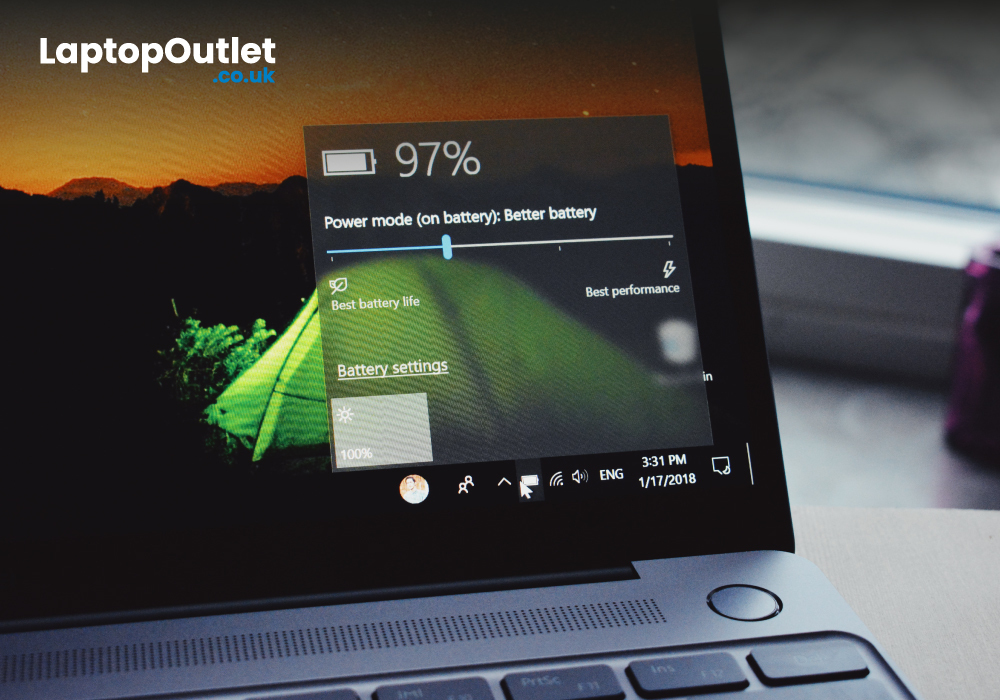
If your laptop runs Windows 10 or later, it must include a battery-saving mode. Even if you don’t turn it on manually, the "battery saver mode" is automatically turned on once the laptop reaches a battery level of 20% or lower. This mode is intelligently designed to reduce power consumption by limiting background activities and disabling push notifications. If you already have Windows 10 or higher on your laptop, all you need to do is turn on "Power Saver Mode" when the battery drops below 50%. But if you have an outdated Windows version, it is highly recommended that you upgrade your operating system.
Reduce screen brightness
Laptops typically have higher brightness levels and higher resolutions so that the user can enjoy every detail of what is displayed on the screen. Without noticing, we might use the laptop at maximum brightness levels, which drain the battery at a faster rate. The philosophy behind this is simple. The more nits of brightness that appear on the screen, the more power the laptop battery has to consume, just as larger bulbs require more voltage. Backlit keyboards, which consume additional power, are found in some gaming laptops. Thus, using a laptop with optimised screen brightness and reduced or limited access to backlit keyboards can effectively boost your laptop's battery life.
Avoid sleep modes
Most laptop users have the habit of switching the laptop to sleep mode instead of turning it off. When you shut down the laptop, you usually have to reopen all the applications and web-browsing tabs, but sleep mode enables you to continue exactly where you left off. This is the prime reason why sleep mode is so popular among laptop users. But have you ever wondered that even if you turn on "Sleep Mode" when your laptop is at 100% power, while re-logging into the laptop, the power is mostly drained out? The reason is that even though the screen shuts down, all of the background activities and, most importantly, the processor of the laptop keep working. Sleep modes are also the most common reason behind deep discharges because you might turn your laptop into "sleep mode" and then forget about turning it off for several hours or even for days. So, it is highly recommended to "shut down" the laptop when you are not using it. If you still can't risk losing any valuable data or tabs, then prioritising "Hibernation Mode" over "Sleep Mode" is a much better choice!
When to change your battery?
Laptop batteries are usually lithium batteries, which have an average depletion life of 300 to 500 charging cycles. You might be wondering what a charging cycle is. It's as simple as the name suggests. A charging cycle or a charging loop refers to the recharging of a battery to its maximum capacity. If you recharge the battery from 0% to 100%, it will be considered one cycle. However, most users connect their chargers before going completely dead or shutting down. So, if your laptop has a battery level of 50% and you put it on charge, it will be counted as a half-cycle. If you have a battery with 500 charging cycles, then it can easily last for 2 years. However, once the cycles are completed, your battery will begin to slow down or will eventually cause multiple drainage issues. Thereby, if you think your battery cycles might have finished or are close to the finish line, then replacing your laptop’s battery is the most optimal solution for you.
Bottom Line
The guide discussed the reasons why laptop battery drainage issues can be faced by the user, followed by tips to increase laptop battery life. If you go through the brief carefully, you will realise that some simple steps such as turning on the battery saver mode, reducing screen brightness, and avoiding sleep modes can save you the trouble of replacing or repairing your laptop battery as long as there are remaining charging cycles available in the battery. However, if you believe your battery has completed its cycles, replacing it may be the best option for you!
Read More:
| How to Stop a Laptop from Overheating – Cool It Down Fast |
| How to Speed Up Your Laptop – Easy Fixes for Better Performance |
| 5 Ways to Keep Laptop Battery Healthy |
Related Articles

Last Updated: July 01, 2025

Last Updated: April 02, 2026
Fun Fact about Lenovo: Did you know that Lenovo is at the forefront of groundbreaking technology, recently unveiling the world's first foldable PC, the ThinkPad X1 Fold?
Now, let's explore another aspect of Lenovo's technology prowess: ensuring the longevity and efficiency of your Lenovo laptop's battery.
In the fast-paced digital era, laptops have become indispensable companions, ensuring optimal performance is paramount. One key aspect that often takes a backseat in our tech-conscious minds is the health of the laptop's battery. For proud owners of Lenovo laptops, understanding how to check and maintain battery health is crucial for a seamless computing experience.
In this comprehensive guide, we will explore the various methods to check the battery health of your Lenovo laptop. Whether you're a seasoned tech enthusiast or a casual user, these insights will empower you to maximise your device's battery life and performance. Let's dive into the Lenovo laptop battery health world and

Last Updated: June 18, 2026
If you’re tired of searching for plug sockets halfway through the day, you’re not alone. More people than ever are looking for all-day battery laptops; devices that can handle lectures, commutes, office work and streaming without giving up before you do.
But long battery life isn’t the only factor that matters. Weight determines how comfortable it is to carry, and price decides whether it’s good value or just good marketing.
In this guide, we break down six of the best long-lasting laptops from Laptop Outlet, comparing battery life, portability and pricing so you can confidently choose the model that fits your needs (and your backpack). Let’s start.
Apple MacBook Air (M1, 2020)
A classic choice if you want long battery life without lugging a brick around.
At a Glance:
- Battery: Up to 18 hours (49.9 Wh battery)
- Weight: 1.29 kg
- Price on Laptop Outlet: (was £649.99, now £539.99; Save £110 deal)
- Specs: Apple M1 | 8GB RAM | Apple GPU | 256GB SSD | 13.3" WQXGA Display, IPS, 2560

Last Updated: November 17, 2025
If you’re searching for a refurbished laptop, one of the most critical checks you can make before purchase is its battery health.
A healthy battery ensures long-term performance, reliability, and better value for money. Whether you’re considering a Dell, HP, Lenovo, or another brand, assessing battery condition can help you avoid hidden costs later.
This guide explains, step by step, how to check your laptop’s battery health in Windows 10 and Windows 11, interpret the results, and make an informed buying decision.
Why Checking Laptop Battery Health Matters
Battery health directly impacts how long your laptop lasts between charges and how efficiently it performs. When buying a refurbished device, even if everything else works perfectly, a worn-out battery can shorten the device’s lifespan.
A degraded battery often means:
- Shorter usage time per charge
- Slower charging or sudden shutdowns
- Additional expense for replacement
Before investing in any refurbished model, check the battery

Last Updated: September 09, 2025
Wondering If Your iPad Battery Is Still Strong?
If your iPad doesn’t last as long as it used to, you might be wondering about its battery health. While iOS doesn’t show a detailed battery health tool like the iPhone, there are still ways to monitor your battery’s performance and longevity. Here’s how to do it.
1. Use iPad Battery Settings to Check Usage
Although iPads don’t show battery maximum capacity like iPhones, you can still:
Steps:
- Go to Settings > Battery
- Tap Battery Usage by App to see what’s draining your battery
- View battery level graphs and screen-on time
- This helps identify whether the issue is with the battery or specific apps
2. Use Analytics Data to Estimate Battery Health
Apple doesn’t provide direct battery health info on iPad, but you can dig into system analytics.
Steps:
- Go to Settings > Privacy & Security > Analytics & Improvements
- Tap Analytics Data
- Look for a file like log-aggregated-xxxx and tap it
- Use Copy and paste into Notes or Files

