



iPhone 17 Pro Max Battery Life: Can It Really Last Two Days?

Apple’s iPhone 17 Pro Max has arrived with some serious promises around battery life. With a larger battery capacity than its predecessor, more efficient internals, and better software optimisation, Apple claims this could be its longest-lasting iPhone yet. But in practical, everyday usage, can it really stretch to two full days? Let’s dig into what we know so far, what that means in real scenarios, and whether two-day usage is realistic.
Official Specs & Improvements
- Battery Capacity: The iPhone 17 Pro Max comes with a 5,088 mAh battery in its eSIM-only version, and about 4,823 mAh in variants with a physical SIM tray. That’s up from the ~4,685 mAh in the iPhone 16 Pro Max.
- Video Playback Time: Apple quotes up to 39 hours of video playback for the Pro Max. This is a big jump over the 16 Pro Max, which had less video playback time.
- Hardware & Efficiency Upgrades: The iPhone 17 Pro Max has the A19 Pro chip (built on a smaller fabrication process), better thermal design, and a more efficient display panel to help with power draw.
What “Two Days” Typically Means & What Affects It
To judge whether the iPhone 17 Pro Max can last two days, it helps to define what “two days” means. Usually, that means:
- Moderate usage: web browsing, messaging, occasional photo/video, some music, a few hours of screen-on time.
- Mixed usage: some streaming, GPS/navigation, social media, and constant notifications.
What drains the battery fastest?
- Brightness and display refresh rate
- Streaming video or music with high volume & connectivity use
- GPS, constant notifications, 5G usage
- Background tasks & location services
Lab Tests & Real-World Usage (Based on Leaks & Early Tests)
While official long-term user reviews are still limited, leaks and early tests give us some guidance:
- Video Playback Benchmark: With Apple’s quoted 39 hours, that's the ideal “video off standby” test. But in more normal mixed-use, this number drops significantly.
- Comparative Usage: Leaks and regulatory filings suggest that the Pro Max may pull off 30+ hours of screen-on / “active” usage under moderate conditions. Some reports say that users might get nearly two days if they don’t abuse it (no heavy gaming, limited streaming, lower brightness).
- Difference Between SIM vs eSIM Models: The battery capacity difference (≈5,088 mAh vs ≈4,823 mAh) means the eSIM-only model tends to last a bit longer, especially under similar usage. Those without the physical SIM tray benefit from that extra space for the battery.
Possible Scenarios: How Many Days Can It Last?
|
Usage Type |
Expected Battery Life* |
Two-Day Claim Viable? |
|
Light / Moderate Use |
~1.5 to 2 days |
Yes — if usage is careful |
|
Mixed Use (social media, GPS, some streaming) |
~1 day to 1.3 days |
Unlikely full two days |
|
Heavy Use (gaming, 5G, video, brightness high) |
~10-14 hours of screen-on |
No |
*Estimates based on battery capacity, efficiency improvements, and early reviews/leaks. Actual results depend heavily on usage patterns.
What Helps & What Holds You Back
What Helps the Battery Last Longer:
- Use the eSIM-only version if available, since that gives the larger battery.
- Reducing screen brightness or using adaptive brightness modes.
- Limiting high refresh rate usage when not needed.
- Turning off or reducing background tasks, location services, and notifications.
- Using WiFi over 5G when possible, and turning off unneeded radios (Bluetooth, etc.).
What Drains It Fast:
- Gaming, AR, or heavy video use.
- High brightness in outdoor environments.
- Many background apps and services.
- Frequent use of the camera, especially video.
- Constant 5G / GPS usage.

FAQs on iPhone 17 Pro Max Battery
1. How long does it take to fully charge the iPhone 17 Pro Max?
Apple hasn’t increased charging speeds; the iPhone 17 Pro Max supports up to 35W fast charging, reaching about 50% in 30 minutes with a compatible USB-C charger. A full charge usually takes around 90 minutes to 2 hours.
2. Does the iPhone 17 Pro Max support reverse wireless charging?
Yes, the iPhone 17 Pro Max supports reverse wireless charging, allowing you to power smaller accessories like AirPods or an Apple Watch directly from the back of the phone.
3. What charger comes with the iPhone 17 Pro Max?
As with recent iPhones, the iPhone 17 Pro Max ships without a charging brick. You’ll need to buy a USB-C adapter separately if you don’t already own one.
4. Does the iPhone 17 Pro Max battery degrade quickly?
Apple states the iPhone 17 Pro Max is designed to retain at least 80% of its original capacity after 500 complete charge cycles under normal use. This is in line with industry standards for lithium-ion batteries.
5. Can iOS features help extend iPhone 17 Pro Max battery life?
Yes. Features like Optimised Battery Charging, Low Power Mode, and adaptive refresh rates (120Hz ProMotion) help prolong daily battery life and reduce long-term battery wear.
Verdict: Can It Really Last Two Days?
Short answer: Yes……but only under favourable conditions.
If you’re a light to moderate user, especially with the eSIM model, you could push the 17 Pro Max through two calendar days (morning-to-night then into the next evening) before needing a charge. But for mixed or heavy use, expecting two full days is optimistic. You’ll likely get a full day, possibly a day plus a bit more.
The improvements Apple has made are real: bigger battery, efficiency gains, and quoted video playback hours are solid. But battery life is always an act. If two-day usage is a priority for you, being mindful of how you use the mobile phone will make all the difference.

Summary:
The iPhone 17 Pro Max battery packs up to 5,088 mAh, with Apple claiming two-day life and 39 hours of video playback. Real-world use shows it can last nearly two days with light to moderate usage, but heavy gaming, 5G, or high brightness reduce it to about a day.
| Read More: |
| Future of Mobile Phones in 2025 |
| How to protect your Mobile Phone from Cyber Threats? |
| Refurbished Mobile Phones: Are They Worth It? |
Related Articles

Last Updated: September 11, 2025
Time for a Fresh Start?
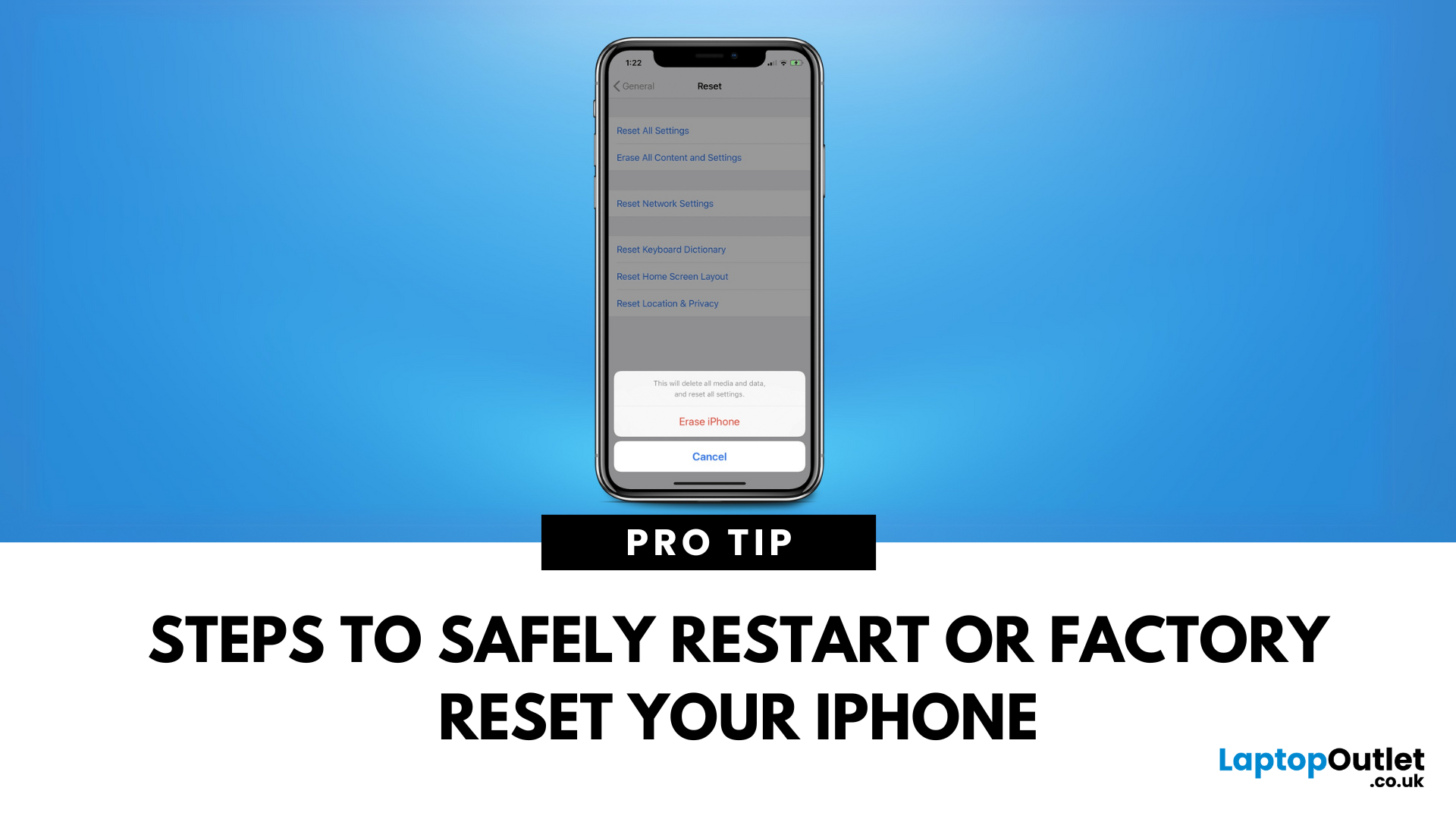
Whether your iPhone is frozen, glitching, or you’re preparing to sell it, knowing how to reset your iPhone is essential. There are different types of resets depending on what you need—let’s walk through them all.
1. Soft Reset (Restart Your iPhone)
A soft reset is simply turning your iPhone off and on again—great for fixing minor issues.
Steps (iPhone X or later):
- Press and hold the Side button + Volume Up or Volume Down
- Slide to power off
- Wait a few seconds, then hold the Side button to turn it back on
Steps (iPhone 8 or earlier):
- Hold the Top (or Side) button until "Slide to power off" appears
- No data loss—just a simple reboot
2. Hard Reset (Force Restart Your iPhone)
Useful when your iPhone is unresponsive or frozen.
Steps (iPhone 8, X, 11, 12, 13, 14, 15 Series):
- Quickly press and release Volume Up
- Quickly press and release Volume Down
- Press and hold the Side button until you see the Apple logo
Steps (iPhone 7/7 Plus):
- Press and hold Volume Down +

Last Updated: September 11, 2025
Move Your Contacts Without the Headache
Switching phones is exciting—but what about your contacts? Luckily, copying contacts from Android to iPhone is simpler than you might think. Here’s how to do it quickly using different methods.
1. Use Move to iOS App (During iPhone Setup)
Apple’s free Move to iOS app helps transfer contacts, messages, and more during iPhone setup.
Steps:
- On your Android device, install the Move to iOS app from Google Play
- Begin setting up your new iPhone
- On the "Apps & Data" screen, select Move Data from Android
- Open the Move to iOS app and follow the prompts
- Enter the code displayed on your iPhone into your Android device
- Select Contacts (and any other data you want to transfer)
- Wait for the transfer to complete
Best method if you're setting up a new iPhone
2. Sync Contacts via Google Account (Anytime)
Already using Google to back up your Android contacts? You can sync them to your iPhone easily.
Steps:
- On your Android, ensure contacts

Last Updated: September 11, 2025
Seamless Apple Syncing
One of the biggest perks of Apple devices is how smoothly they work together. If you own both an iPhone and iPad, syncing them can save you time, keep your files up to date, and make switching between devices feel effortless. Here’s how to sync your iPhone and iPad in just a few steps.
1. Make Sure You’re Using the Same Apple ID
- Go to Settings > [your name] on both devices
- Make sure you’re signed in with the same Apple ID
If not, sign out and back in with the same account
2. Turn On iCloud Sync
Steps:
- On both devices, go to Settings > [your name] > iCloud
- Toggle on the apps and services you want to sync:
- Photos
- Contacts
- Calendar
- Notes
- Safari
- Messages
iCloud keeps your data consistent across devices
3. Sync Messages Between iPhone and iPad
- Go to Settings > Messages > Text Message Forwarding on your iPhone
- Enable your iPad to receive and send texts
- Turn on iMessage on both devices (Settings > Messages)

