



Essential Tips to Extend HP Laptop Lifespan
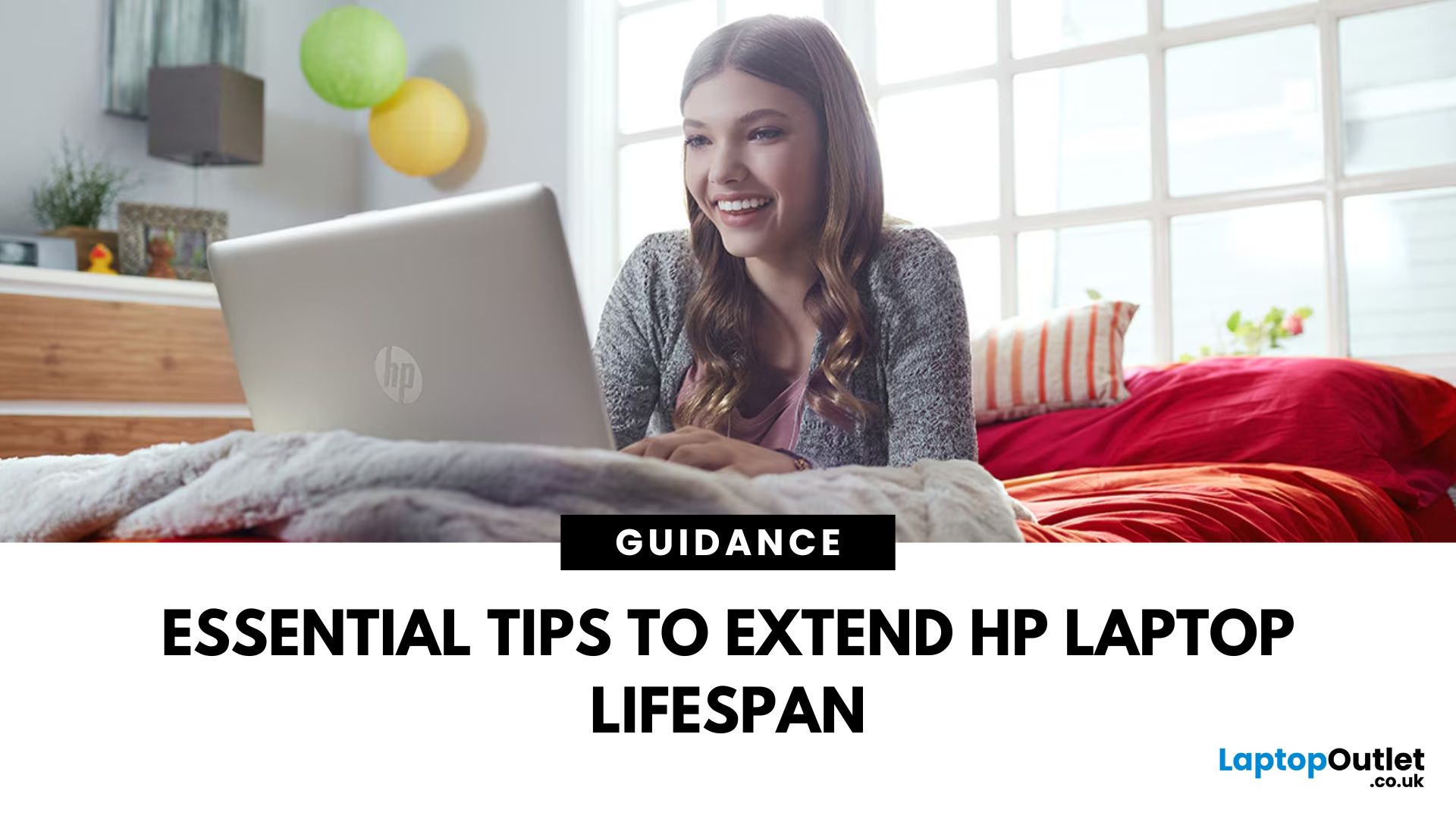
HP laptops are known for their reliability, innovative features, and user-friendly designs, making them a popular choice for students, professionals, and casual users alike. But like all devices, they require care to ensure they continue delivering the same level of performance over the years. Many users ask, “How can I make my HP laptop last longer?” The answer lies in following consistent best practices for maintenance, usage, and upgrades.
This guide offers essential tips to extend HP laptop lifespan and ensure you get the most out of your investment. From proper battery care to cooling strategies and software management, these steps will help you increase HP laptop durability and enjoy smoother performance for longer.
Why Focus on HP Laptop Lifespan?
Before diving into practical tips, it’s important to understand why caring for your HP laptop’s longevity matters. Many people assume laptops are disposable after a few years, but with the right habits, you can get significantly more value from your device. Looking after your laptop not only saves you money but also improves your daily experience and even benefits the environment. Below are some important reasons why extending HP laptop lifespan should be a priority:
Protecting Your Investment
HP laptops are a significant purchase, and maximising their life ensures better value for money. Proper care allows your laptop to remain functional and reliable long after the average three- to five-year lifespan.
Boosting Productivity
A well-maintained device helps you avoid unexpected slowdowns, crashes, or hardware issues, keeping your workflow uninterrupted. For professionals, this translates into uninterrupted workflows, while students benefit from dependable performance during critical study or exam periods.
Sustainability Benefits
Extending your laptop’s usable years reduces e-waste and lowers the need for frequent replacements. This not only lowers your carbon footprint but also supports more sustainable tech practices. Choosing to extend HP laptop durability means you’re making an eco-conscious decision that benefits both your wallet and the planet.
Physical Care:Protecting the Hardware
Hardware maintenance is the first step towards making your device last. By following these strategies, you can protect your laptop from physical wear and tear.
Handle with Care
- Avoid carrying your laptop without a padded case or sleeve.
- Don’t rest heavy items on the lid or palm rest.
- Always use a clean, stable surface to prevent accidental falls.
HP Battery Care for Longevity
Your HP laptop battery life is one of the most critical components influencing HP laptop lifespan.
- Avoid leaving your laptop plugged in constantly. Instead, you can allow partial discharge cycles.
- Keep your battery level between 20% and 80% for optimal longevity.
- Enable HP’s built-in battery management features (where available) to prevent overcharging.
Since battery health directly impacts your HP laptop’s lifespan, following proven practices for charging and discharging is essential. For in-depth strategies, see our guide on improving HP laptop battery life.
Cleanliness Matters
Dust can accumulate inside vents and on keyboards, reducing airflow and increasing wear. Therefore, you should:
- Use compressed air to clean vents and fans periodically.
- Wipe the keyboard and screen with microfibre cloths.
- Consider a laptop stand to reduce dust exposure.
How to Fix HP Laptop Overheating?
Heat is one of the biggest enemies of laptop durability. Effective cooling practices are essential for extending your device’s life. By following simple HP laptop cooling tips, you can significantly reduce thermal strain and extend the overall lifespan of your device.
Keep Vents Clear
Your HP laptop relies on vents and fans to circulate air and maintain safe operating temperatures. If these vents are blocked, heat quickly builds up inside the system and you need to take following measures:
- Always place your laptop on a hard, flat surface to allow proper airflow.
- Avoid using it on soft surfaces such as beds, sofas, or cushions, which trap heat.
- Clean vents regularly with compressed air to remove dust buildup, which can clog fans over time.
Invest in a Cooling Pad
An external cooling pad is an inexpensive but effective accessory for keeping temperatures under control.
- These pads use built-in fans to increase airflow around your laptop, particularly useful during gaming, video editing, or multitasking.
- Many cooling pads are also ergonomically designed, doubling as a stand that improves comfort and posture during long hours of use.
Update BIOS and Drivers
HP BIOS and driver updates are designed to optimise thermal performance. You can take the following steps to update BIOS and drivers:
- Updated firmware ensures fans operate efficiently, adjusting speed when needed to control heat.
- GPU and chipset driver updates also help reduce unnecessary power usage, keeping the system cooler.
- Use HP Support Assistant to check for the latest updates automatically.
Monitor Temperatures
Keeping an eye on your laptop’s internal temperatures helps you act before overheating becomes a problem. Take following steps to balance the monitor’s temperature:
- Use built-in tools like HP Hardware Diagnostics to monitor CPU/GPU heat levels.
- Third-party software such as HWMonitor or Core Temp can also provide real-time data.
- If you notice temperatures consistently above 85–90°C, it’s time to clean your laptop, improve airflow, or consult a technician.
Software Management: Keeping Performance Optimised
Just as important as hardware care, software maintenance or HP laptop troubleshooting helps ensure smooth, efficient performance. A well-managed system runs faster, avoids crashes, and reduces unnecessary strain on hardware. By applying the following steps consistently, you’ll make your HP laptop last longer.
Keep Your OS Updated
Regular Windows 10/11 updates deliver bug fixes, performance boosts, and security patches. Turning on automatic updates ensures your HP laptop stays optimised and protected. To check for updates, go to Settings > Windows Update > Check for updates. Enabling automatic updates ensures you never miss critical patches.
Manage Startup Applications
Over time, many applications set themselves to start up automatically when your laptop boots. Use Task Manager to disable unnecessary ones, speeding up boot times and freeing system resources. Keeping startup apps under control is one of the most effective HP laptops troubleshooting strategies for slow performance.
Install Antivirus Protection
Malware can drastically shorten HP laptop durability. Windows laptops come with Microsoft Defender, which provides strong built-in protection, while third-party antivirus software provides added security. Always keep your antivirus software updated to guard against the latest threats.
Regularly Perform Disk Cleanups
Over time, temporary files and cached data pile up. Cluttered storage can make even powerful HP laptop running slow.Use Disk Cleanup or Storage Sense to automatically clear space. For SSD-equipped laptops, maintaining free storage helps preserve speed and performance.
How to Make HP Laptop Last Longer Through Smart Usage
Daily habits significantly influence your laptop’s long-term condition. You should the following habits to extend your HP laptop’s lifespan:
Avoid Constant Full Loads
Running demanding apps at maximum settings constantly slows downhardware. You can optimize laptop’s performance throughusing balanced performance settings when possible.
Shut Down Properly
Instead of leaving your laptop always in Sleep mode, perform full shutdowns periodically to refresh system memory. Complete shutdown of laptop stops browsing and running setups.
Adjust Power Settings
Optimise your laptop’s power profile through Windows settings. This reduces strain on your laptop’s battery and hardware, ultimately extending the lifespan.
Use Surge Protectors
Voltage fluctuations can damage your laptop. Protect it with a surge protector, especially in areas with unstable electricity supply.
Storage and Memory Upgrades
Full storages slow down the laptop’s performance which results in reduced lifespan. Upgrading components is another effective way to extend HP laptop lifespan. You can boost longevity by:
Add More RAM
If your laptop supports it, upgrading from 8GB to 16GB (or more) improves multitasking and reduces system strain.
Switch to SSD
Many HP laptops already come with SSDs, but if yours uses HDD storage, upgrading can dramatically increase speed, durability, and boot times.
Expand Storage with External Drives
Keep your main system drive less cluttered by storing heavy files (like videos or raw images) on external drives. This not only frees space but reduces wear.
A slow laptop doesn’t always mean it’s at the end of its life. With some smart tweaks and upgrades, you can restore speed and extend its durability. Learn more in our 2025 guide to speeding up HP laptops.
HP Chromebooks: A Durable Alternative
For users looking for simplicity, affordability, and efficiency, HP Chromebooks offer excellent durability and battery performance. Chromebooks are designed with cloud computing in mind, which reduces strain on local hardware and extends device longevity.
Advantages of HP Chromebooks:
- Streamlined software updates.
- Lower risk of malware.
- Excellent battery efficiency.
- Cost-effective for education and light workloads.
Considering an HP Chromebook can be a smart option if your needs revolve around browsing, streaming, or working primarily with cloud-based apps.
How to Protect Your HP Laptop from Environmental Damage?
Where you use your laptop can influence how long it lasts. Protect your device through:
Temperature Control
Avoid leaving laptops in hot cars or extremely cold environments. Temperature extremes can damage batteries and screens.
Humidity Awareness
High humidity can cause condensation inside the device. Use your laptop in well-ventilated, dry spaces whenever possible.
Safe Peripheral Use
Always use certified chargers, docking stations, and accessories. Incompatible peripherals can cause short circuits or driver conflicts.
Signs Your HP Laptop Needs Attention
Even with great care, laptops eventually show signs of age. Addressing the following issues early through servicing, component upgrades, or professional repair can significantly increase HP laptop durability:
- Reduced battery life despite correct charging habits.
- Frequent overheating or loud fan noise.
- System crashes or blue screen errors.
- Sluggish performance even after cleanup and updates.
Routine maintenance and troubleshooting go a long way in ensuring your HP laptop lasts well beyond the average 3–5 years. If you’d like a detailed breakdown, check out our HP laptop maintenance, optimisation & troubleshooting guide.
When is the Time to Seek Professional Help?
Sometimes, DIY care isn’t enough. Regular servicing every 18–24 months ensures your laptop remains in optimal condition. HP service centres or certified repair providers can:
- Replace worn-out cooling fans.
- Upgrade batteries or storage.
- Perform deep cleaning of internal components.
- Run diagnostics to identify hidden HP laptop problems.
Final Thoughts
Maintaining and extending HP laptop lifespan is all about combining good habits, preventive care, and smart upgrades. By practising HP battery care for longevity, applying cooling tips, optimising software, and protecting your device from environmental factors, you can easily add years of reliable use to your laptop.
For those who prioritise simplicity and resilience, HP Chromebooks offer an efficient alternative with excellent durability. And when repairs or upgrades are needed, HP’s professional support and Laptop Outlet’s wide selection of components ensure you’ll never be left without options.
By applying these essential tips consistently, you’ll enjoy smoother performance, avoid unnecessary replacements, and maximise the value of your HP laptop for years to come.
FAQs on Extending HP Laptop Lifespan
What is the average HP laptop lifespan?
Most HP laptops last between 3 to 5 years with normal use. You can extend HP laptop lifespan to 6–7 years or longer with proper care, such as regular updates, safe charging habits, and cooling practices.
How can I make my HP laptop last longer?
To make your HP laptop last longer, avoid overheating by keeping vents clear, practise HP battery care for longevity, update software regularly, and handle your device gently. Small habits like shutting down properly and cleaning the keyboard also increase HP laptop durability.
Does charging overnight damage an HP laptop battery?
Modern HP laptops are designed to manage charging automatically, but leaving your device plugged in constantly can reduce long-term battery health. For best results, keep your battery between 20–80% charge and avoid overcharging to extend HP laptop lifespan.
What are the best HP laptop cooling tips?
The best cooling tips include using your laptop on a flat, hard surface, cleaning vents with compressed air, investing in a cooling pad, and updating BIOS for thermal management improvements. Following these HP laptop cooling tips prevents overheating and protects components.
Are HP Chromebooks more durable than regular HP laptops?
HP Chromebooks are often considered more durable for casual use because they run lightweight ChromeOS, rely less on local hardware, and deliver long battery life. They are ideal for students and cloud-based users, but traditional HP laptops are still better for demanding tasks.
| Read More: |
| Which HP Laptops for gaming? |
| What are HP Planet Partners? What Are the Three Pillars of HP's Sustainability Strategy? |
| HP Laptop and Desktop Deals: A Guide to Saving Money |
Related Articles

Last Updated: April 03, 2026

Last Updated: March 30, 2026
Last Updated: September 09, 2025
Last Updated: September 09, 2025
Last Updated: April 02, 2026

