



Most Common Gaming Console Problems and How to Fix Them
Your console cuts out halfway through a match. The screen goes black. The fan sounds like a small vacuum cleaner.
Now you have a harder question than “What’s broken?”
Can you fix it safely, or will another restart make the damage worse?
Most UK gamers looking for help with common gaming console issues want the same result: identify the likely fault, try the safe fixes first and avoid paying for parts they do not need.
The same faults appear repeatedly across PS5 common problems, Xbox Series X issues and Nintendo Switch problems. Overheating, damaged HDMI ports, failed updates and worn controllers can affect almost any system.
This guide walks you through practical gaming console troubleshooting for PlayStation, Xbox and Nintendo Switch consoles, including overheating, HDMI failure, disc errors, controller drift, network faults and power problems.
It also shows you when to stop troubleshooting. Because restarting a software fault makes sense. Repeatedly forcing power into a damaged circuit board does not.
A 10-Minute Check Before You Repair Anything
Do not open the console yet.
Many apparent hardware failures turn out to be loose cables, display settings, service outages or corrupted temporary data. Work through these checks in order:
- Shut the console down completely.
- Unplug the power cable for two minutes.
- Reconnect it directly to a known working wall socket.
- Remove unnecessary USB devices and external drives.
- Test another HDMI cable and television port.
- Check the console manufacturer’s network-status page.
- Install any available system update.
- Note the exact lights, sound and error messages.
Change one thing at a time. Otherwise, you will not know what fixed the problem.
Check Your Warranty and UK Consumer Rights
Before removing screws or seals, check the purchase date and register the device with its manufacturer where required. Microsoft, Sony and Nintendo provide official troubleshooting and repair routes for supported hardware.
A manufacturer’s warranty is not your only protection. UK customers may still have rights against the retailer when goods are faulty, even after a separate guarantee has expired.
GOV.UK states that customers can have rights to a repair or replacement regardless of whether a warranty is available. Claims can generally be made for up to six years in England and Wales, or five years in Scotland, although proving an original fault may become harder after six months.
So, keep the receipt. And do not open a recently purchased console until you have spoken to the retailer.
Common Console Problems at a Glance
|
Symptom |
Likely cause |
Safe first step |
Repair may be needed when |
|
Console gets hot or shuts down |
Blocked airflow, dust or fan fault |
Improve ventilation and clean external vents |
Shutdowns continue in open space |
|
No picture or HDMI not working |
Cable, TV input, display setting or HDMI damage |
Test another cable, screen and HDMI port |
Port is loose, bent or visibly damaged |
|
Gaming console won’t turn on |
Socket, power cable, supply or board fault |
Power cycle and test another socket |
No lights or sound after basic tests |
|
Disc will not read |
Dirty disc, software issue or drive fault |
Test another clean, compatible disc |
Several known-good discs fail |
|
Game crashing or freezing |
Bad update, corrupted data, storage or heat |
Update and reinstall the affected game |
Crashes affect several games |
|
Controller drift or controller not connecting |
Calibration, battery, connection fault or worn stick sensor |
Reset, update and reconnect it |
Input problems continue after testing |
|
Wi-Fi keeps dropping |
Router congestion, signal or network setting |
Restart router and test Ethernet |
Other devices connect normally but the console does not |
1. Console Overheating and Unexpected Shutdowns
A warm console is not automatically faulty. Modern consoles move a lot of heat when running demanding games.
Console overheating becomes a concern when you notice:
- The fan stays unusually loud
- The case becomes too hot to touch comfortably
- Performance drops after extended play
- You see a temperature warning
- The console switches itself off
- It will not restart until it cools down
How to Fix an Overheating Console
Turn it off and let it cool fully. Then:
- Move it out of a closed TV cabinet.
- Leave clear space around every vent.
- Remove objects stacked beside or on top of it.
- Clean the outside vents with a soft brush or controlled compressed air.
- Place the console on a firm surface, not deep carpet.
- Check that the fan starts when the console is under load.
- Install system and game updates.
Sony recommends leaving at least 10 centimetres of free space around a PS5, keeping it away from long-fibre carpets and preventing dust from building around its vents. Microsoft also identifies poor ventilation as a possible cause of unexpected Xbox shutdowns.
Do not push a vacuum nozzle against a vent. Static, excessive suction and spinning the fan at high speed can create new problems.
When Cleaning Is Not Enough
A console that still overheats in an open, clean area may have:
- A failing fan
- A blocked internal heatsink
- Poor contact between cooling components
- A damaged temperature sensor
- A board-level power fault
Internal cleaning can help older systems, but dismantling a current console without the right tools is a gamble. Small connectors tear easily. Screws get mixed up. Thermal materials are often replaced badly.
Stop playing if the console repeatedly shuts down from heat. Thermal shutdown protects the hardware, but repeated overheating can shorten component life.
2. No Picture, Flickering or HDMI Signal Loss
HDMI problems are among the easiest console problems to misdiagnose.
A black screen does not always mean the port is broken. It may be the cable, the television input, an unsupported display setting or a failed software boot.
Try These Checks First
- Confirm that the television is set to the correct input
- Test another HDMI cable
- Use a different HDMI socket on the television
- Connect the console directly to the screen
- Remove soundbars, capture cards and HDMI switches
- Test the console on another television or monitor
- Look for bent pins or movement inside the console’s port
Testing on another display is useful because it separates a console fault from a screen fault. A basic television is enough for diagnosis, although players upgrading their setup may want to compare competitive gaming screens that support the console’s preferred resolution and refresh rate.
PlayStation’s official guidance recommends changing USB, HDMI and power cables when Safe Mode will not display. Safe Mode can also help resolve some display and system-data problems on PS4 and PS5 consoles.
What If a Nintendo Switch Dock Is Not Working?
When a Nintendo Switch dock is not working, test the console outside the dock first.
Then:
- Disconnect the dock from power and HDMI.
- Leave it unplugged for around 30 seconds.
- Connect the official power adapter to the dock.
- Connect the HDMI cable directly to the television.
- Place the Switch back into the dock.
- Test another HDMI cable or television input.
Also check the USB-C connector inside the dock. If it looks bent or the Switch only displays when held at a certain angle, stop testing before the connector becomes more damaged.
Signs of Physical HDMI Port Damage
A repair is more likely when:
- The cable only works at an angle
- The port feels loose
- Pins appear bent or pushed back
- The console was dropped with the cable connected
- Several cables and screens give the same result
- The console powers up normally but never produces a signal
Do not keep twisting the cable to find a temporary picture. A damaged port can pull pads from the circuit board, turning a routine port replacement into a harder board repair.
3. Gaming Console Won’t Turn On
When a gaming console won’t turn on, start with the simple causes. Dead wall sockets and poorly seated cables waste a surprising amount of diagnostic time.
Basic Power Troubleshooting
- Disconnect the console from power.
- Leave it unplugged for two minutes.
- Hold its power button for around ten seconds while disconnected.
- Reconnect only the power and HDMI cables.
- Try a different wall socket.
- Remove extension leads temporarily.
- Test a compatible replacement cable, where appropriate.
Microsoft advises checking the power connection and supply when an Xbox will not start. It also links repeated shutdowns with possible ventilation trouble.
Listen carefully when you press the button.
A beep followed by silence suggests a different fault from complete inactivity. Lights that appear briefly can point towards short-circuit protection, a damaged power supply or another internal component pulling the voltage down.
Stop Immediately When You Notice
- A burning smell
- Crackling
- Smoke
- Liquid inside the console
- A damaged plug
- Scorching near a port
- Repeated clicking from the power supply
Unplug it. Do not test it “one more time”.
4. Disc Drive Problems
Disc faults usually fall into three groups:
- The console will not accept or eject the disc
- It accepts the disc but cannot read it
- The drive clicks, grinds or spins repeatedly
Disc read errors can come from a damaged game, a dirty lens, a failing laser or a mechanical fault inside the drive.
What You Can Safely Test
Clean the disc with a soft microfibre cloth, wiping from the centre towards the edge. Check for cracks, deep scratches and peeling labels.
Then test:
- Another game disc
- A supported film disc, where applicable
- A digital game to confirm the rest of the console works
- The same disc in another compatible console, if available
Check the disc orientation too. It sounds obvious. It still catches people out, particularly when a console is moved between vertical and horizontal positions.
If one disc fails, the disc is probably the problem. If every known-good disc fails, suspect the drive, laser, loading mechanism or drive electronics.
Grinding noises need attention. Stop inserting discs until the drive has been checked.
5. Game Crashing, Freezing or Corrupted Data
When one game crashes, start with the game.
When every game crashes, start with the console.
Game crashing can be caused by a damaged installation, an incomplete update, low storage space, overheating or failing storage hardware.
Fixes for Software-Related Crashes
- Restart the console fully
- Update the system software
- Update the affected game
- Check available storage space
- Delete and reinstall the game
- Disconnect external storage for testing
- Clear temporary data using the manufacturer’s recovery options
- Rebuild or repair storage databases where officially supported
PlayStation provides Safe Mode options for troubleshooting data and display issues, while Xbox offers separate support routes for installations, cloud saves and games that will not start.
Do not interrupt a system update unless the official instructions tell you to. Losing power during a firmware installation can leave the console unable to boot normally.
Repeated crashes across several games may point to overheating, failing storage or a board fault. Record the error code before deleting anything.
6. Controller Drift, Pairing Faults and Unresponsive Buttons
Stick drift happens when the controller reports movement even though you are not touching the analogue stick.
You notice it when a character walks by itself, a camera slowly turns or menu selections keep moving.
A controller not connecting may have a different cause. The battery may be flat, the cable may only support charging, the pairing data may be corrupted, or the console’s wireless connection may need resetting.
Try This Before Replacing the Controller
- Restart and reconnect the controller.
- Charge it fully or replace the batteries.
- Update its firmware.
- Try another USB data cable.
- Check the game’s dead-zone settings.
- Test it in another game.
- Reset the controller if the model supports it.
- Clean around the stick with a dry, soft brush.
- Run the official calibration tool where available.
Microsoft provides an Xbox Accessories recalibration tool for minor stick and trigger issues. Nintendo also publishes official troubleshooting for Joy-Con drift and incorrect stick responses.
Cleaning may fix dirt-related input. It will not repair a worn internal sensor.
Spraying large amounts of cleaner into the stick rarely ends well. The liquid can spread across the board and damage membranes or contacts.
When repair costs approach the price of a replacement, compare the latest gaming controllers. Check compatibility carefully, especially if you need features such as motion controls, adaptive triggers or wireless headset support.
7. Internet Connectivity Issues, Slow Downloads and Online Lag
Before changing console settings, check other devices.
If every device is slow, the console is probably innocent.
Internet connectivity issues may come from weak Wi-Fi, router congestion, platform outages, strict NAT settings or a problem with the console’s network hardware.
Steps That Usually Help
- Check the platform’s service-status page
- Restart the console and router
- Move the console closer to the router
- Use Ethernet for testing
- Pause other large downloads
- Remove and reconnect the wireless network
- Try the 5GHz and 2.4GHz bands separately
- Check for strict NAT or router firewall problems
A wired test matters. If Ethernet works but Wi-Fi does not, you have narrowed the fault to wireless signal, router settings or the console’s wireless hardware.
Do not pay for a console repair before ruling out the network.
DIY Fix or Professional Gaming System Repair?
Use this rule: DIY is for diagnosis, cleaning and supported software steps. Professional gaming system repair starts when soldering, board testing or internal power components are involved.
|
Usually safe at home |
Better handled by a technician |
|
Testing cables and displays |
Replacing an HDMI port |
|
Cleaning external vents |
Repairing damaged circuit-board pads |
|
Updating system software |
Diagnosing power rails |
|
Reinstalling games |
Replacing a disc-drive mechanism |
|
Resetting controllers |
Soldering analogue-stick modules |
|
Checking router settings |
Repairing liquid or corrosion damage |
A reputable UK repair service should provide:
- A clear diagnosis
- A written quote before work starts
- Details of parts and labour cover
- A realistic turnaround time
- An explanation of data-loss risks
- Testing under load before return
Ask what was repaired, not just whether the console now turns on.
How to Prevent Future Console Problems
A few habits prevent a lot of repair work:
- Keep vents clear and leave space around the console
- Shut down before moving it
- Remove HDMI cables before transporting it
- Do not force discs, plugs or charging connectors
- Install system updates
- Use a stable surface away from drink spills
- Clean the surrounding area before dust blocks the heatsink
- Back up saves through cloud storage or supported local methods
- Replace damaged cables instead of bending them into position
And resist the closed TV cabinet. It may look tidy, but it traps hot exhaust beside the air intake.
Small items help too. Spare charging cables, cable organisers, storage cases and replacement HDMI leads can prevent avoidable damage. You can compare affordable accessories for gaming, but check compatibility rather than buying the cheapest option on the page.

Get Back to Gaming Without Guessing
Most console problems become easier once you separate software symptoms from physical damage.
Start with the low-risk checks: power cycle, cables, ventilation, updates and another screen or controller. Record error codes. Test one change at a time.
But stop when you find a loose port, burning smell, liquid damage, grinding drive or repeated heat shutdown. Those faults need tools and proper testing, not another YouTube shortcut.
If the basic steps have not fixed your console, book a diagnostic with a reputable UK console repair specialist. Ask for a written quote and repair warranty before approving the work.
You will know what failed, what the fix costs and whether repair makes more sense than replacement.

Frequently Asked Questions
What Are the Most Common Gaming Console Issues?
The most common gaming console issues include overheating, HDMI faults, controller drift, disc read errors, software crashes, power failures and unstable internet connections.
The exact pattern depends on the console model, its age and how it has been stored or transported. UK repair services regularly list these faults across PlayStation, Xbox and Nintendo systems.
Why Does My Console Turn On but Show No Picture?
The likely causes are an incorrect television input, failed HDMI cable, incompatible display setting or damaged HDMI port.
Test another cable, screen and input before arranging a port repair. Nintendo Switch owners should also test the console outside the dock to rule out a dock or USB-C connection problem.
Can Dust Break a Gaming Console?
Dust can restrict airflow and collect inside heatsinks, forcing fans to run faster and increasing operating temperatures.
External vent cleaning and good ventilation reduce the risk, but repeated overheating may need internal inspection.
Why Is My Controller Not Connecting?
A controller may fail to connect because of a flat battery, faulty USB cable, old firmware or corrupted pairing data.
Charge the controller, restart the console, try a proper data cable and pair the controller again. If another controller connects normally, the problem is likely inside the original controller.
Is It Safe to Open My Console?
Opening an out-of-warranty console is possible, but it carries a real risk of connector, screw, cooling and circuit-board damage.
Check your warranty and consumer rights first. Avoid opening any console with a suspected power-supply or liquid-damage fault.
Should I Repair or Replace My Console?
Repair usually makes sense when the console is otherwise in good condition and the quote is comfortably below the cost of an equivalent replacement.
Replacement becomes more sensible when several major components have failed, parts are scarce or the repair has little warranty cover. Gamers considering an upgrade can compare top-rated consoles for gamers against the full repair quote before deciding.
| Read More: |
| Top 5 Best Gaming Consoles for Every Type of Gamer in 2026 |
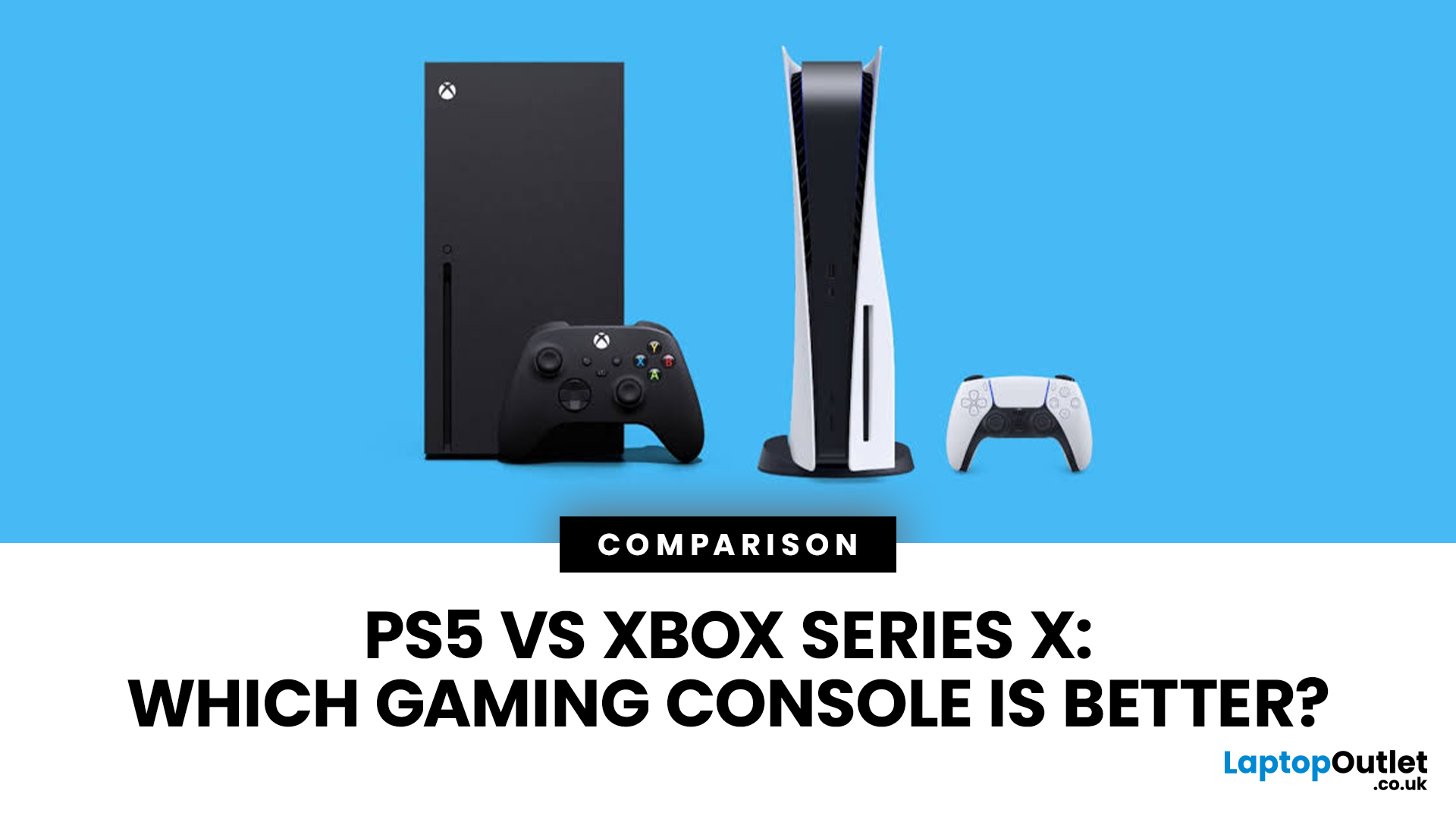
| PS5 vs Xbox Series X: Which Gaming Console is Better? |
| What are the pros and cons of a console vs. a steam deck? |
Related Articles


Last Updated: December 18, 2025
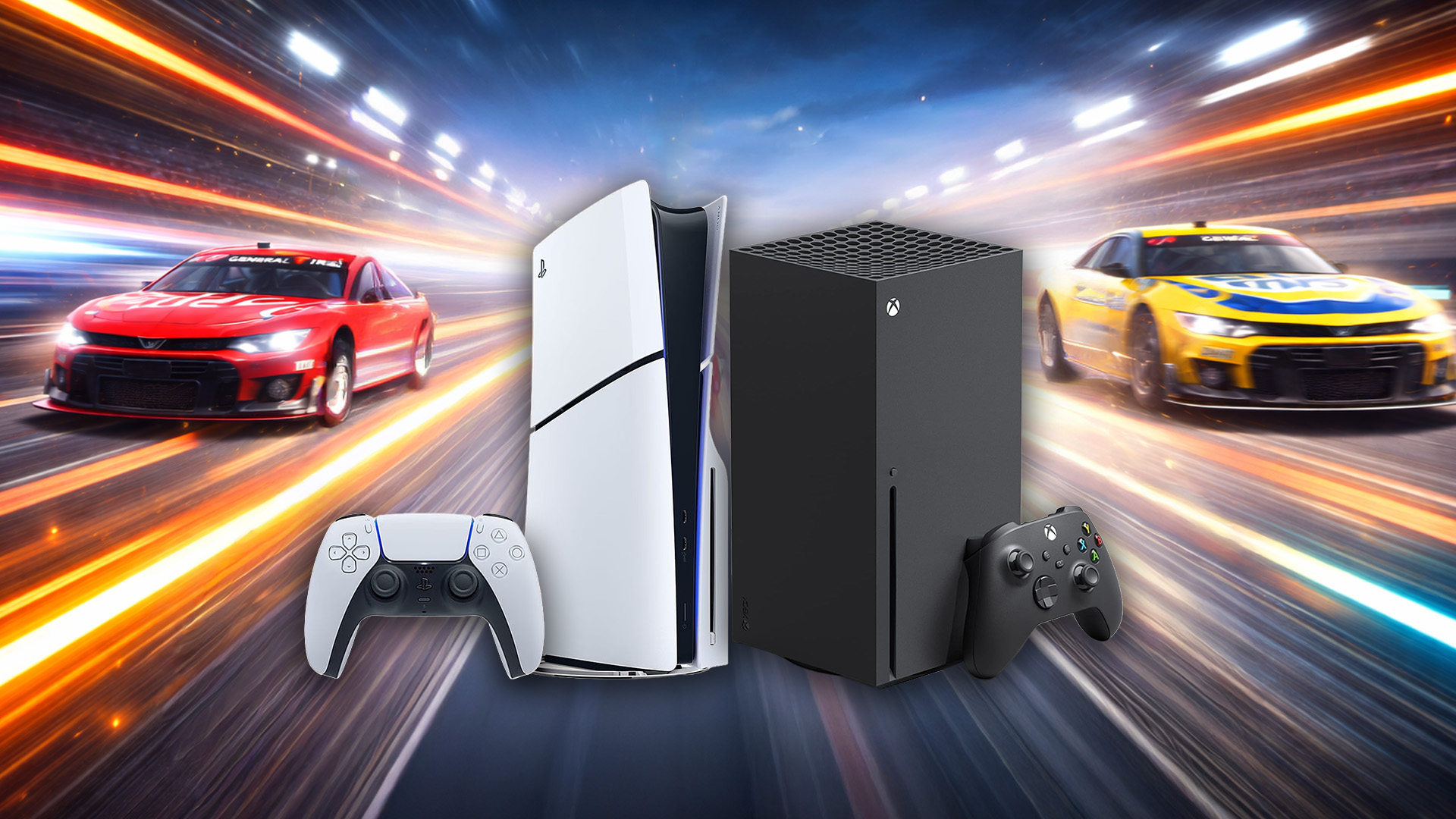
NASCAR 25 roared onto the track on 14 October 2025 for PS5 and Xbox Series X/S, with the PC launch arriving shortly after. For racing fans, this year’s instalment offers the most polished physics model yet from iRacing Studios, deeper car handling, and the return of a proper career mode.
And now the real question lands:
Which console actually gives you the best NASCAR 25 experience?
Is it the raw horsepower of the PS5, the ultra-stable output of the Xbox Series X, or… the Nintendo ecosystem?
Availability Note (Important Before We Go Further)
NASCAR 25 is currently available on PS5, Xbox Series X/S and PC. A Nintendo Switch or Nintendo Switch 2 version has not been announced.
Why Choosing the Right Console Matters for NASCAR 25
Racing games aren’t like platformers or RPGs - they’re precision environments where:
- frame pacing
- controller latency
- 120Hz refresh support
- multiplayer stability
- wheel compatibility
- graphics clarity
…all directly impact how competitive (and enjoyable) your experience
Last Updated: May 19, 2026
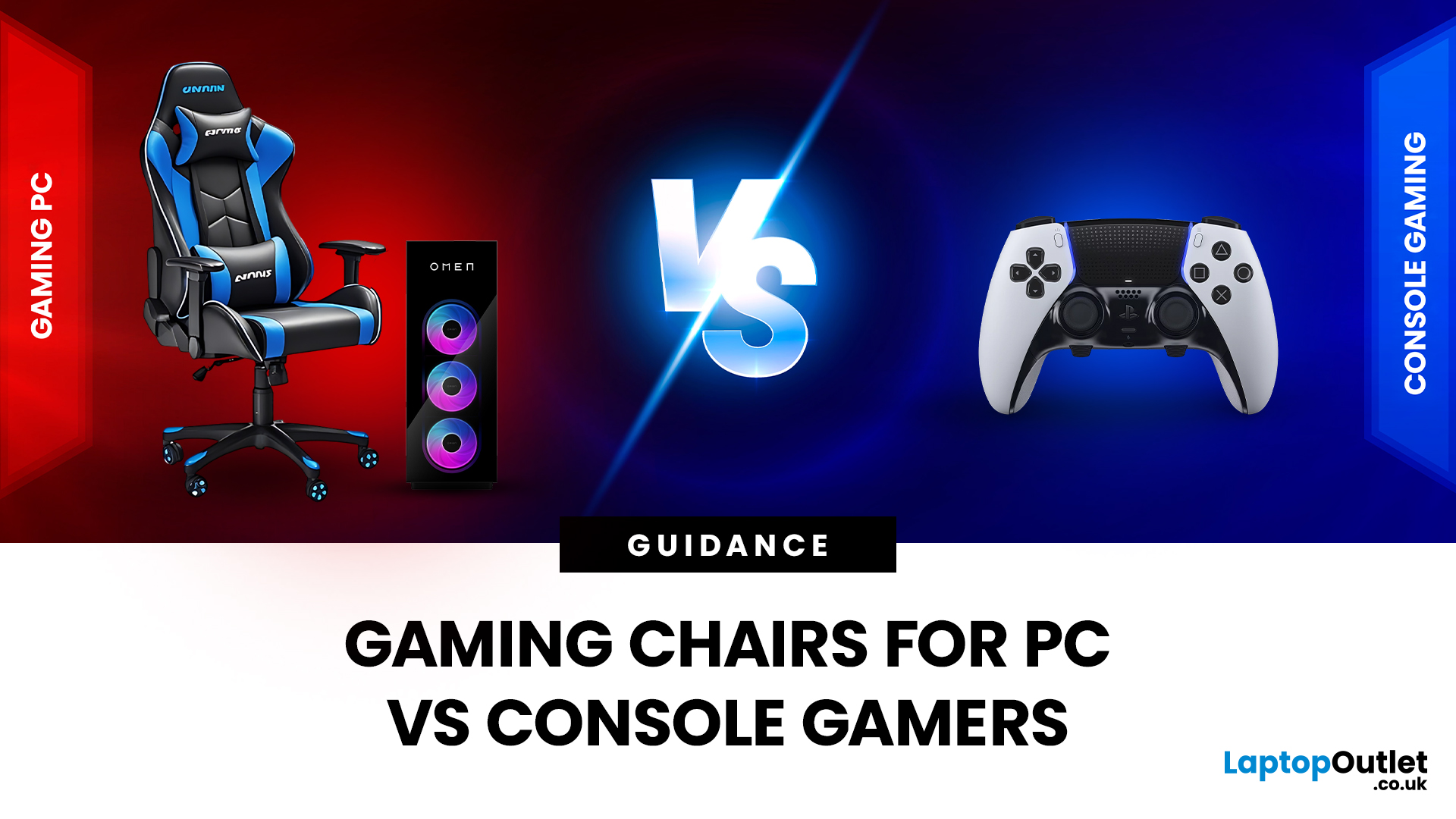
Choosing the right gaming chair is often treated as a cosmetic decision, colour, style, and whether it “looks gamer enough.” In reality, the chair you sit on has a far greater impact on your comfort, posture, and long-term health than many hardware upgrades.
For anyone deciding between gaming chairs for PC vs console, the choice is rarely straightforward. PC gamers and console gamers sit differently, play differently, and interact with their setups in completely different ways. A chair that works perfectly at a desk can feel awkward in a living room, while a recliner designed for console gaming can be unusable for mouse-and-keyboard play.
Why the Right Gaming Chair Matters More Than Ever
Modern gaming sessions are longer than they’ve ever been. Competitive multiplayer, open-world games, and live-service titles encourage extended playtimes, often lasting several hours at a stretch.
Sitting for long periods without proper support can lead to:
- Lower back pain
- Neck and shoulder tension
- Poor
Last Updated: April 14, 2026
Choosing the right monitor can genuinely change how you play. Whether you’re grinding ranked matches, competing in esports, or just kicking back on your console, your display has a direct impact on performance, clarity and overall experience.
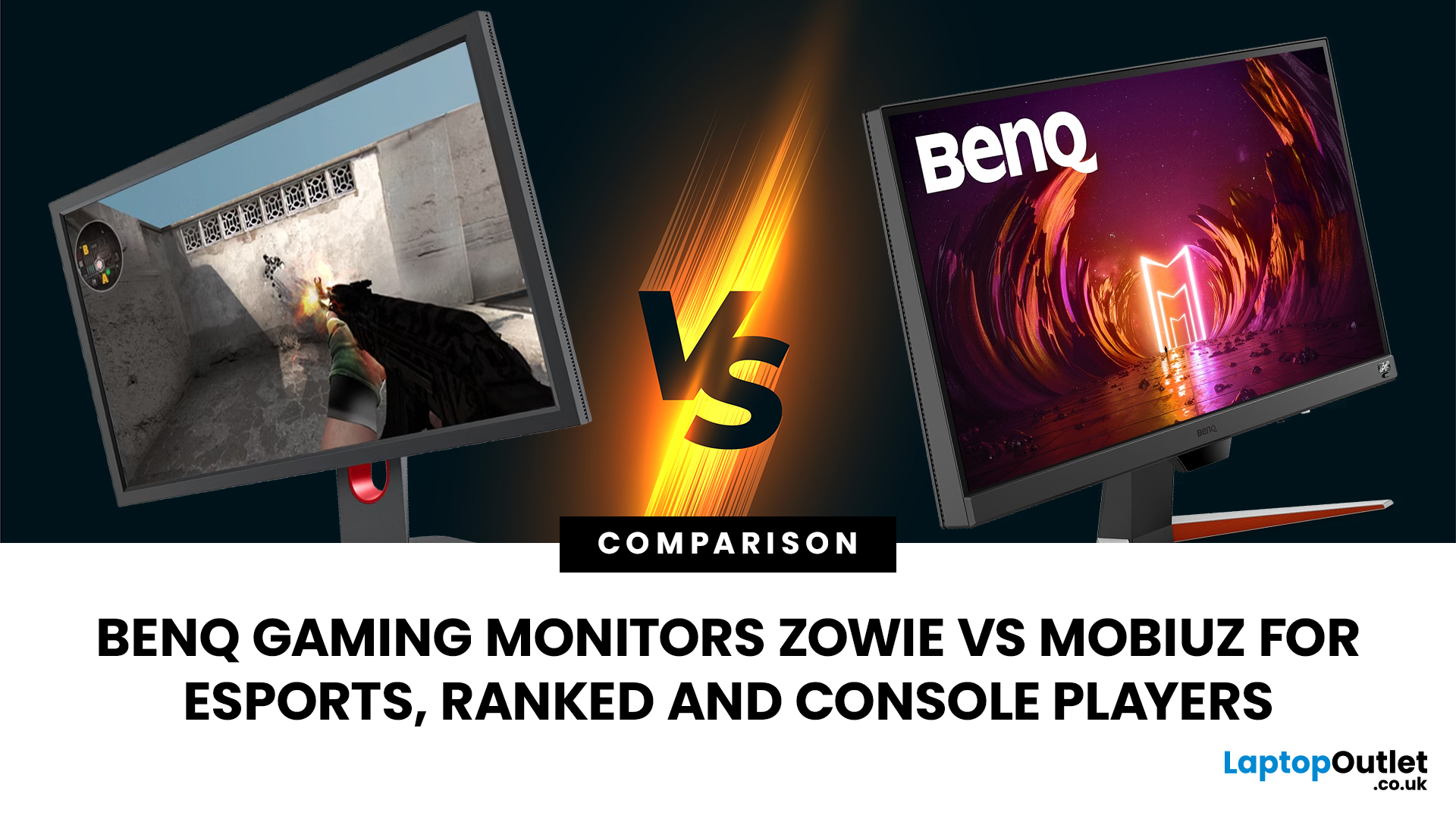
That’s where BenQ gaming monitors stand out. Known for precision engineering and gamer-first features, BenQ offers two standout ranges: ZOWIE and MOBIUZ. But when it comes to BenQ gaming monitors ZOWIE vs MOBIUZ, which one is right for you? Let’s break it down in a way that makes sense for how you play.
BenQ Gaming Monitors Explained
BenQ doesn’t take a one-size-fits-all approach to gaming. Instead, it splits its lineup into two clearly defined categories:
- BenQ ZOWIE esports monitors – built purely for competitive performance
- BenQ MOBIUZ gaming monitors – designed for immersive, all-round gaming
ZOWIE is about speed, precision and winning. MOBIUZ is about visuals, versatility and enjoying the full gaming experience. Both are excellent, but they serve
Last Updated: April 14, 2026
Picking the right gaming monitor is no longer as simple as choosing the biggest screen you can afford. Your setup matters, your platform matters, and the way you play matters even more. A monitor that feels perfect for a competitive PC player might not be the best fit for someone gaming on a PS5 or Xbox Series X.
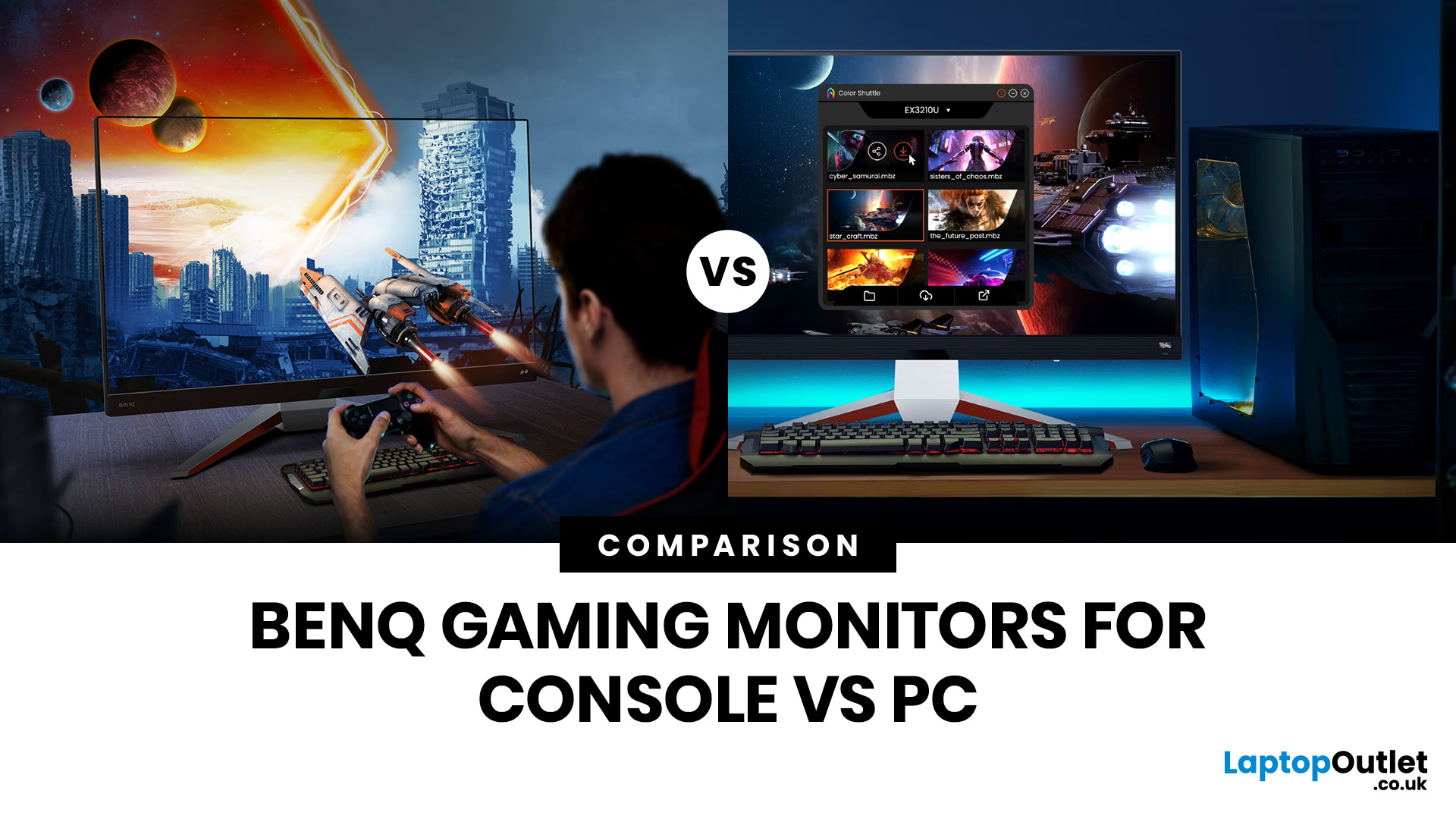
That’s exactly why choosing the right BenQ gaming monitor for console or PC comes down to more than specs on a product page. You need to think about refresh rate, resolution, connectivity and whether you care more about raw speed or immersive visuals.
BenQ makes that decision easier by offering two clear gaming monitor families. ZOWIE is built for fast, focused competitive PC play, while MOBIUZ is designed for players who want strong performance with more visual depth and better console-friendly features. If you’ve been stuck comparing 1080p, 1440p and 4K, this guide breaks it all down in a way that helps.
Do Console and PC Gamers Need Different BenQ Monitors?
Console and PC
Last Updated: September 01, 2026
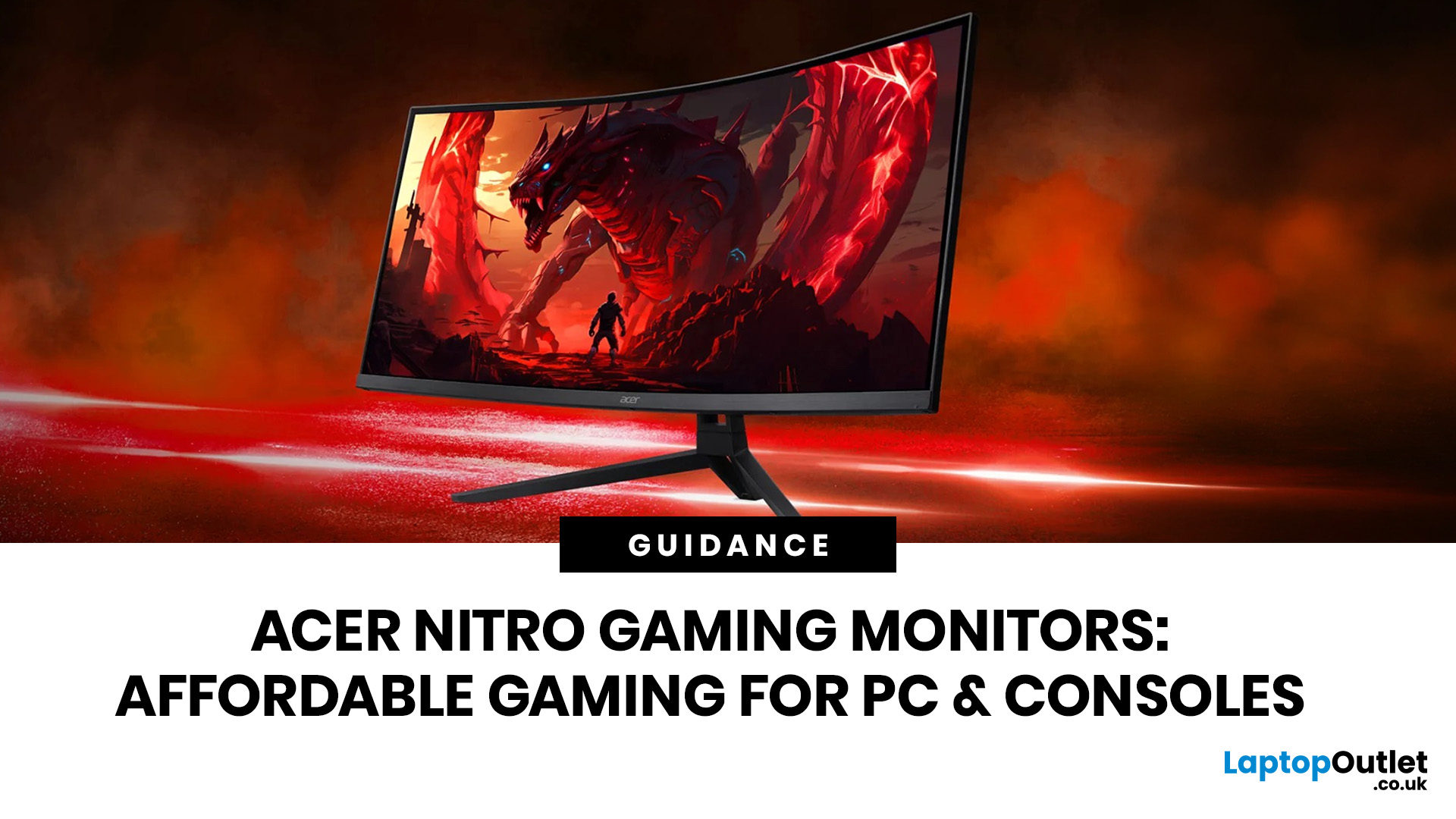
If you want smooth gameplay without jumping straight into premium OLED pricing, Acer Nitro gaming monitors are one of the easiest ranges to shortlist. Acer positions the Nitro line as a gaming family with options for fast-paced play, ultrawide immersion and richer colour, while Our Acer monitor range backs that up with Full HD, QHD, curved and ultrawide Nitro models aimed at buyers who want value, not just spec-sheet flexing.
That is exactly why Acer Nitro monitors UK shoppers keep coming back to the series. The range is broad enough to cover casual desk gaming, PS5 and Xbox setups, and entry-level PC esports, but it still stays realistic on price compared with high-end Predator and OLED alternatives. Nitro models from compact 23.8-inch Full HD panels up to 34-inch curved UWQHD displays, with refresh rates running from 120Hz to 240Hz.
Are Acer Nitro Gaming Monitors Good for Budget Gaming?
Yes. For casual gaming, console play and entry-level PC builds, Acer Nitro sits in a very practical
Last Updated: July 15, 2026
Buying a controller looks easy until you check the small print.
One pad works on PC but not PS5. Another works on Xbox but only wired. Some have Hall Effect sticks. Some have back buttons. Some look cool, then feel cheap after two weeks.
So, this guide keeps it simple. If you want the best gaming controller for your setup, start with where you play, then match the controller to the game type. Not the other way round.
This is a UK-first guide for PC, PlayStation, Xbox, fighting games, and flight sims. We’ll cover compatibility, comfort, wired vs wireless, stick drift, pro features, and which products actually fit each buyer.
Best Gaming Controller by Type at a Glance
| Type | Best fit | Why it makes sense |
| Best overall | ASUS ROG Raikiri II | Premium PC/Xbox wireless |
| Best controller for PC | Turtle Beach Stealth Pivot | Strong PC wireless pick |
| Best PS5 controller | Sony DualSense | Proper PS5 features |
| Best Xbox controller | ASUS ROG Raikiri Wired | Wired Xbox value |
| Best FPS controller | Razer Wolverine V3 | Fast esports |
Last Updated: July 21, 2026
Buying earphones should be easy. Then you open ten tabs, see words like “low latency”, “ANC”, “7.1 surround”, “hi-res audio”, “Bluetooth codec”, and suddenly every pair sounds either perfect or suspiciously overhyped.
The real issue is that the best earphones are not always the priciest. They are the ones that fit your use.
Music needs comfort and clear sound. Gaming needs low latency. Calls need a strong microphone. This guide explains how to choose the best earphones for music, gaming, calls, work and everyday
Last Updated: September 24, 2026
Last Updated: July 20, 2026
To fix a wobbly gaming chair, place it on a level floor, identify where the movement starts, then tighten the relevant bolts with the correct tool. Check the armrests, backrest brackets, seat mechanism, castors, five-star base and gas lift in turn. Replace any part that's cracked, bent or badly worn. Stop using the chair if its base, frame or height mechanism appears damaged.
Key takeaways
- Most gaming chair wobbling comes from loose fasteners, uneven castors, a poorly seated gas lift, or wear in the tilt mechanism.
- A small amount of movement in adjustable armrests or a rocking mechanism can be normal - it isn't automatically a fault.
- Tighten bolts evenly in sequence rather than forcing one bolt as far as it will go.
- Never drill, cut, heat or attempt to open a pressurised gas-lift cylinder.
- Replace the chair when the frame, base, or structural mounting points are cracked, distorted, or no longer secure.
Why does a gaming chair become wobbly?
In our experience, a wobble almost always starts
Last Updated: August 06, 2026

