



Review - Apple Mac Mini Slimline Desktop PC
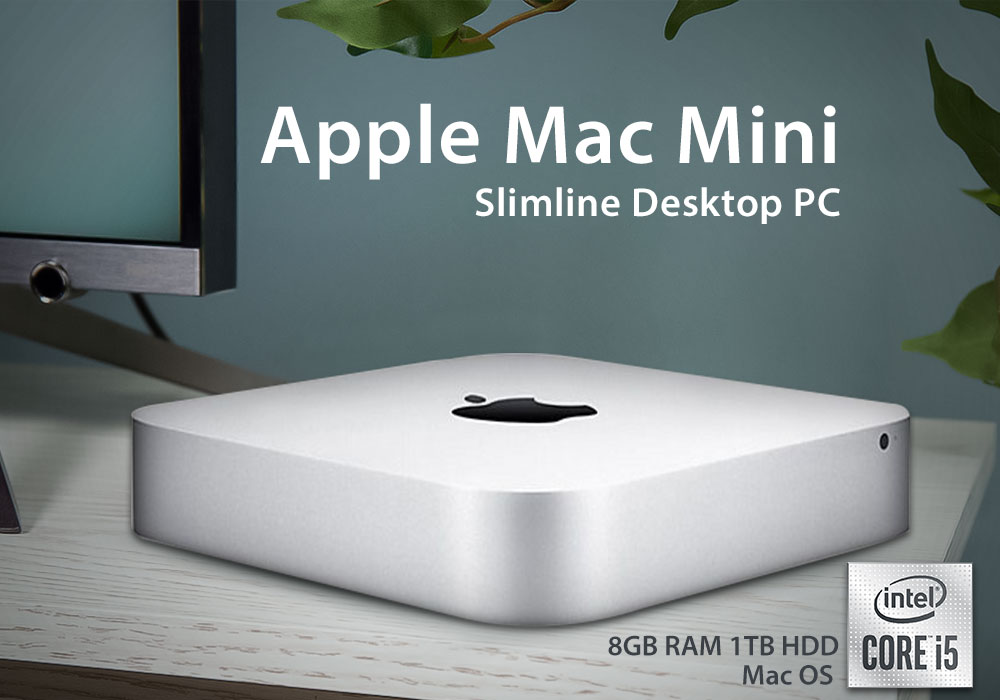
Apple’s Mac Mini design has been with us for over 15 years now. Even though it’s considered iconic by many of its fans, the Mac Mini still doesn’t get the recognition it deserves. That’s the case even though it influenced its rivals just as much as the MacBook Air.
The fact is that the Mac Mini inspired lots of other mini PCs and even influenced the TV streaming box market. We only have to take a look at some Apple TV models to conclude where the design elements were borrowed from.
Smartphones may be getting more powerful, but they’re still a long way off from replacing a proper desktop PC. The Mac Mini is one of the best Apple Mini PCs on the market. It’s still powerful enough to hold its own in the market, not to mention it’s one of the cheapest Apple computers. However, that’s assuming you already have a keyboard, monitor, and mouse.
Specifications
|
Processor |
Intel Core i5 (4th Gen) / 2.8 GHz |
|
RAM |
8 GB |
|
Storage |
1 TB HDD |
|
Graphics |
Intel Iris Graphics |
|
Operating System |
Mac OS X |
Design
Like the previous models, this Mac Mini gives you the complete OS X experience in a small, square box. It’s got an all-aluminium body with curved edges. The design exudes Apple’s trademark minimalism as you’ll only notice a power indicator and an Apple logo from the front.
The mini PC doesn’t take up much space as its only 7.7 x 7.7 x 1.4 inches and 2.6 pounds. You’ll be hard-pressed to find a smaller desktop for your table.
Performance
The Mac Mini has long been a popular office machine, and it’s easy to see why. Not only is it small but it also uses very low power. Apple says that the mini PC will consume just 6 watts of power in idle mode, making it one of the most affordable, energy-efficient PC on the market. Its near-silent operation indicates that as well.
Apple didn’t hold back this time as the premium mini PC is packing a fast Intel Core -5 processor, 8 GB RAM, and 1 TB Fusion Drive. We experienced short boot times - around 12-15 seconds - and instantaneous response from apps. Our review unit was able to handle basic entertainment and productivity tasks without a hitch. We played around with all kinds of apps while simultaneously streaming HD videos, and saw no noticeable delay or lag.
The graphics are handled by Intel Iris. It does a fairly good job, for the most part, but you shouldn’t expect it to run graphically demanding games at decent FPS. We were able to run Dead Island at only 19FPS on a low 1024 x 768 resolution. Team Fortress 2, based on a less-demanding engine, produced much better results and was able to run at 60FPS.
You can easily run Steam games and such, but anything more demanding would just be asking your graphics to bite off more than it can chew.
Connectivity
The Mac Mini may be small but that doesn’t stop it from having great connectivity. You’ll find an HDMI, SDXC card slot, four USB 3.0 ports, and audio-in and headphone jacks. But the most exciting additions are the two Thunderbolt 2 ports, which will let you experience fast data transfers and are ideal for 4K monitors.
The mini PC also has 802.11ac Wi-Fi support, as well as Bluetooth 4.0. Then there’s a rare Ethernet port to finish things off.
Software
The Mac Mini comes with the reliable OS X Yosemite. There are some useful tweaks made to the OS, but the device still works well with iOS devices.
Now you can answer calls and text from your desktop as long as your Mac and iPhone/iPad are connected to the same Wi-Fi network and logged in to the same iCloud account. Its Handoff feature will let you start writing an email, document, or text on an iOS device and finish it on a Mac. Or vice versa.
Yosemite resembles a cleaner, flatter, iOS 8. Its Calendar, Notification Center, and Safari have been revamped to look more like their mobile counterparts.
There are lots of built-in apps packed in the Mac. These include the usual suspects like GarageBand, Keynotes and Numbers, iMovie, Pages, etc. If these don’t tick all of your boxes then you can always download more apps from the Mac App Store.
Verdict
This Apple Mac Mini is one of the most powerful compact computers made by Apple. It saves energy, has a very compact design, and is a lot cheaper than the 21.5-inch low-end iMac. All things considered, it’s a pretty good deal.
Read more:
| Are MacBooks the go-to laptop for professionals? |
| What Desktop PC Should I Buy? Guide 2026 |
| How to Connect Two Monitors to a Laptop? |
Related Articles


Last Updated: July 01, 2025
Rename Your Mac in Seconds
Whether you just got a new MacBook or want to keep your devices organised, changing your Mac’s name is quick and simple. It helps when using AirDrop, Bluetooth, iCloud, or sharing files on a network. Here's exactly how to do it.
How to Change MacBook Name – Step by Step
1. Open System Settings
- Click the Apple Menu in the top-left corner
- Select System Settings (or System Preferences on older macOS versions)
2. Go to General > About
- In the left-hand menu, click General
- Then choose About
3. Click the Current Name
- At the top, you’ll see your Mac’s current name
- Click the name field to edit it
4. Enter a New Name
- Type in your desired name (e.g. “John’s MacBook Pro”)
- Press Enter to save it
Your MacBook is now renamed! This will reflect across iCloud, AirDrop, and local network sharing.
Why Change Your MacBook’s Name?
- Makes it easier to identify on a shared network
- Keeps AirDrop clear when using multiple Apple devices
- Helps with iCloud

Last Updated: July 01, 2025
Hidden Doesn’t Mean Gone
macOS hides certain system files and folders by default to keep things tidy and avoid accidental changes. But if you’re troubleshooting, customising settings, or managing storage, you might need to see those hidden files. Here’s how to find them quickly and safely.
1. Show Hidden Files in Finder with a Shortcut
The fastest way to reveal hidden files in macOS is through Finder.
Steps:
- Open Finder
- Go to any folder (e.g. Documents, Applications, etc.)
- Press Command + Shift + . (period)
Hidden files and folders will appear in grey
Press the shortcut again to hide them
2. Use Terminal to Show All Hidden Files
Prefer a more permanent method? Use the Terminal app to change system settings.
Steps:
- Open Terminal (use Spotlight with Command + Space > type "Terminal")
- Type the following command and press Enter:
- defaults write com.apple.finder AppleShowAllFiles -bool true
- Then type and run:
killall Finder
This restarts Finder with hidden
Last Updated: July 01, 2025
Take Your Mac to the Big Screen
Need to share a presentation, stream a video, or mirror your screen? AirPlay lets you wirelessly share content from your Mac to a TV or other Apple device in seconds. It’s built into macOS, and using it is easier than you think.
What You Need to Use AirPlay on a Mac
- A Mac running macOS Mojave or later
- An Apple TV or AirPlay 2-compatible smart TV
- Both devices connected to the same Wi-Fi network
1. Mirror Your Mac Screen with AirPlay
Steps:
- Click the Control Centre icon in the top menu bar
- Select Screen Mirroring
- Choose your Apple TV or smart TV from the list
- Enter the code displayed on your TV (if prompted)
Your Mac screen will now appear on your TV in real time
2. Stream Video from Mac to TV
If you're watching a video in Safari, QuickTime, or Apple TV:
Steps:
- Click the AirPlay icon in the video player (a rectangle with a triangle)
- Select your AirPlay-compatible device
- The video will stream directly to your TV, while controls

Last Updated: July 01, 2025
Capture Everything on Your Mac Screen
Whether you’re making tutorials, saving a livestream, or showing a tech issue, screen recording on a Mac is quick and easy. Best part? macOS has built-in tools—you don’t need extra software. Here’s exactly how to do it.
1. Use the Built-In Screen Recording Shortcut (macOS Mojave and later)
Steps:
- Press Command + Shift + 5
- A small control bar appears at the bottom of the screen
Choose:
- Record Entire Screen
- Record Selected Portion
- Click Record
- To stop recording, click the Stop button in the menu bar or press Command + Control + Esc
- Files are saved automatically to your desktop (by default)
2. Record Screen Using QuickTime Player
Steps:
- Open QuickTime Player from Applications
- Click File > New Screen Recording
- Click the Record button
- Choose to record the full screen or a portion
- Stop recording from the menu bar
QuickTime lets you add audio input if you want to record voiceover narration
3. Customize Your Screen Recording Settings
Before recording,

Last Updated: July 01, 2025
Master Multitasking on Your Mac
Need to work in two apps at once? Split screen on Mac lets you run apps side by side—great for research, editing, Zoom calls, or comparing documents. Here’s how to split screen on macOS the easy way.
Use Split View via the Green Full-Screen Button
Steps:
- Hover over the green full-screen button in the top-left corner of an app window
- Select Tile Window to Left of Screen or Tile Window to Right of Screen
- Your window will fill half the screen
- Choose another open app to fill the other side
This works on macOS Catalina and newer
Adjust Window Sizes Manually (Drag & Snap)
Steps:
- Click and hold the top of an app window
- Drag it to the left or right edge until the screen highlights
- Release to snap it into place
- Do the same with another window on the other side
This isn’t true Split View but offers a similar multitasking layout
Exit Split View
- Move your mouse to the top of the screen
- Click the green button in either window to exit

