



Best Selfie Mobiles with Good Front Camera (2023)

Taking selfies has become more of a regular thing than just being a trend. To make your selfie game strong, the most essential thing to do first is getting the best selfie camera phones. With a good camera comes other powerful features that you must have a look on before checking out best selfie mobile Phones.
In a World where selfie has become a daily routine and front cameras are considered an advancement in technology, choosing the best ones can be tedious. There is a whole wide variety of phones that equip incredible front cameras along with other specs. You need to be a little extra cautious while getting the ideal choice for you. There is no way brands are avoiding including the finest selfie smartphones, so we have an array of 5G handsets.
If you have already been in a hurdle, we have made it fairly easier for a lot of selfie lovers. In this article, we have accumulated the top best camera phones with finely packed front cameras. Now that most of the brands have started including 13MP/8MP front selfie cams, there are also the ones which come with 32MP lenses. Let’s find out more about them with our top 5!
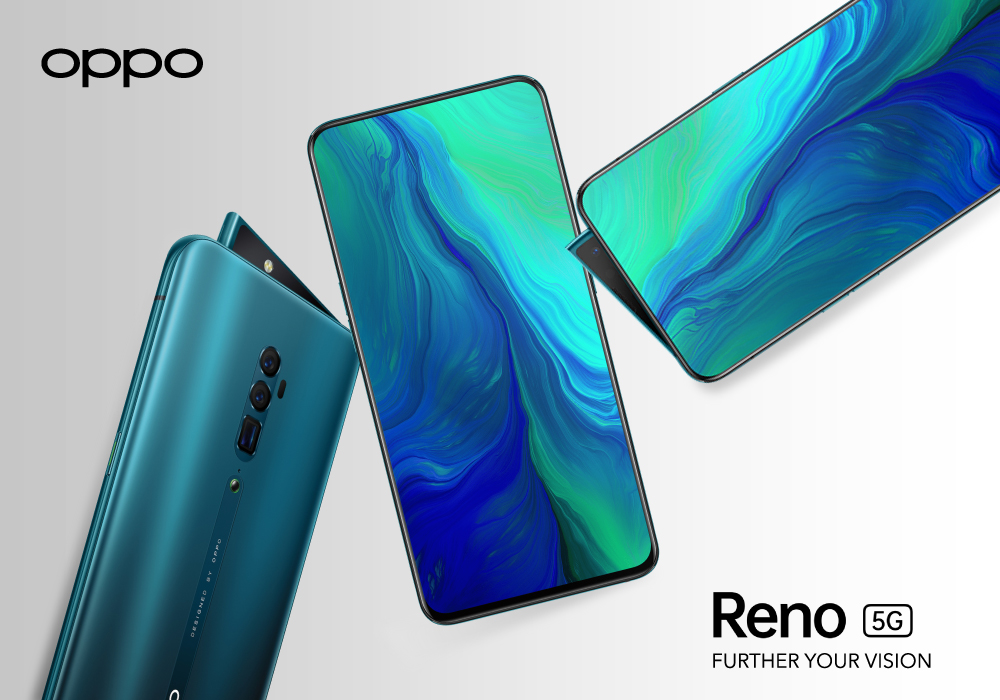
OPPO Find X3 Lite 5G
|
Front Camera: 32 MP |
|
Rear Camera: 64MP, 8MP, 2MP, 2MP |
|
Processor: Octa Core |
|
Screen Size: 6.4 in |
|
RAM: 8 GB |
|
Storage: 128 GB |
An almost premium mobile phone in a budget cost – this is exactly what you can expect from the OPPO Find X3 Lite. Its camera equipment remains to be its most highlighted specs integrated into it. The front camera is embedded with a 32 Megapixel lens which means you are going to have fantastic details.
While OPPO Find X3 Lite excels in its rear camera performance, its front camera does an equally impressive job. There is more than one mode included in the phone to make it even more interesting for the users. You can enjoy taking portrait shots from the selfie camera with accurate focus and no blending issues. OPPO is already known for its brilliant selfie cameras but with Find X3, you are going to enjoy the versatile features within its camera system.
Samsung Galaxy S21 Ultra 5G
|
Camera: Triple camera 12 MP 12 MP 64 MP |
|
Processor: Octa Core |
|
Display: 6.2 in, 2400 x 1080 |
|
RAM: 8 GB |
|
Storage: 128 GB |
|
Operating System: Android 11 |
The ultimate flagship premium mobile phone, Samsung Galaxy S21 performs supremely amazing in its front camera. Equipped with the incredible 108MP rear lens, the front camera does not come slow and has a smashing lens of 40 Mega Pixel. If you have been looking for the extremely incredible shots from your selfie camera, the S21 selfie is going to give you just that.
The Studio-like portrait mode included in the Samsung camera makes it nothing less than the most high-end DSLRs. Apart from its solid main specs’ integration, this mobile phone beats every other phone in the competition with its camera quality. Whether you need to shine bright like a diamond with your selfie portrait or enjoy taking low-light images with clarity, the 40MP delivers amiable results in both cases. There are modes like face lift, HDR, filters and effects that you can use for the extra kick of fun.
OPPO A74 5G
|
Front Camera: 16MP |
|
Rear Camera: 108MP |
|
Processor: Octa Core |
|
Display: 6.5 in, 2400 x 1080 |
|
RAM: 6 GB |
|
Storage: 128 GB |
|
Operating System: Android 11 |
The OPPO A74 simply outperforms especially when it comes to the camera array. Along with its massive main camera lens of 108 Mega Pixel, it does not disappoint with its 16MP selfie camera. Apart from having a solid processor, a good balance of RAM and storage, it doesn’t get away with its camera results.
The front selfie camera of A74 features 16 Mega Pixel lens, in accordance with the OPPO selfie trend. The unique design and colourful display definitely complement the camera to appeal the audience even more. The best thing about the front camera is its beautification mode where you can test and try multiple skin tones. There are particular effects and features added with the selfie camera including AI-mode, HDR, portrait and stickers. It also offers a decent low-light image so you can enjoy taking selfies in dark.
ASUS ROG Phone 5 ZS673KS-1A017EU
|
Rear Camera: 64MP, 13MP, 5 MP |
|
Front Camera: 24MP |
|
Processor: Octa Core |
|
Display: 6.7 in, 2400 x 1080 |
|
RAM: 16 GB |
|
Storage: 256 GB |
|
Operating System: Android 11 |
If you have only heard about the ASUS ROG as one of the best gaming phones, there is more to that. Its camera specs are as good as other features, in fact the pleasantly surprising for their results. In addition to being a classic power beast, the ASUS ROG Phone 5 does not fail to stun with its camera quality at all.
The ASUS ROG Phone qualifies for its camera results. The triple layer camera lenses on the rear side followed by the primary 64 Mega Pixel, 13MP and 5MP reveal crisp and clear images. But, coming straight to the actual subject, its front camera with 24 Megapixel lens has an efficient accuracy. The selfie camera is also able to capture video at 1080p@60fps, so if you enjoy vlogging, this is a good deal. In addition, you will find it to deliver bright results along with the HDR shooting modes and various lighting effects.
OPPO A54 5G
|
Rear Camera: 48MP, 8MP, 2MP, 2MP |
|
Front Camera: 16MP |
|
Display: 6.5 in, 2400 x 1080 |
|
4 GB RAM |
|
Storage: 64 GB |
|
Operating System: Android 11 |
Guess it’s not always about grabbing the expensive phone for getting the amazing camera results. There is a well-equipped midrange smartphone variety in the market that conquers with its performance and speed. The OPPO A54 cameras surpasses average user expectations with its Quad lens array at the rear side and a valuable AI selfie lens.
The front camera of 16 Megapixel lens has 26mm wide-angle and f/2 lens that captures two-way selfies in general. You can capture a normal sized selfie and a special selfie for more people in a single picture. The camera also has several modes including portrait, time-lapse, slow-mo, AI-beautification, night and more. In comparison to the other low-cost phones, the A54 camera stands out with its good detailing and crisp colours.
The Final Note
One thing that might be neglected about the front cameras is that we do not tend to alter the settings. If you notice and carefully observe, there are loads of settings that you can utilize to transmit better selfie results. To determine which of the front-facing cameras perform better in the android smartphones, our list was finalized after quite a thorough research. Everyone loves responsive and snappy selfies and what is better than to make a wiser decision before buying a good camera phone? Well, we hope we have made your next purchase convenient.
Laptop Outlet store online offers best deals on smartphones in the UK, in case you are looking to buy smartphones. People who reside in the UK can also avail free shipping on their mainland orders while students can get extra discounts.
Read more:
| Top 2 Best OPPO Phones for Photography and Videos |
| OPPO A15 Review: Price, Specifications, and Comparison |
| OPPO A53 – Faster, Smoother and Feel the Speed |
Related Articles

Last Updated: September 25, 2025
Last Updated: September 11, 2025
Last Updated: December 01, 2025
In an era dominated by digital photography, smartphones have become our go-to devices for capturing and storing precious moments. But mobile phones do not have enough space to keep these pictures for a longer run. Transferring these photos to a more secure and convenient platform, such as a laptop, is a common requirement. Whether you're looking to free up space on your phone, organise your photos on a larger screen, or create backups, transferring pictures from your phone to a laptop is essential. This comprehensive guide will explore various methods to accomplish this task seamlessly.
Using a USB Cable
A USB cable is one of the most straightforward methods to transfer photos from your mobile phone to a laptop. This method is widely applicable and works for both Android and iOS devices.
For Android Devices
- Connect your Android phone to your laptop using a USB cable.
- On your phone, enable the "File Transfer" or "Media Transfer Protocol (MTP)" mode.
- Open the file explorer on your laptop

Last Updated: October 02, 2025
Got iPhone Photos? Let’s Move Them
Snapped the perfect selfie? Captured your holiday vibes? Now you want to transfer those shots to your laptop—whether it’s for storage, editing, or sharing. We’ve got you covered with simple ways to transfer photos from iPhone to laptop—whether you’re using Windows or Mac.
How to Transfer Photos from iPhone to Windows Laptop
1. Using USB Cable & Photos App
- Connect your iPhone to your laptop using a Lightning to USB cable
- Unlock your iPhone and tap Trust when prompted
- Open the Photos app on your Windows laptop
- Click Import > From a USB device
- Select the photos you want and import
2. Using File Explorer (Manual Method)
- Plug in your iPhone and unlock it
- Open File Explorer > This PC > Apple iPhone
- Go to Internal Storage > DCIM
- Copy and paste photos to your laptop folder
3. Using iCloud Photos
- Enable iCloud Photos on your iPhone: Settings > Photos > iCloud Photos
- Visit iCloud.com and sign in
- Go to Photos, select images, and

