



Review: Asus VP228DE Eye Care 21.5-inch FHD LED Monitor
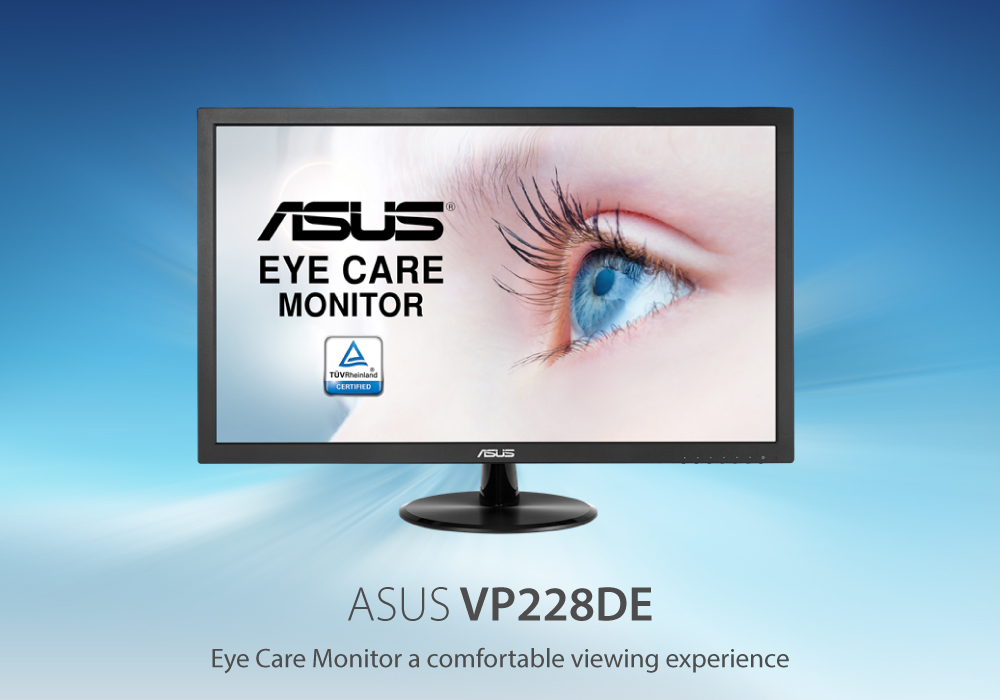
ASUS monitors are great for gaming and rank higher on the list of best displays. And although the focus of the brand is on gaming, ASUS also manufactures office monitors. These screens are good for both home and office users as well as creative professionals. The features of these ASUS monitors set them apart from their competitors. And one such feature is the Eye Care technology that ASUS advertise proudly.
ASUS VP228DE Eye Care is one such computer monitor for regular users. This 22-inch PC monitor is good for both office and home.
What is ASUS Eye Care?
The ASUS Eye Care offers safety against Blue light emissions and display flickers. The technology is useful for people who spend long hours sitting in front of monitor screens. ASUS Eye Care monitors are designed to reduce stress on your eyes and to ensure comfortable viewing. Thus, the technology diminishes the probability of Computer Vision Syndrome (CVS).
Our ASUS VP228DE Eye Care review covers the concise review of this display. We have evaluated its design, build quality, screen, and display quality.
ASUS VP228DE Eye Care Specs Review
Display: 21.5 inches Full HD (1920 x 1080)
Panel Type: LED
Aspect Ratio: 16:9
Brightness: 250 nits
Refresh Rate: 75Hz
Response Time: 5ms
Contrast Ratio: 100,000,000:1
Design & Build
During our ASUS VP228DE Eye Care review, we find it an average display by design. At a glance, it looks ordinary with a round base and screen that has thick bezels. You can tilt the stand but cannot adjust its height. The model we reviewed came in black colour with sturdy plastic chassis. Also, it is VESA mount compatible, which means you can hand this display monitor on walls.
Display Quality
ASUS VP228DE Eye Care makes the case with its brilliant display. The 21.5-inch screen covers its plastic body and dazzles with its quality. This is an anti-glare display with an IPS panel that promises Full HD quality. With an aspect ratio of 16:9, it offers 1080p visuals.
It offers a 5ms response time, 75Hz refresh rate and a high contrast ratio. In fact, its 100,000,000:1 contrast ratio is as high as a monitor display can deliver. By adjusting the luminance of the backlight, the display enhances the contrast to deliver lifelike images. So, you can view the brightest white and the darkest black corners of any image.
GamePlus Technology
The one feature that surprised us the most during our ASUS VP228DE Eye Care review was the ASUS-exclusive GamePlus technology. The GamePlus hotkey comes with timer and crosshair functions. Thus, you will be able to suit the gaming environment by picking four different crosshair types. Plus, the timer function will keep you aware of the elapsed time when you are playing real-time strategy games.
Conclusion: An Allrounder PC Monitor
We hope you are satisfied with our quick ASUS VP228DE Eye Care review. From all the budget ASUS monitors that we have reviewed so far, we found it appeasing. Although the screen size is not that big, it is still a good pick for 1080p gaming. You can use it for designing and running mid-level games, while the Eye Care technology will keep your eyes stress-free in the office.
Read more:
| Top 3 ASUS Chromebooks for Students |
| Top 3 HP Monitors 2023 |
| How to Clean Your Monitor and TV Screen |
Related Articles

Last Updated: February 23, 2026
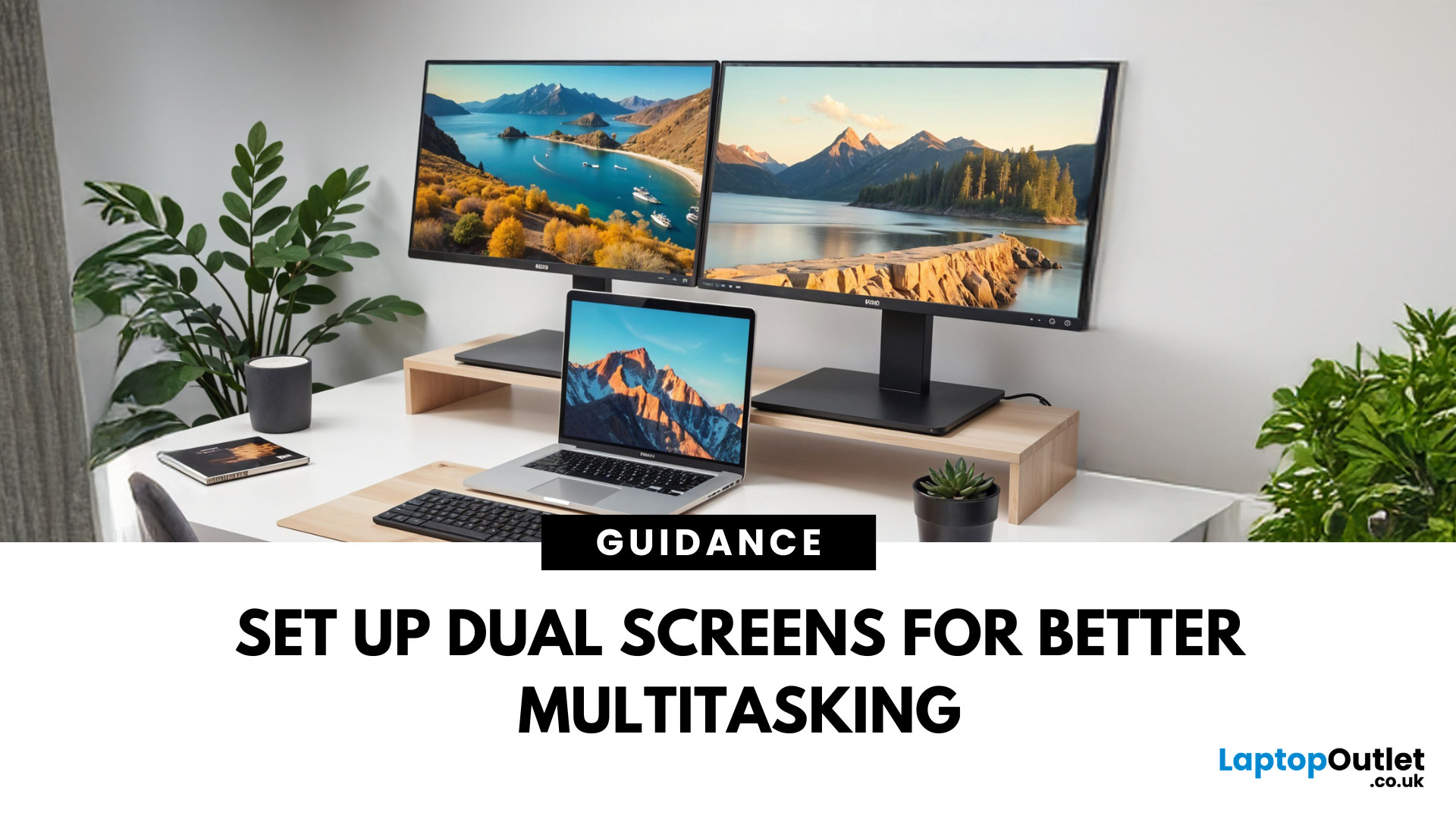
Feeling cramped on your laptop screen? Whether you’re a creative pro, a remote worker, or just need more screen real estate for multitasking—dual monitors are a total game-changer. Here’s how to connect two monitors to your laptop and level up your workspace.
What You’ll Need to Connect Two Monitors
Before you dive in, make sure you’ve got:
- A laptop with multiple display outputs (HDMI, USB-C, DisplayPort, Thunderbolt)
- Two external monitors
- Compatible cables or adapters (HDMI, VGA, USB-C, DisplayPort)
- Optional: Docking station for easier setup
Step-by-Step: How to Connect Two Monitors to a Laptop
1. Check Your Laptop’s Ports
Look at the sides of your laptop—do you have two separate video outputs (e.g., HDMI + USB-C)? If not, you might need a USB-C hub, docking station, or display splitter.
2. Plug in the First Monitor
- Connect your first monitor to the laptop using an HDMI, VGA, or DisplayPort cable.
- Turn on the monitor and make sure it’s set to the correct input source.
Last Updated: August 25, 2026
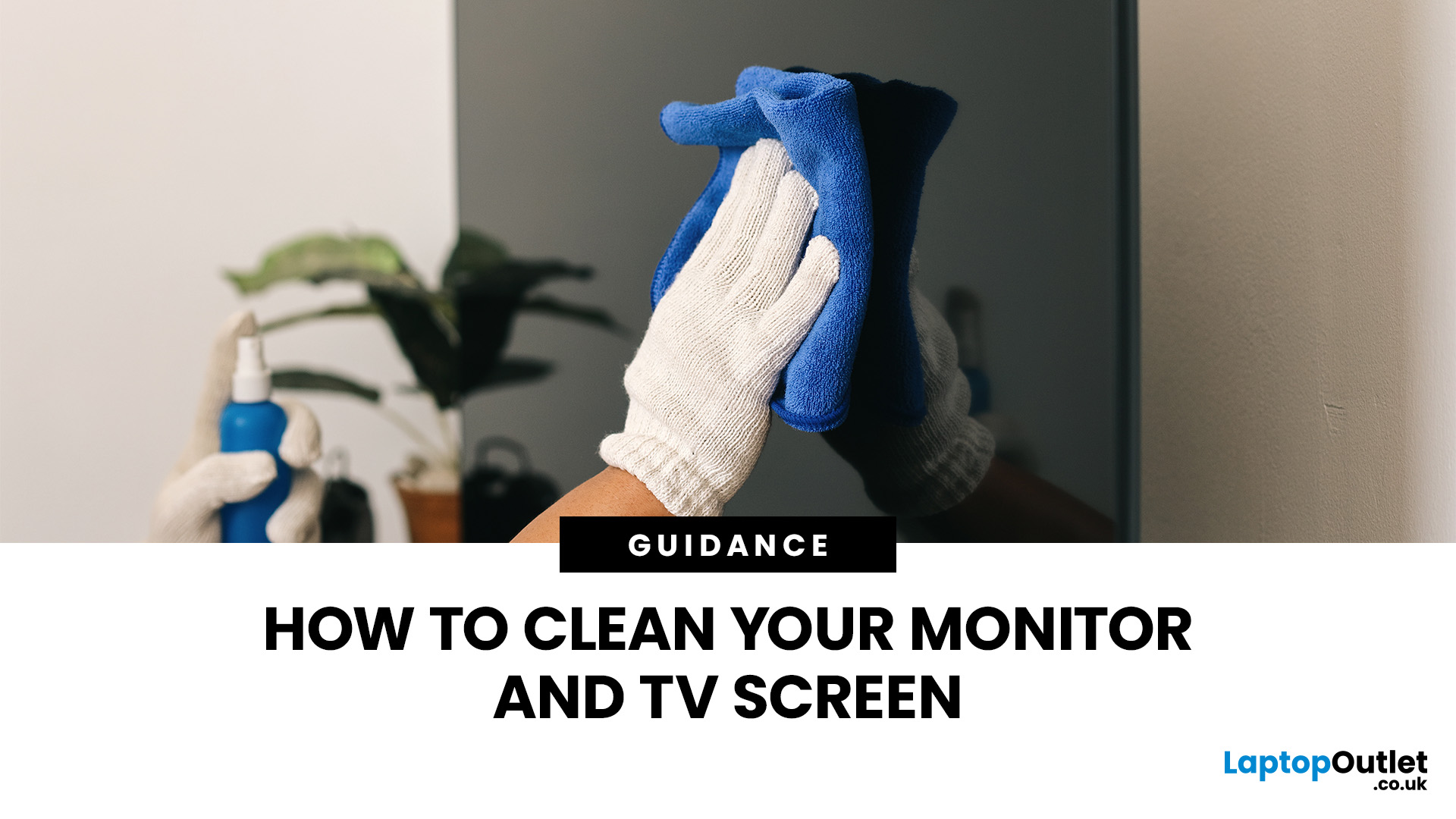
Dust, fingerprints and smudges can make even a high-resolution display look dull. Fortunately, you can clean monitor at home safely with a soft cloth, a small amount of suitable liquid and the right technique.
To clean a monitor screen safely, switch it off and unplug it. Wipe away dust with a dry microfibre cloth. For fingerprints, lightly dampen the cloth with distilled water and wipe gently. Never spray liquid directly onto the screen or apply strong pressure. Avoid paper towels, window cleaner and ammonia, as they can scratch the display or damage its protective coating. Let it dry completely before reconnecting and switching on.
The safest method is to begin with a dry microfibre cloth and use distilled water only when necessary. Never spray cleaner directly onto the screen, apply strong pressure or use rough materials that could damage the panel or its protective coating.
What Do You Need to Clean a Monitor Screen?
Before cleaning your monitor, gather the following items:
- A clean,

Last Updated: October 02, 2025
Screen Flipped? Don’t Panic!
Accidentally hit a key combo and now your screen’s upside down? Or maybe you actually need to rotate your monitor for work or reading mode? Either way, we’ve got you. Here’s how to rotate your monitor screen on purpose—or fix it if you didn’t.
How to Rotate Your Monitor Screen on Windows
There are two quick ways to rotate your screen on a Windows laptop or PC:
Option 1: Use a Keyboard Shortcut
- Ctrl + Alt + Up Arrow – Normal landscape
- Ctrl + Alt + Down Arrow – Upside-down
- Ctrl + Alt + Left Arrow – Rotate left
- Ctrl + Alt + Right Arrow – Rotate right
Pro Tip: These shortcuts work on most Windows PCs with Intel graphics.
Option 2: Use Display Settings
- Right-click anywhere on the desktop
- Click Display Settings
- Scroll to Display orientation
- Choose Landscape, Portrait, Landscape (flipped), or Portrait (flipped)
- Click Keep changes to confirm
How to Rotate Your Screen on macOS
Rotating your screen on a Mac is easy too—but not all Macs

Last Updated: August 25, 2026
Size Matters for the Ultimate Display
So, you’re shopping for a new monitor and keep seeing things like 24-inch, 27-inch, or 32-inch LCD—but what do those numbers actually mean? If you’ve ever wondered how monitor size is measured (and what matters most), we’ve got you. This guide breaks it down in a way that makes sense.
How Monitor Size Is Measured
Monitor size refers to the diagonal length of the screen—not the width or the height. This is measured in inches, from one corner of the viewable screen area to the opposite corner.
Quick Tip: Bezel (the plastic frame around the screen) isn’t included in the measurement—only the actual display area counts.
How Are LCD Screens Measured?
- LCD (Liquid Crystal Display) screens are measured exactly the same way as other monitors: diagonally from corner to corner.
- Whether it's a laptop screen, external monitor, or TV—if it’s an LCD, it’s measured diagonally.
- The measurement doesn’t include the casing—just the visible screen.
Example:

