



How to Add Xbox Game Pass, Steam, and Epic to the ROG Ally Home Screen
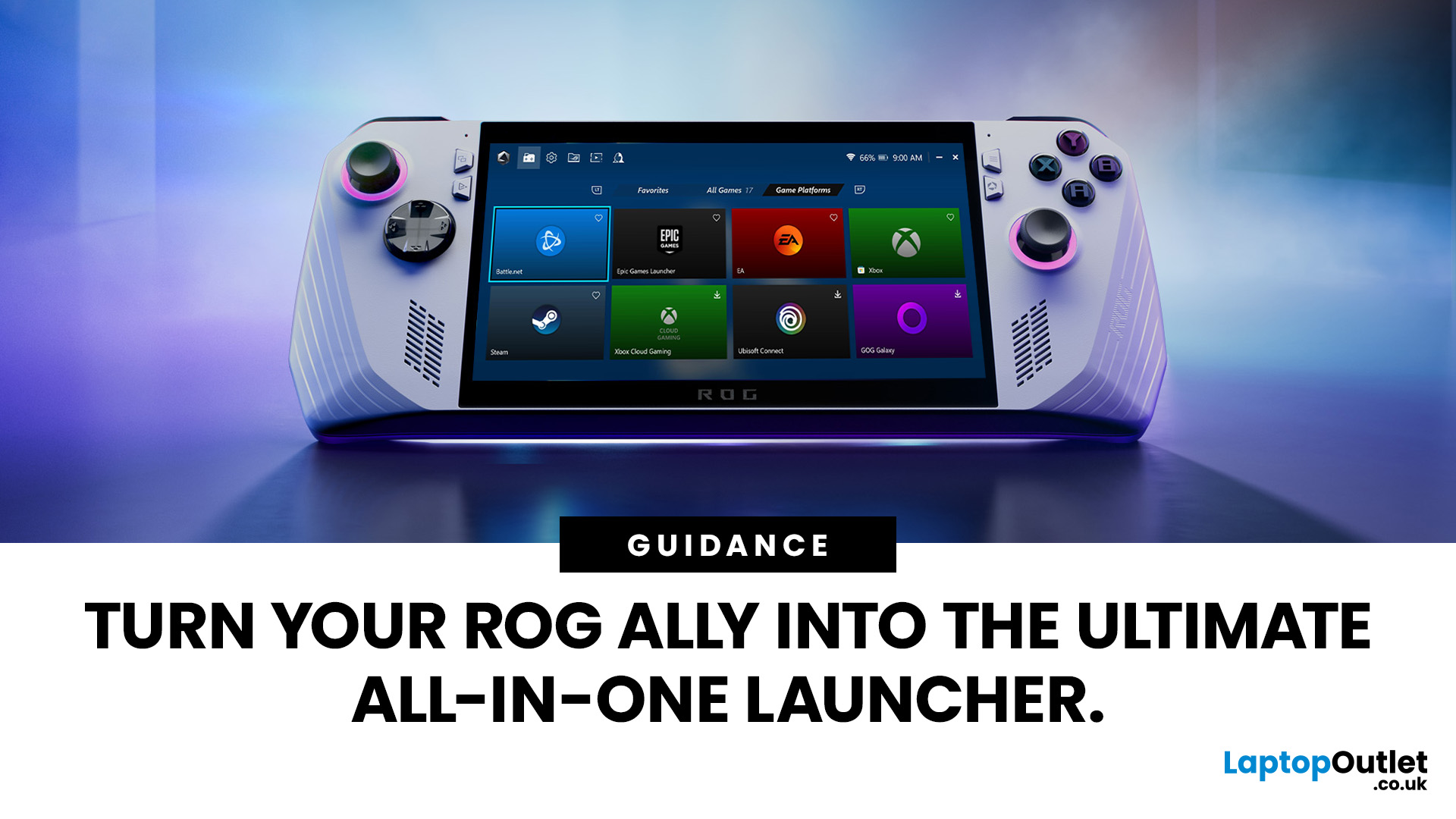
If you’ve just unboxed your ASUS ROG Ally, your first question might be: how do I get all my launchers - Xbox Game Pass, Steam, Epic Games, into one unified view?
Ally runs Windows 11, but its front-facing UI is Armoury Crate SE, which provides a console-like experience. Armoury Crate SE auto-scans installed games and apps, lets you pin games or launchers, and offers control-mode switching and performance profiles. Note that while many units ship with Game Pass integration or promotional offers, that can vary by region or bundle.
Here’s how to set everything up properly and reliably.
Understanding the Armoury Crate SE Home Screen
- Armoury Crate SE is your central “hub” - it aggregates games, apps, and hardware settings in one interface, so you rarely must go back to the Windows desktop.
- Every title on the home screen is a shortcut to a game or application. Some are auto detected (e.g. Xbox App/Game Pass), while others must be added manually (like Steam or Epic).
- You have control: you can rename tiles, reorder them, or change their icons for a tidy look.
Adding Xbox Game Pass to the Home Screen

This is usually the simplest one.
- If not already installed, open Microsoft Store → search “Xbox App” (Game Pass) → install it.
- Launch Armoury Crate SE → Library → Add Game (or “Add”).
- In the list of installed apps, find Xbox App and check it (tick/select).
- Confirm. The Xbox App tile now appears on your home screen.
Tip: Before launching, open the Command Centre → Control Mode and set it to Gamepad Mode. That helps ensure controller input works properly in the Xbox App.
Adding Steam to the Home Screen
- Open File Explorer → go to
C:\Program Files (x86) \Steam\ (or wherever Steam is installed). - Locate Steam.exe. Right-click → Create Shortcut.
- (Optional) Move that shortcut to your Desktop for convenience.
- Open Armoury Crate SE → Library → Add Game.
- Use “Add Non-Listed Game” or “Browse” to reach the shortcut you made (e.g. on Desktop).
- Select it, rename it if desired, and confirm. Now Steam appears as a tile.
You can also change its icon: right-click the shortcut → Properties → Change Icon and point to the Steam icon file.
Adding Epic Games Launcher to the Home Screen

- Download and install the Epic Games Launcher from epicgames.com.
- In File Explorer, navigate to
C:\Program Files (x86) \Epic Games\Launcher\Portal\Binaries\Win64\ - Locate EpicGamesLauncher.exe. Right-click → Create Shortcut, move it to Desktop (or somewhere easy to browse).
- In Armoury Crate SE → Library → Add Game → Add Non-Listed Game, browse to and select the Epic shortcut.
- Rename if desired, confirm. Now Epic Launcher is pinned.
- (Optional) Change the tile’s icon via the shortcut properties.
Note: The Epic launcher’s UI is not always fully controller native. You might need to use the cursor (joystick/mouse) or map inputs via Armoury Crate’s Game Profiles.
Polishing Your Home Screen
- Reorder tiles by long-pressing in Armoury Crate SE - put your most-used ones first.
- Use a consistent icon style to make the layout look clean (flat icons, official logos, etc.).
- Add game-specific shortcuts if you launch some games directly; point the shortcut to the game .exe and pin it.
- Create performance profiles in Armoury Crate (Settings → Performance) and assign them per launcher:
- Xbox/Game Pass → Balanced
- Steam → Turbo
- Epic / lighter games → Silent or Balanced
Be cautious: in practice, automatic switching per launcher may not always work perfectly, so test them.
Here’s a simple setup guide:
|
Launcher |
Recommended Mode |
Why It Works |
|
Xbox Game Pass |
Balanced Mode (15–20W) |
Perfect for most PC Game Pass titles, keeps temps under control. |
|
Steam |
Turbo Mode (25–30W) |
For AAA games like Starfield, Cyberpunk 2077, or Baldur’s Gate 3. |
|
Epic Games Launcher |
Silent or Balanced (10–15W) |
Ideal for indie games or less demanding titles. |
Performance, Controllers & Stability Tips
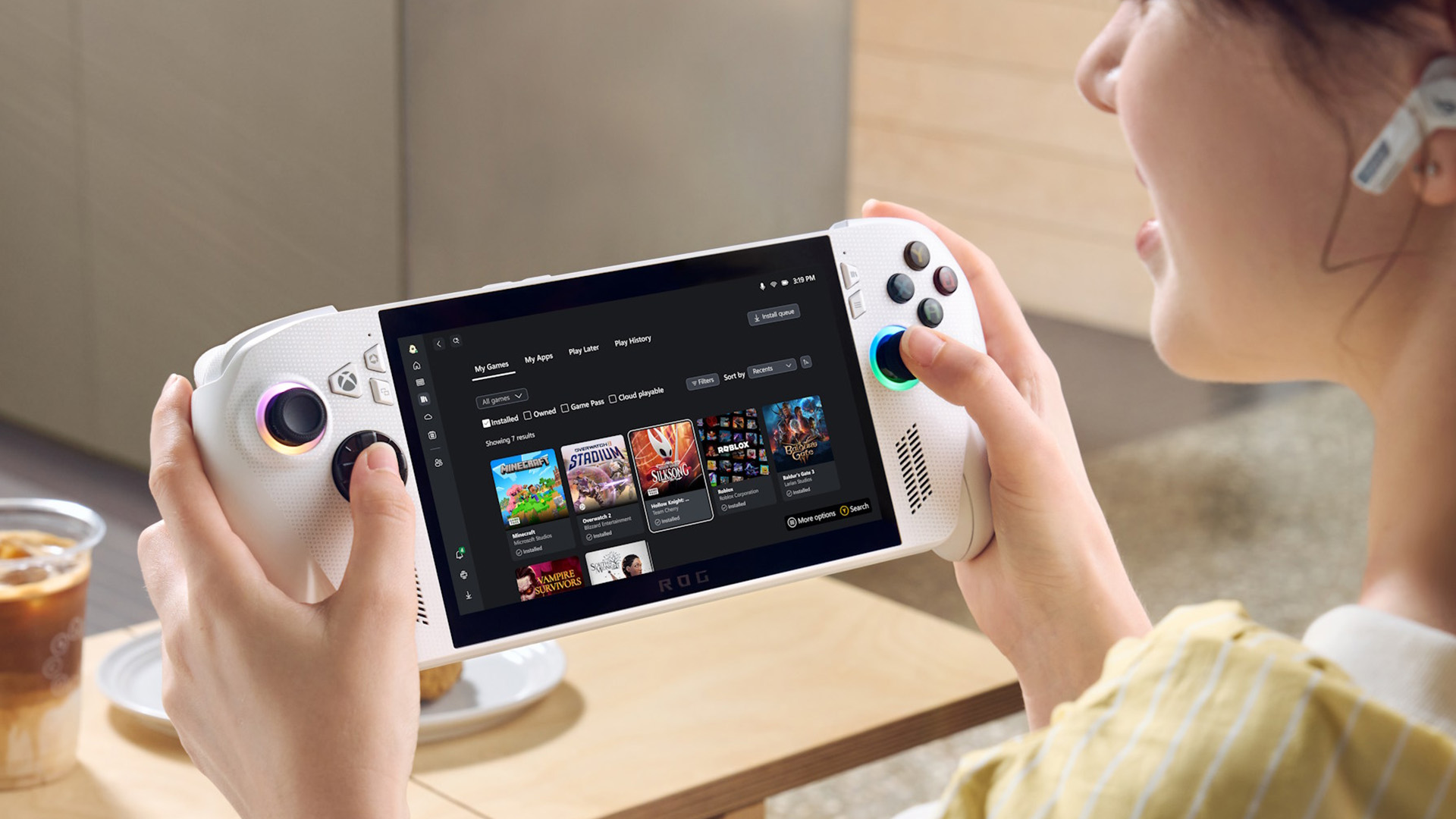
Controller Input Sync
- Always set Control Mode → Gamepad in the Command Centre before launching a launcher.
- If a launcher (especially Epic) does not detect controller input, toggle to Desktop Mode and back to Gamepad Mode.
- In Steam settings → Controller, enable Xbox Configuration Support to ensure games properly detect controller input.
Power / Battery Management
- The Ally can drain fast on high performance. Adjust settings:
- Drop refresh rate (e.g. to 60 Hz)
- Reduce brightness
- Cap FPS in Armoury Crate or in-game
- Use MyASUS Battery Health Charging to cap charging at 80% for longevity
- For battery efficiency, use Balanced / Silent modes for less demanding titles.
Armoury Crate SE Optimization
- Clean up duplicate or stale entries in Library → Manage Games
- Turn on Quick Launch (Settings → General) to accelerate start-up time
- Use custom images for tile banners for personalization
Troubleshooting Common Issues
|
Issue |
Potential Fixes |
|
Armoury Crate doesn’t detect Steam or Epic |
Make sure they’re installed on your primary drive (C:). Use Library → Scan for Installed Apps. If that fails, manually Add Non-Listed Game. |
|
Controller works in Game Pass but not Steam |
Check Steam’s controller settings (enable Xbox support), restart Steam, ensure Control Mode is Gamepad. |
|
Games open in windowed or desktop mode |
In the launcher’s settings, set display mode to Fullscreen or Borderless. Then relaunch via Gamepad mode. |
|
Shortcuts break after updates |
Paths may change after updates. Re-scan or re-add the shortcut. Backup your Armoury Crate profile via Settings → Backup/Restore. |

Quick Answers for a Smoother ROG Ally Setup
Do I need to install Steam or Epic from Microsoft Store?
No. They are standard Windows apps. Just download them from their official sites and add them manually.
Why does my controller stop working when switching launchers?
Likely because you're still in Desktop Mode. Go to Command Centre → Control Mode → Gamepad Mode, then relaunch. If needed, toggle Desktop → Gamepad to force detection.
Can I pin other launchers (GOG Galaxy, Battle.net, Ubisoft)?
Yes. Any app with Windows .exe can be added the same way (create shortcut → Add Non-Listed). This method works for most launchers.
Why doesn’t Epic open in full Gamepad navigable mode?
Epic’s UI has limited native controller support currently. You may need to use the joystick as a cursor, touchscreen, or set up custom mappings.
Will my shortcuts survive Windows updates or resets?
Usually yes but not guaranteed. If paths change or Armoury Crate resets, you may have to re-add entries. Use Backup / Restore Profile in Armoury Crate Settings to save your layout.

One Home Screen, Endless Games
With the steps above, you can turn your ROG Ally into a clean, one-tap gaming console that feels every bit as intuitive as a dedicated handheld. By pinning your Xbox Game Pass, Steam, and Epic Games launchers directly to the home screen, everything you play sits neatly in one place - no need to dig through Windows or search for shortcuts. Make sure your controller mode is correctly set to Gamepad before launching, fine-tune your performance profiles for each platform, and use a few clever battery-saving tweaks to keep your sessions running longer.
If you run into the occasional quirk, most fixes come down to quick mode toggles or a library rescan inside Armoury Crate SE. Once it’s all set up, jumping between Halo on Game Pass, Baldur’s Gate 3 on Steam, and Fortnite on Epic feels seamless - no desktop clutter, no hassle, just pure gaming at your fingertips.
| Read More: |
| Xbox Game Pass on the ROG Xbox Ally 2025: The Ultimate Handheld Combo? |
| ASUS ROG Xbox Ally (2025) RC73YA-NH002W Review |
| 10 Things to Know Before Buying the ROG Xbox Ally (2025) |
Related Articles

Last Updated: September 02, 2026
Have you got your hands on an Xbox console and wondering how to set it up with a PC monitor? Let's find out some of the best ways to connect the Xbox with a monitor.
Xbox is widely used among those who require their computers for gaming because of its convenient usage and ability to connect to a PC. You may have thought of connecting the Xbox to a computer to get an immersive experience, but it might be possible to get intimidated by all those ports, wires, and cords in the Xbox.
This article will explain the best and easiest methods of connecting the Xbox with the PC monitor. So, let's dive right into it!
How do You Connect an Xbox to a Computer Monitor?
Enhancing the gaming experience by connecting the Xbox with the larger display is a brilliant move to get improved refresh rates, high resolutions, and better colour reproduction in online games.
As per the recommendations of Microsoft, the Xbox Series X or S should be in a detachable position with almost a 10 to 15 cm distance between
Last Updated: October 14, 2025
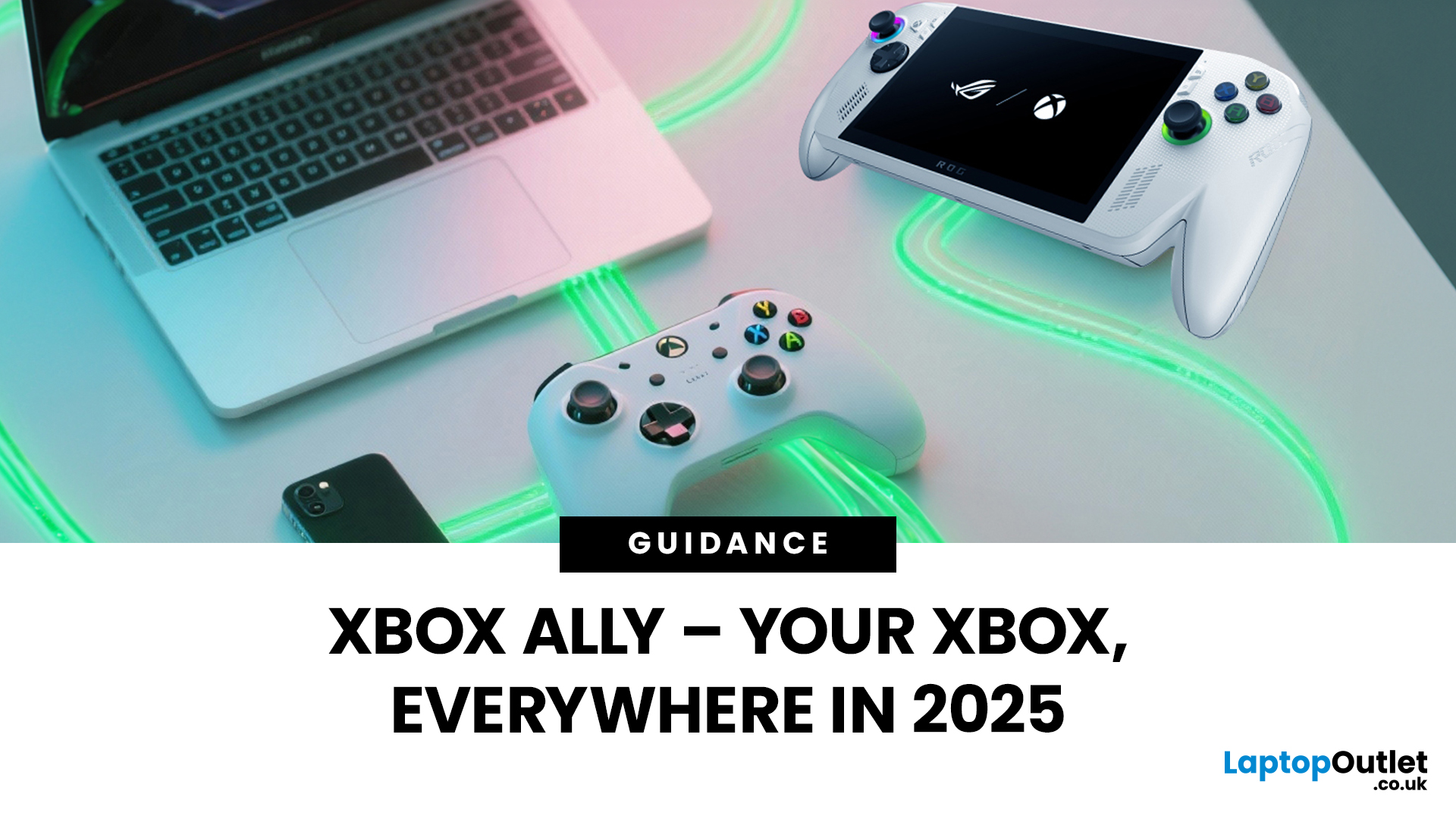
You’ve probably clocked the name ASUS ROG Xbox Ally floating around. But here’s the deal: it’s not just another Xbox app - it’s born from a Microsoft x ASUS collab, blending console power with PC freedom. Phil Spencer even called it “the tightest collaboration between Xbox and Windows teams in 30 years”. Big words, and honestly, the hype feels justified.
That’s why we’ve put together this Xbox Ally review - not the boring, corporate kind, but a proper walkthrough that shows you what it does, how it works, and whether it’s worth your time in 2025.
If you’re already knee-deep in the Xbox ecosystem or just nosy about where Microsoft’s headed, this is the lowdown you need.
What Is Xbox Ally?

Right, let’s cut through the noise. Xbox Ally isn’t just some side app you download, mess about with once, and then forget exists. It’s Microsoft’s latest move to glue the whole Xbox ecosystem together - console, PC, mobile, even handhelds like the ASUS ROG Xbox Ally (2025). Basically, it’s the command
Last Updated: July 03, 2026
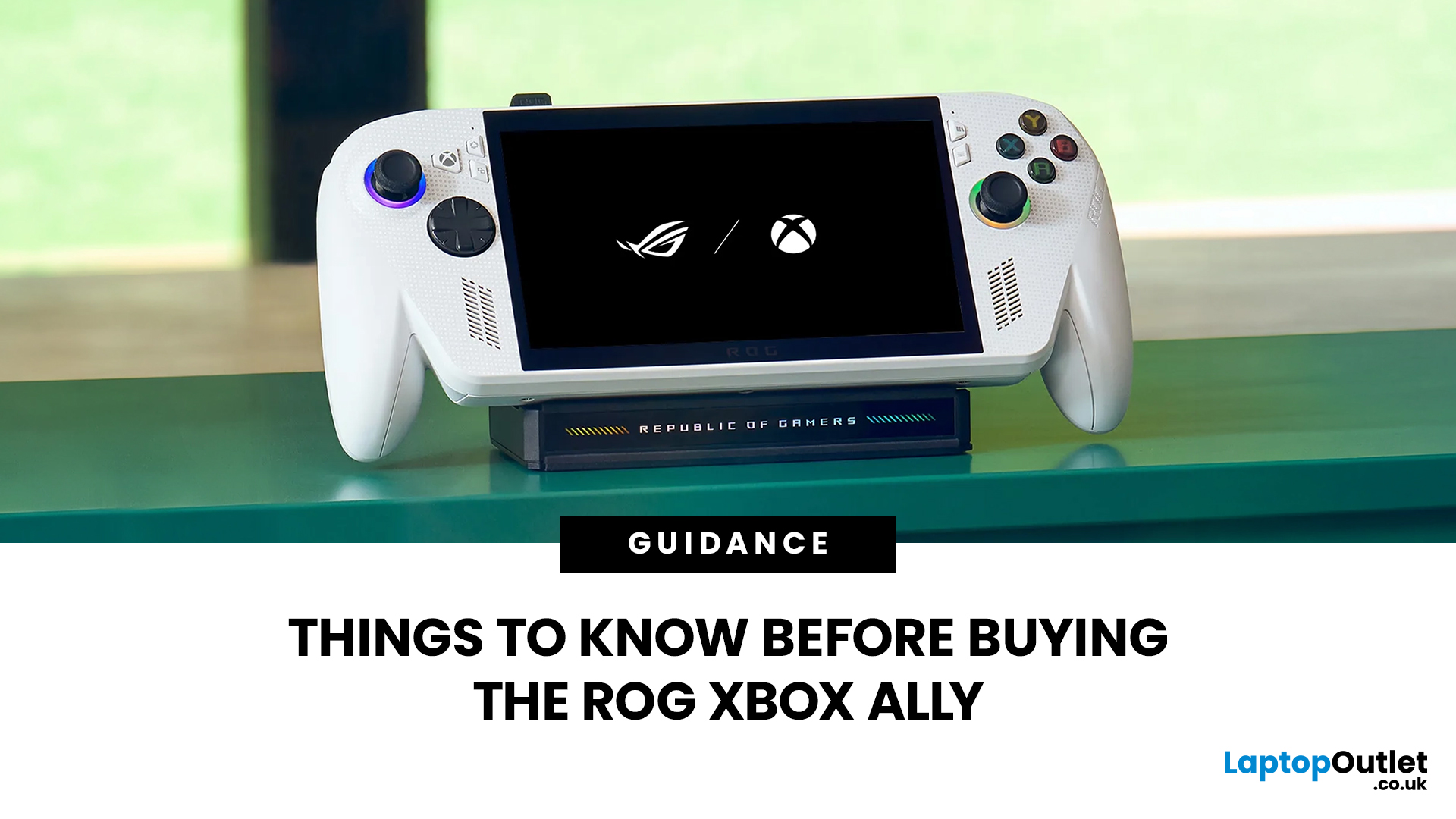
The ROG Xbox Ally is ASUS's latest handheld gaming console, built in collaboration with Xbox. It combines ASUS's ROG hardware expertise with Microsoft's gaming ecosystem, and it has been making waves in the UK gaming community since its launch in October 2025.
Whether you are a weekend warrior or a competitive gamer, this device promises a lot. But is it actually worth your money?
This guide covers everything you need to know before buying: UK pricing, hardware specs, real-world performance, battery life, and honest pros and cons. No fluff. Just the facts you need to make a smart purchase.
1. Design and Build Quality
Feels Solid, Not Plasticky
The ROG Xbox Ally has a premium polycarbonate shell with a matte finish that resists fingerprints well. The build feels genuinely robust in hand. It doesn't feel cheap or toy-like.
- Weighs 1.47lbs (approximately 667g), well balanced for long sessions
- Chunkier, more ergonomic grips than most competing handhelds
- Subtle ROG eye and Xbox sphere co-branding
Last Updated: April 02, 2026
Hands-on Verdict: Ryzen Z2 a Performance, Thermals & Value
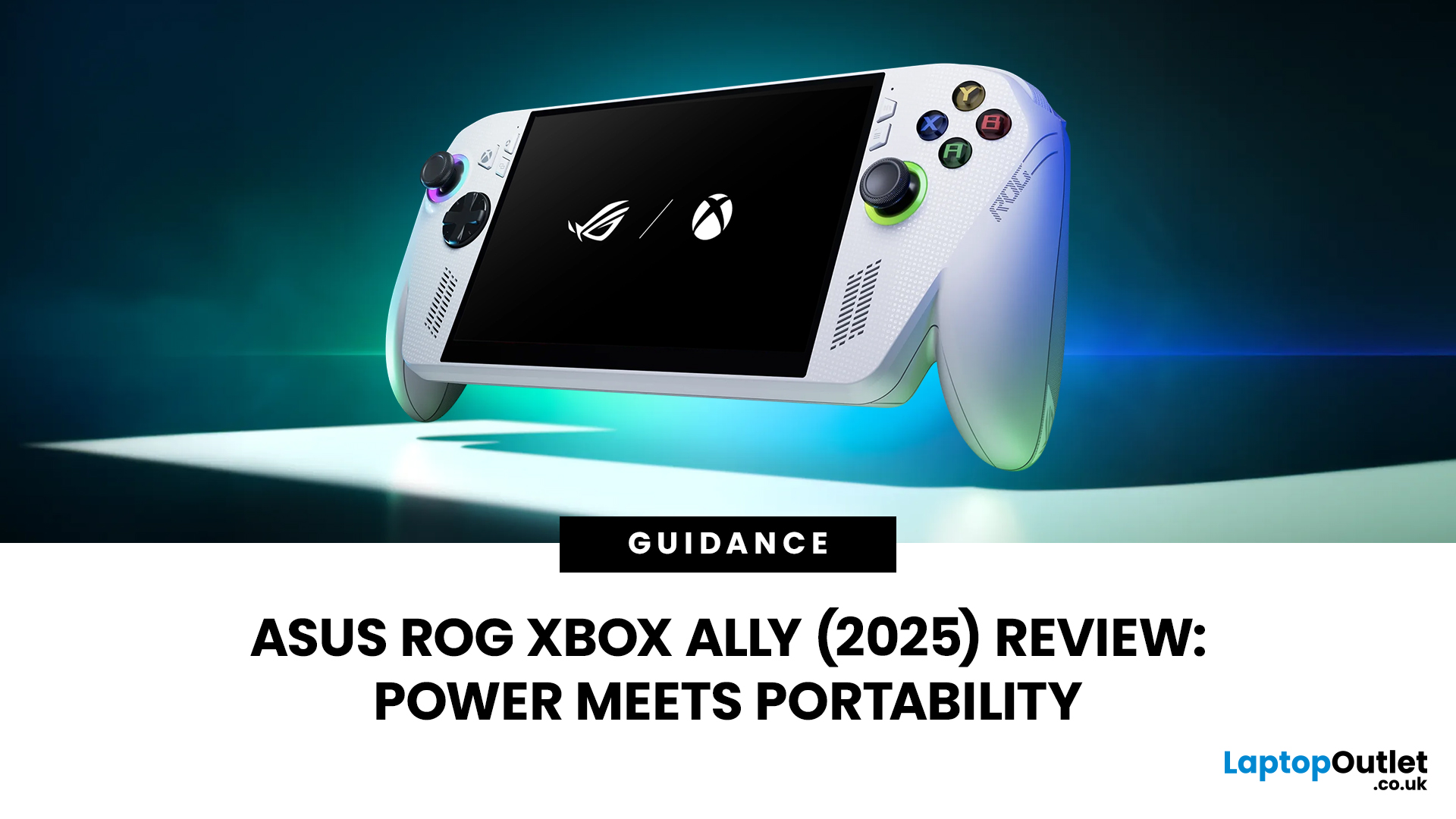
When ASUS first launched the ROG Ally in 2023, it was a statement, Windows handheld gaming done properly. But three years later, we’re looking at something subtler: refinement. The 2025 ROG Xbox Ally (RC73YA-NH002W) swaps its original Ryzen Z1 Extreme for AMD’s Ryzen Z2 A — a newer, cooler, and more efficient APU built on Zen 5 and RDNA 3.5 architecture.
The question isn’t whether the Ally is still good - it’s whether this revision is worth the upgrade for existing owners or the clear pick for newcomers. After three weeks of daily use, testing everything from Game Pass titles to Steam AAA releases, here’s the full verdict.
1. Design & Build Quality — Lighter Touch, Same DNA
The 2025 Ally doesn’t reinvent its chassis. At 608 grams, it’s still comfortably lighter than the Steam Deck OLED, with the same 7-inch 120 Hz Full HD display, tactile hall-effect sticks, and well-spaced face buttons.
Subtle tweaks make it nicer to live with:
Last Updated: March 04, 2026
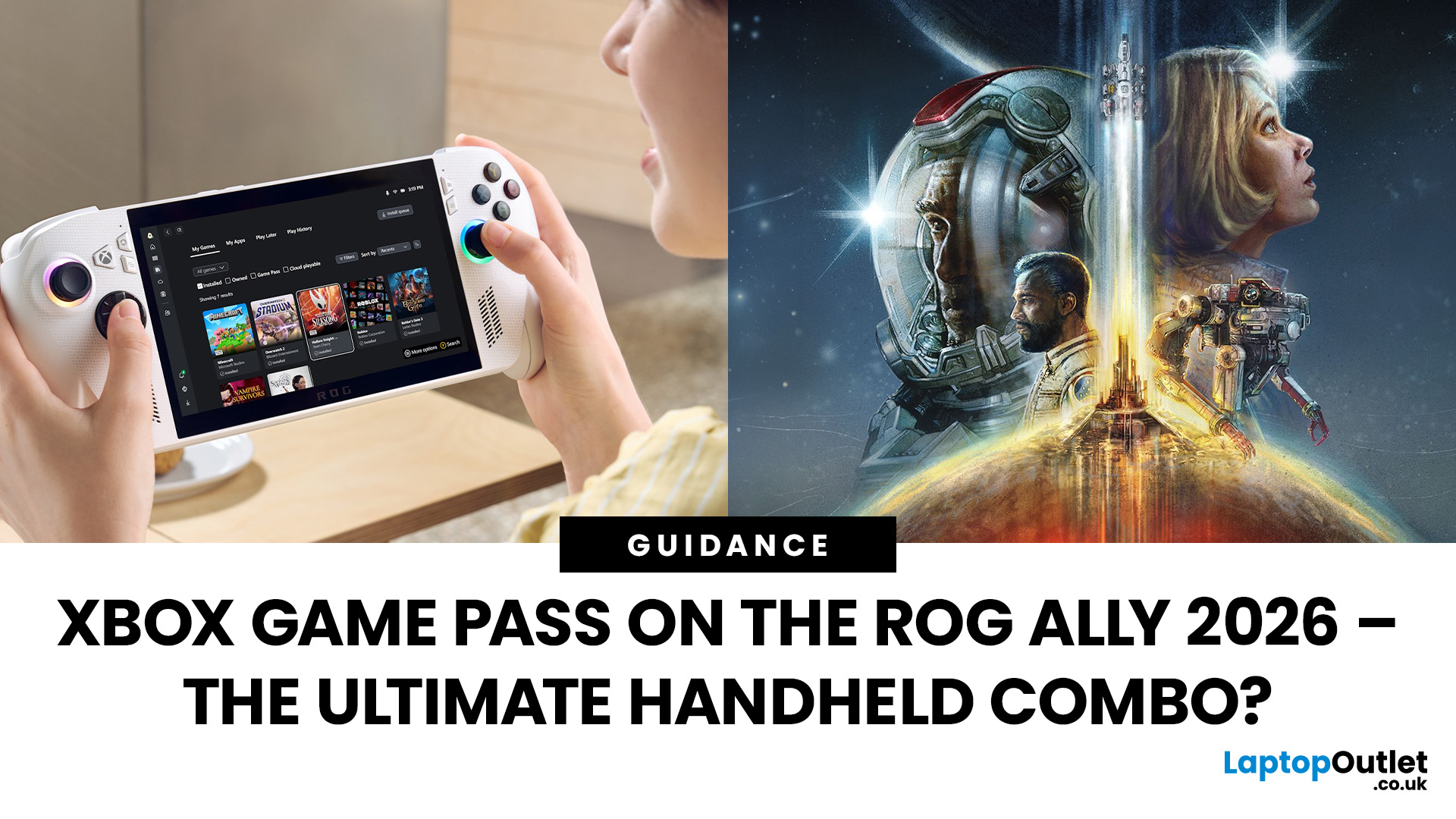
When ASUS and Microsoft teamed up to introduce the ROG Xbox Ally, it wasn’t just another handheld - it was a statement. A Windows 11 machine built from the ground up to feel like a handheld, but with no compromises on compatibility. And if there’s one service that bridges console, PC, and cloud play better than almost any other, it’s Xbox Game Pass.
In 2026, pairing Game Pass with Ally feels almost inevitable. The idea of carrying your full Game Pass library - Halo Infinite, Forza Horizon 5, Pentiment, Starfield - in a pocketable device is no longer fantasy. Load times shrink, cloud saves sync across devices, and Game Pass titles optimized for PC run (often better) on handheld hardware. The Ally’s design leans into this: ASUS stripped down Windows, layered on its Xbox Full-Screen Experience, and baked in controller-first navigation, so the transition from console to handheld is seamless.
But is this more than a promising spec sheet? Can Game Pass truly deliver a console-grade handheld experience

